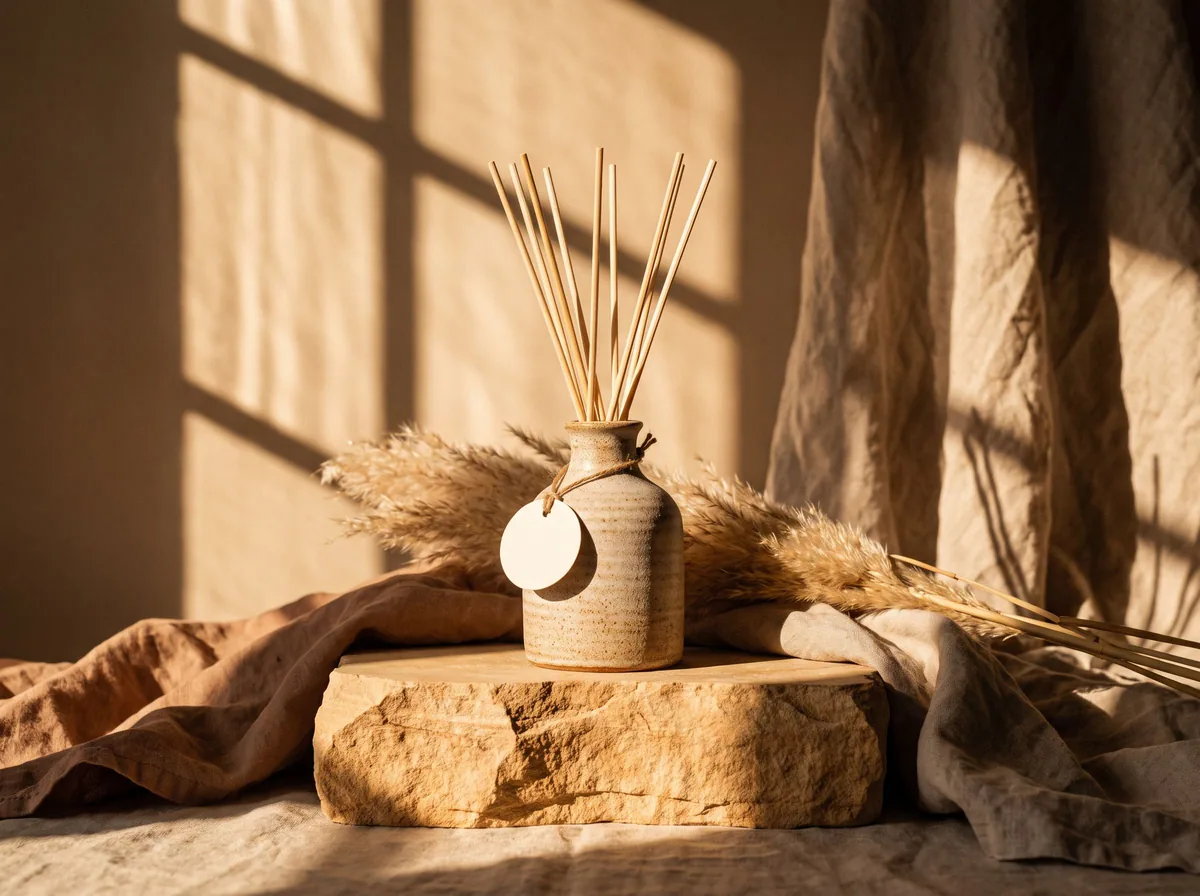
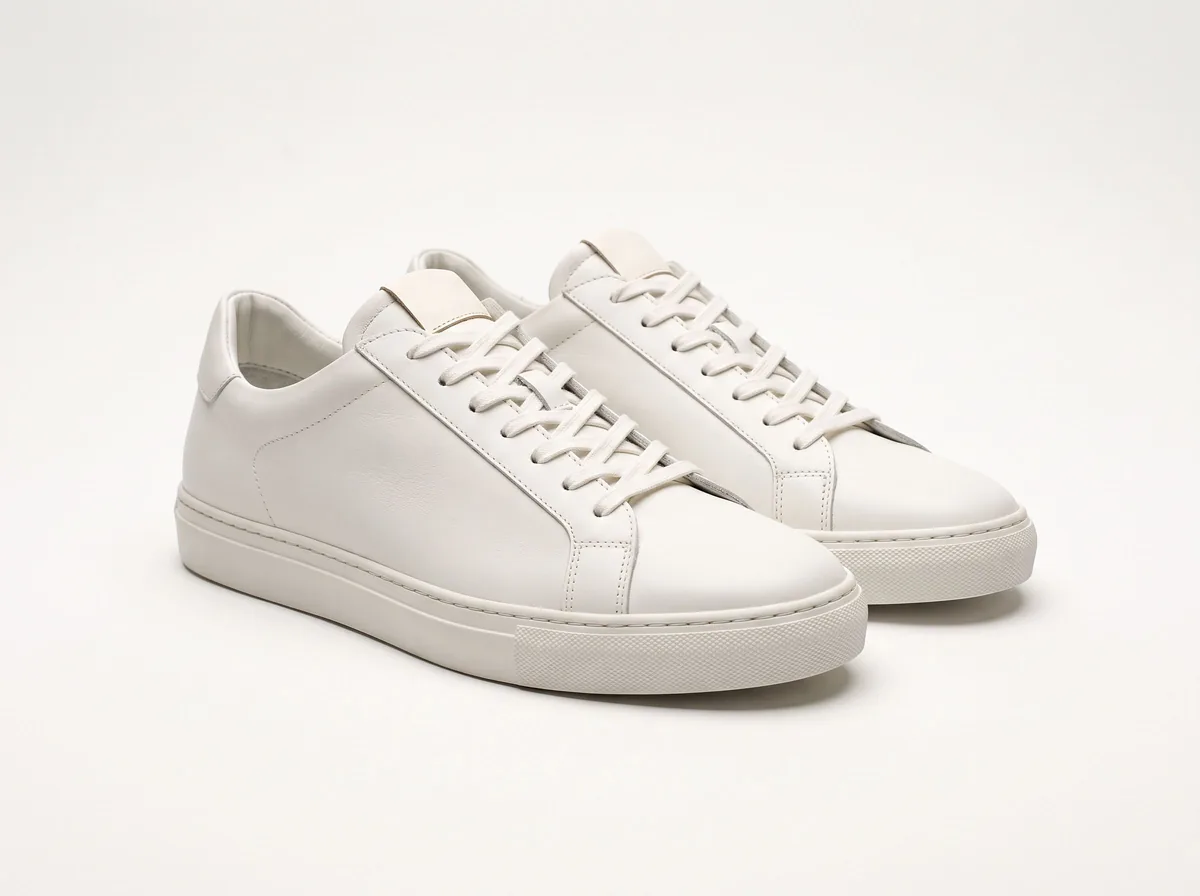
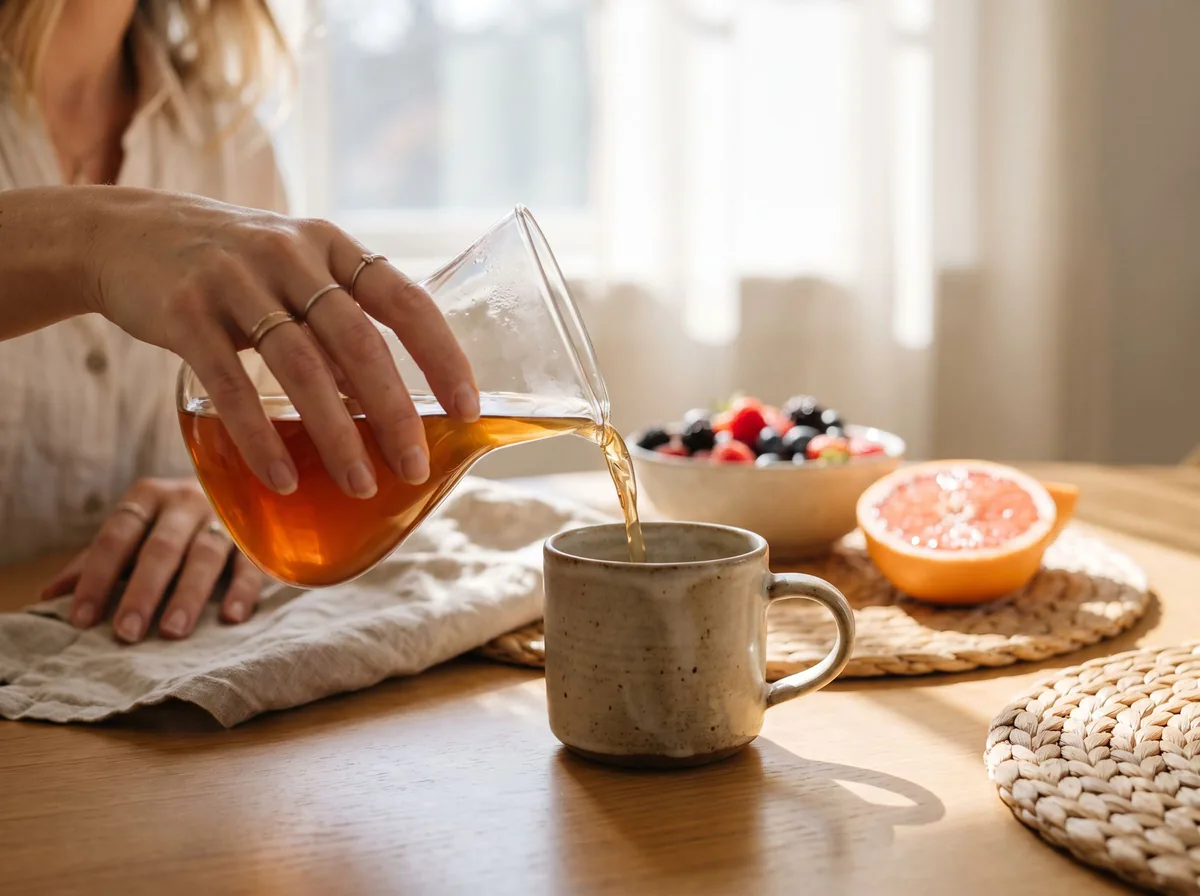
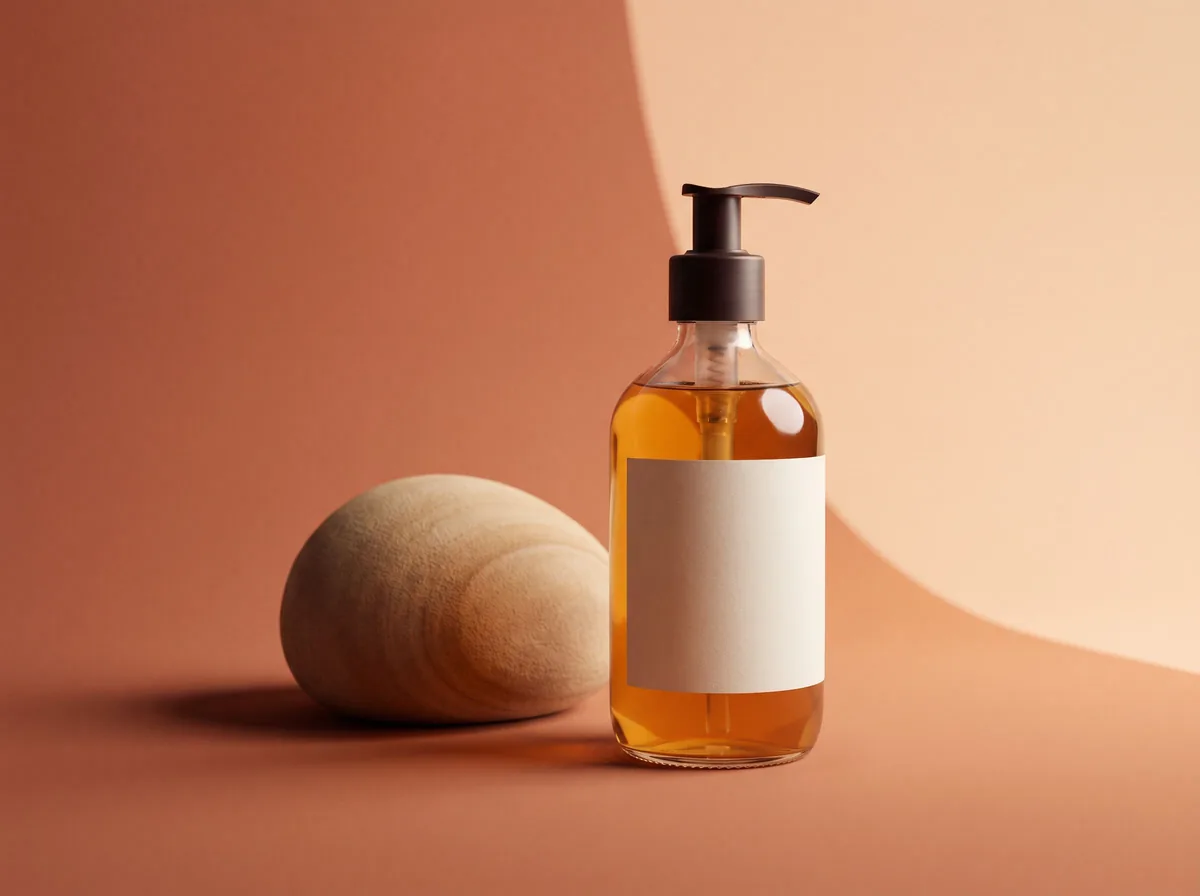
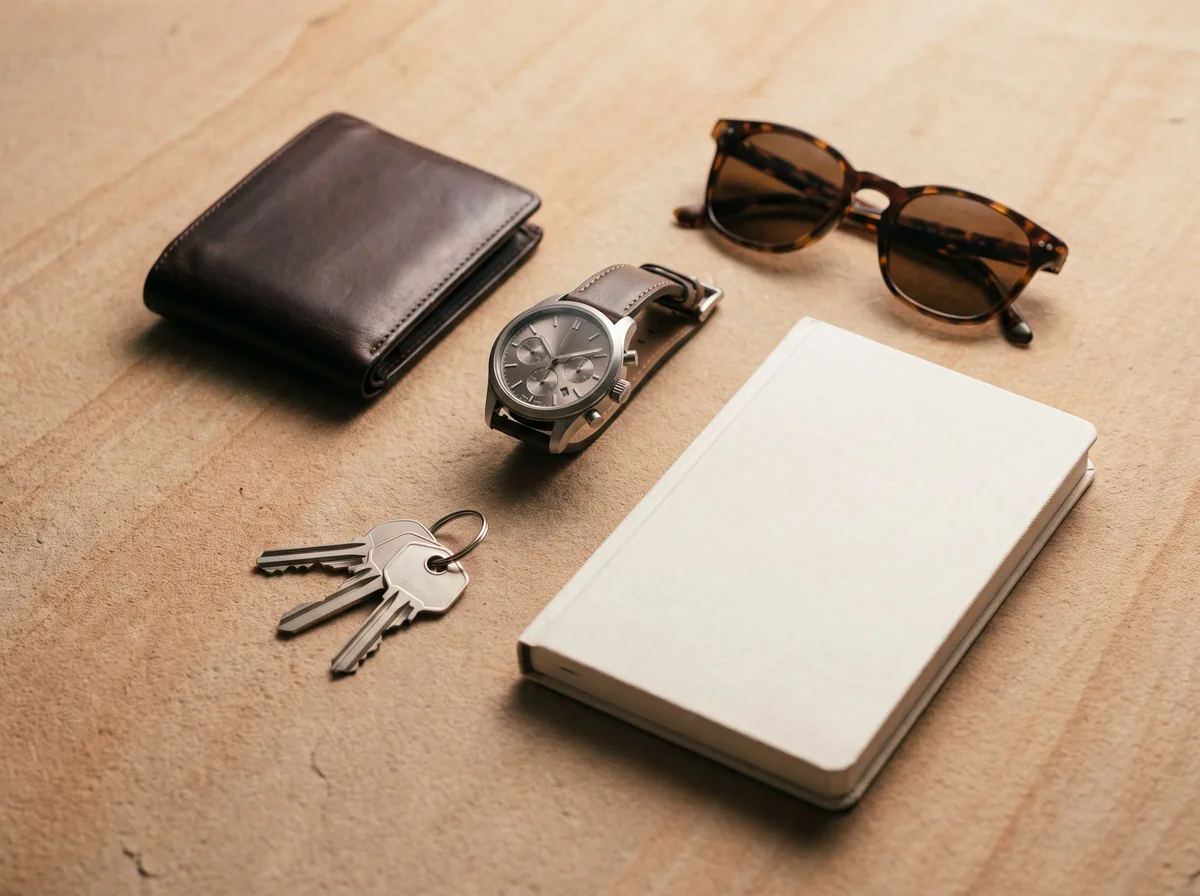
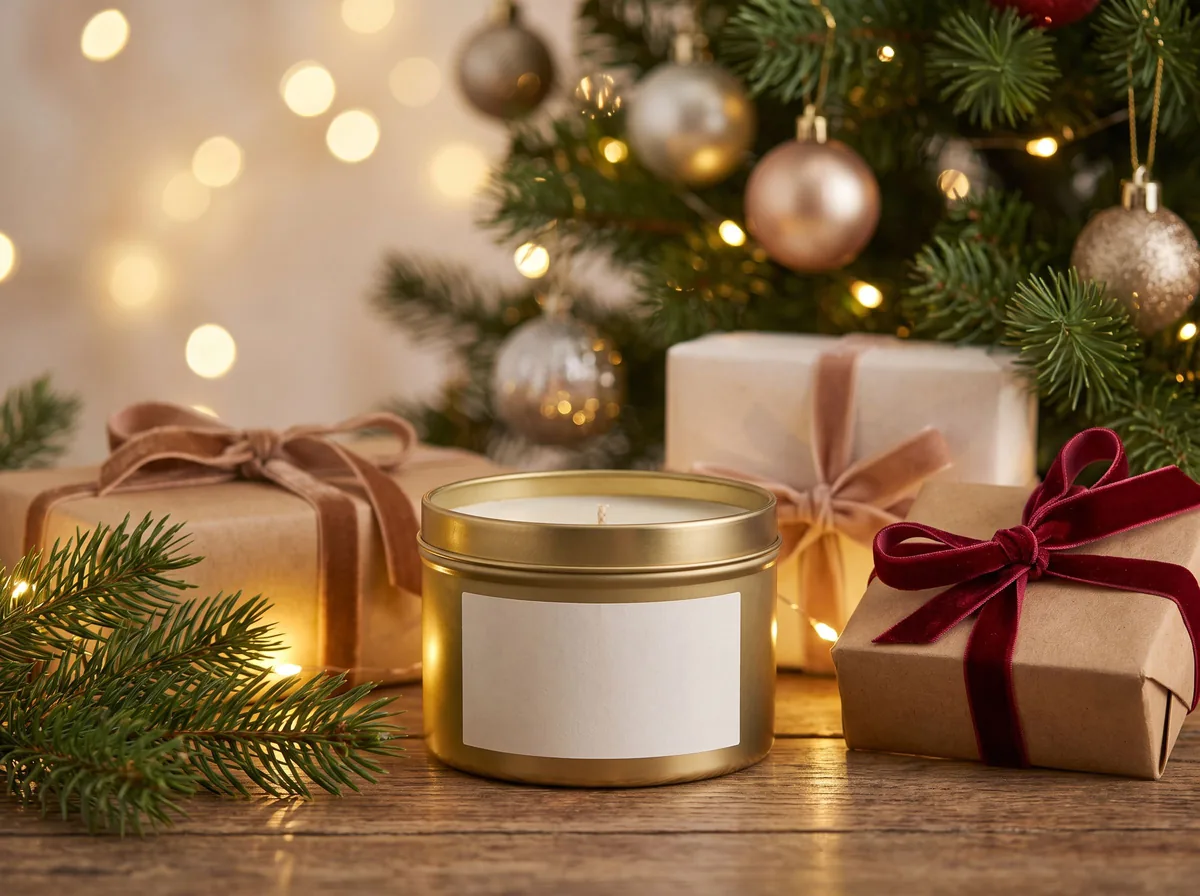
Write the prompt as surface, setting, light, then a keep line. Pebblely's March 2026 prompt guide reduces it to where the product sits, what surrounds it and what the light looks like. Nightjar adds lens and finish, and Luma adds style and mood.
Be specific. Pebblely suggests naming the exact material, such as light oak instead of wood, and using two or three props rather than ten. Nightjar suggests naming one light source with its direction and softness, kept separate from the camera angle.
Our tools take your photo as the product, so spend the words on the scene and on what must stay the same.
Read next: AI product photography: the full guide · Product photo prompt writer assistant
For a white background, short prompts work best because there is little to invent. Ask for the white and the shadow, and stop there.
- Pure white, soft shadow
- Pure white background, soft contact shadow under the product, even light, nothing else in the frame
- Light grey gradient background, subtle shadow. Do not add any text.
Read next: Free white background tool · Amazon main image requirements
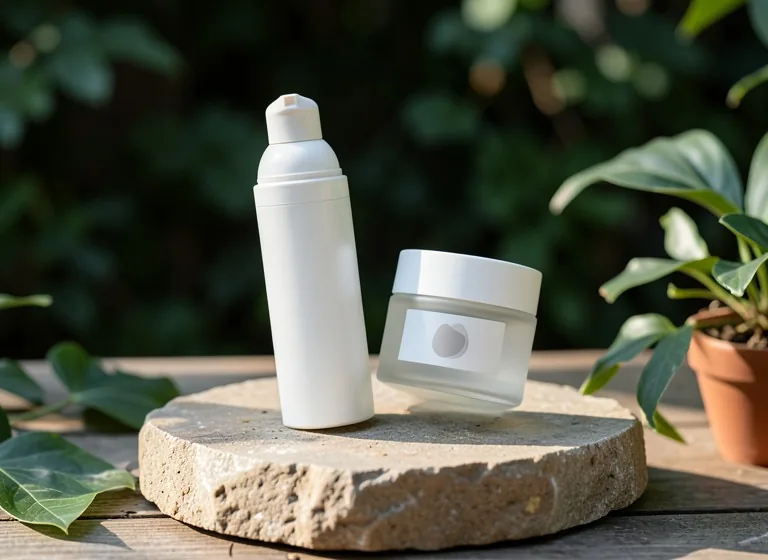
A podium prompt names the podium material, the light and a plain backdrop. It suits perfume, skincare and other premium items.
- Hero shot on a stone podium
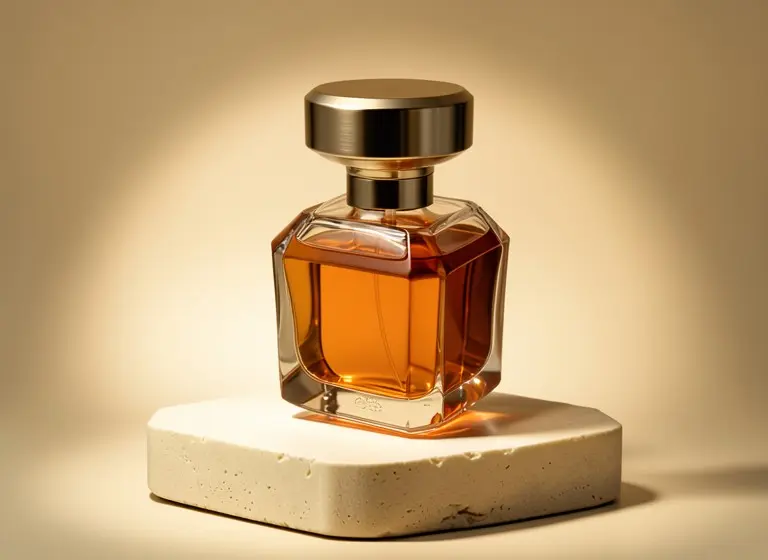
- Place the product on a cream stone podium with warm spotlight, soft shadows and a muted beige backdrop. Do not add any text or label to the bottle.
- Place the product on a round white acrylic podium, soft light from the left, pale blush backdrop, gentle shadow. Keep the label exactly as it is.
- Place the product on a dark slate block with a narrow spotlight from above and a black backdrop. Do not add any text.
Put the product where a buyer would really use it, with one place and one light.
- Skincare: Place it on a bathroom shelf beside a folded white towel, soft morning window light. Do not add any text.
- Bags: Place it on a cafe table by a sunny window, soft natural light
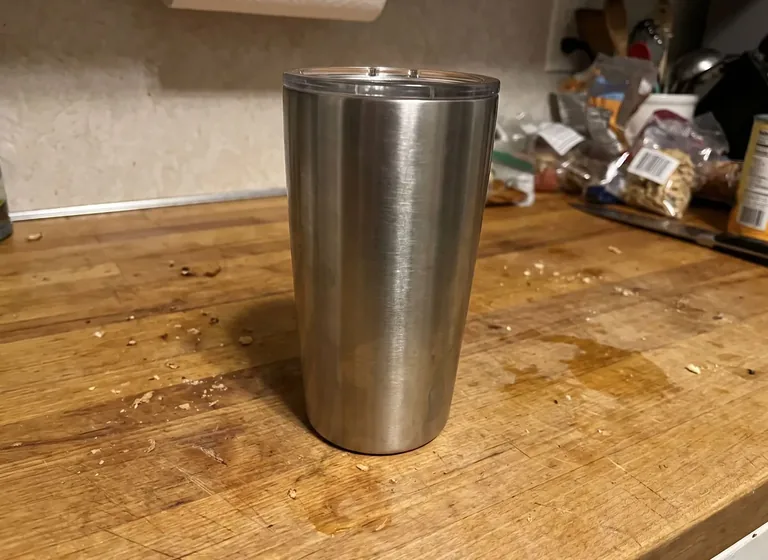
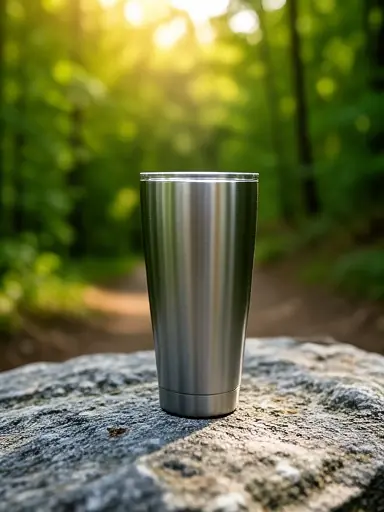
- Drinkware: Place it on a rock beside a hiking trail with trees behind, morning light. Keep the clear lid.
- Candles: Place the candle on a wooden side table beside a stack of books, warm lamp light from the right. Do not add any text.
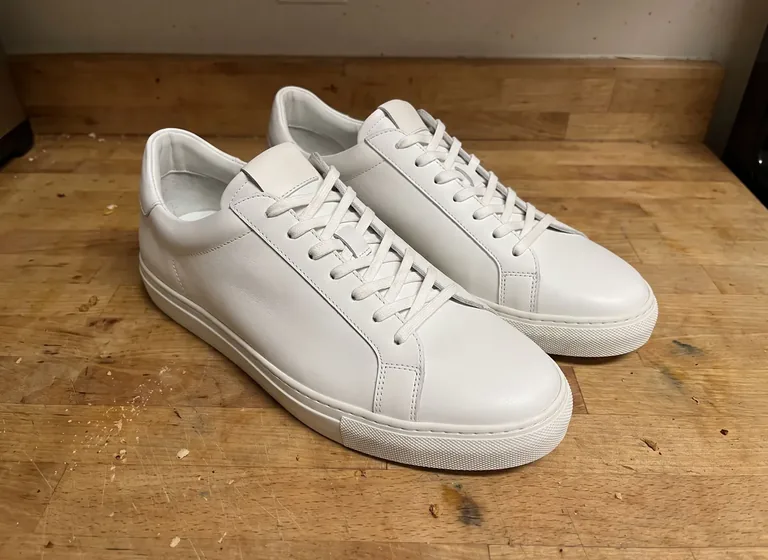
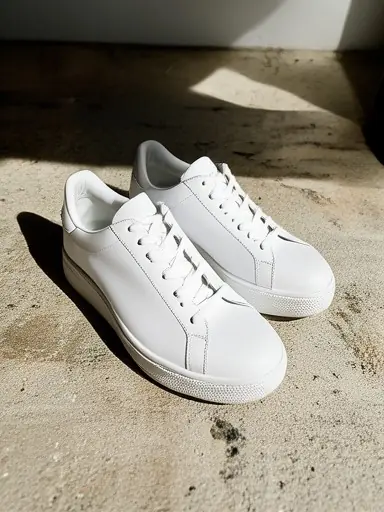
- Shoes: Place the shoes on a pale concrete step in strong afternoon sunlight with a long, sharp shadow. Do not add any text.
Read next: Free lifestyle product photo tool · Props and surfaces stylist assistant
Seasonal and color-block prompts are the most likely to change the product's color, so add a keep line. For a flat lay, Luma suggests the words shot from directly above.
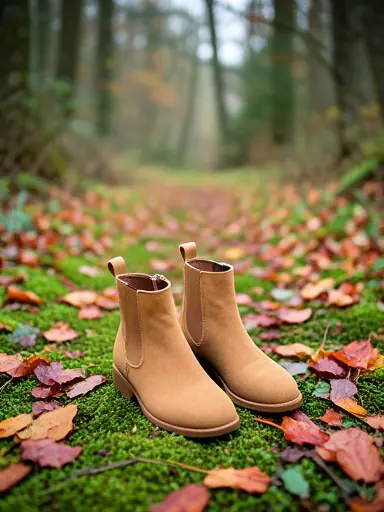
- Autumn: Place the boots on a mossy forest path with fallen autumn leaves, soft overcast light. Do not add any text.
- Winter: Place the product on a white linen cloth with pine sprigs and a few small baubles, soft daylight. Keep the product colors exactly as they are.
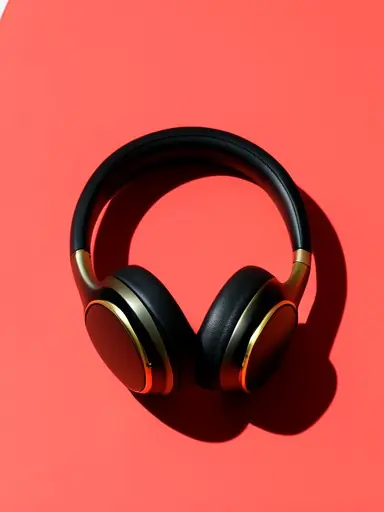
- Color-block: Place the product on a solid bold coral backdrop with one hard directional shadow, clean color-block product photo. Do not add any text.
- Hard light: Place the product on a sand-colored block in hard midday sun with a crisp shadow falling to the right. Do not add any text.
- Flat lay: Shot from directly above, the product on a light linen surface with two small props, soft even light. Do not add any text.
Read next: Holiday product photo generator · Flat lay product photo tool · Creative product photography ideas
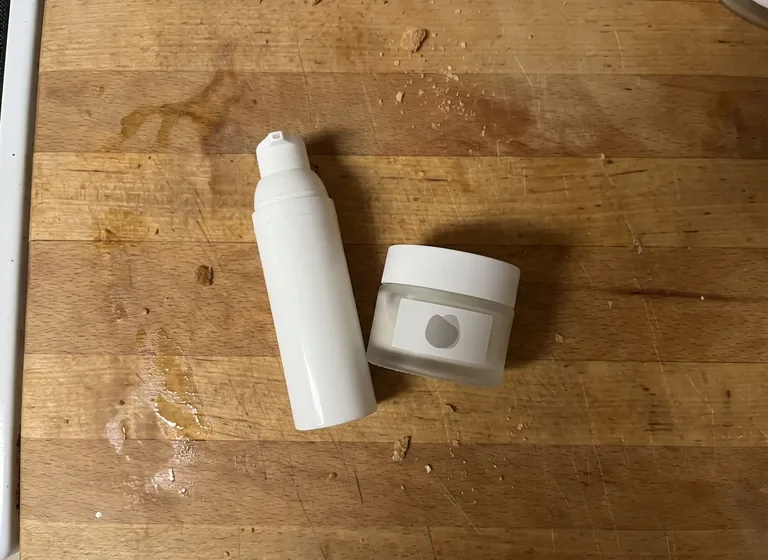
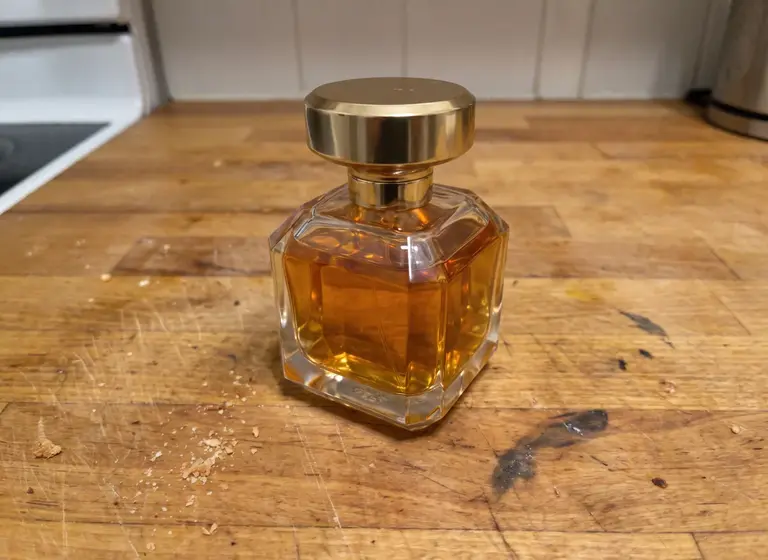
End almost every prompt with "Do not add any text", because models fill empty labels, signs and backdrops with made-up words. In our perfume test, the shorter prompts drew label text that was not on the bottle; adding "Do not add any text or label to the bottle" stopped it.
Keep exclusions short: Nightjar warns that long lists of things to avoid dilute the prompt. Promptessor suggests keeping promo copy out of the image and adding prices or headlines later in a design tool.
When a result is wrong, change one thing and run it again, as Pebblely also advises, so you know what fixed it.
- Invented label text: add "Do not add any text or label to the product" and read every word on the result.
- Real label garbled: add "keep the label exactly as it is". Promptessor advises against retyping the label in the prompt; if it still breaks, retouch by hand or reshoot.
- Color drift: add "keep the product colors exactly as they are", or pick a backdrop in a different color family.
- Missing parts, like the tumbler lid: name the part in a keep line, such as "keep the clear lid on top".
- Extra parts, like the sneaker heel tab: name the color plainly, such as "the sneakers are all white", and compare at full size.
- Product floating: add "soft contact shadow under the product". Luma notes that a subtle shadow grounds the item.
- Scene too busy: cut the props to two and name each one.
Read next: Product photo critic assistant · How to edit product photos
Write one scene prompt per collection and reuse it word for word, so every product looks like one shoot. Luma suggests building variants from an approved master and changing only the background or props, and Shopify suggests a shared prompt style guide.
Save your best prompts with the result next to each one. For a new season, change the surface or props but keep the light wording.
Read next: Color consistency assistant · Ecommerce product photography trends for 2026