Seller guide
How to Edit Product Photos
Most product photos need a light edit before they sell: a dust spot removed, the background made even, the colour checked against the real item. This guide covers the order to work in, what to fix, what to leave alone, and when an AI tool saves time.
Updated 13 October 2026
The short answer
- Start with a sharp, well-lit original. Editing cannot rescue a blurry or badly exposed shot.
- Work in this order: clean-up, background, colour, sharpness, then crop and export.
- Do not over-edit. A product that looks different from its photo comes back as a return.
Start with the original
Keep the untouched file as a master copy and do every edit on a duplicate. Look at the photo at 100 percent zoom before you start, so you can see dust, lint, fingerprints and cropped edges. If the product is blurry, cut off or badly lit, reshoot it. No edit adds detail that the camera never captured.
- Save the original in its own folder and never overwrite it.
- Make one copy per listing, so you can redo an edit if your platform changes its image rules.
- Note the real colour of the product while you still have it in hand, as a reference for the colour step.
Clean up the marks
Dust, lint, scratches and fingerprints are the most common flaws, and they show most on a plain background. Most photo editors have a spot-healing or clone tool for small marks and a patch tool for larger ones.
- Zoom to 100 percent and work across the frame in a steady pattern, so no spot is missed.
- Use a small brush for specks and check each fix at normal size.
- Reflections of the photographer or the room on glossy surfaces are harder to remove than dust. If they are large, reshoot the item at a different angle.
Set the background
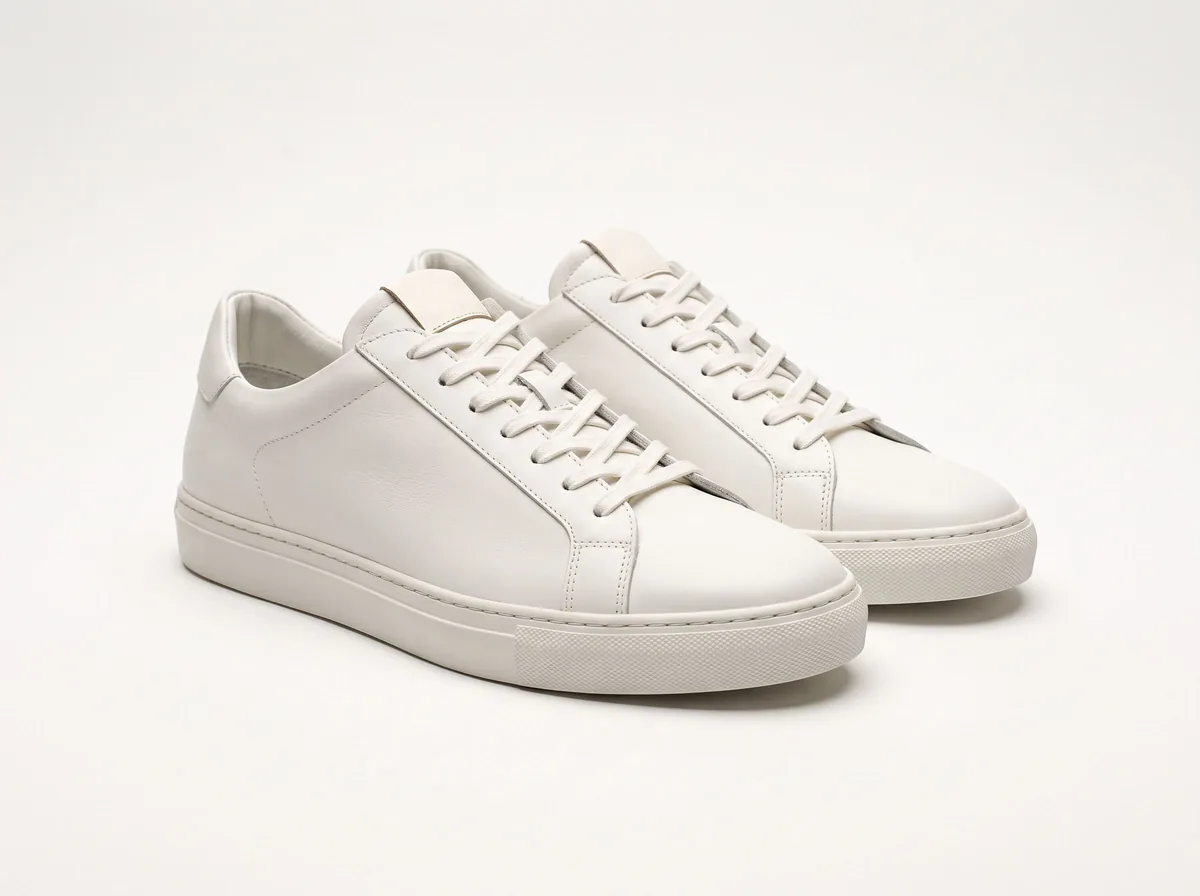
A plain, even background makes a product easy to compare with others in a shop or on a marketplace. Keep the original backdrop if it is already clean, or replace it with a solid colour. Selecting the product by hand takes time, so an AI background tool is the quicker option for most sellers.
- Check the edges of every cutout, especially around straps, handles and holes in bags, where small halos show up.
- Use one background across the whole shop, so the listings look like one set.
- Add a soft shadow under the item for a grounded look, rather than a hard drop shadow.
Correct the colour
Colour is the edit buyers notice most, because a colour mismatch is one of the most common reasons for a return. Set the white balance first, using a neutral grey or white area in the photo if one exists. Then adjust brightness and contrast so the darkest and brightest parts still show detail.
- Compare the edited image with the real item in daylight, on a screen set to normal brightness.
- Raise saturation a little for a dull product, but not so far that it looks unreal.
- Keep fabric and skin tones true. A slightly brighter red can look like a different product in person.
Sharpen and check the detail
A light sharpen at the final size restores the edge detail that resizing softens. Too much sharpening creates halos and grainy texture. Judge the result at the size the image will be shown, not only at high zoom.
- Sharpen once, at the end, after you resize.
- Check text, labels and stitching, which blur easily.
- Do not retouch the product itself, such as the stone, the logo or the fabric weave, to look better than it is.
Crop, resize and export
Many shops and marketplaces ask for a square image with the product filling most of the frame. A longest side of about 2000 pixels is a common target that keeps detail on large screens. Export as JPEG for photos, or as PNG when you need a transparent background.
- Leave roughly equal space on each side, so the product sits centred.
- Use the same crop for every item in a set.
- Check your platform's file size and format limits before you upload.
When an AI tool helps
AI tools are fastest for the repetitive parts: removing backgrounds across a batch, replacing a messy backdrop and cleaning small spots. Use them for those steps, then compare each result with the real item before you publish it.
Do not let an AI edit add features, change the shape or invent details the product does not have. If the tool changes the product itself, go back to the original and edit by hand, or reshoot.
Free tools for this
Try it on your own photo
FAQ
Questions sellers ask
Do I need professional software to edit product photos?
No. A free or phone photo editor handles clean-up, colour, cropping and export. Pro software gives more control, but most listings need only a few basic steps.
How much editing is too much?
If a buyer would be surprised by the product in person, you have gone too far. Keep the colour, size and texture close to the real item.
Should I edit the original file?
No. Keep the original unchanged and export a copy, so you can redo the edit later.
Can AI edit my product photos?
Yes, for backgrounds and clean-up. Check every result against the real item, and reshoot if the tool changes the product.
Sources
- Product photo editing tutorial
- Product photo editing quickstart for online sellers
- AI product photo editing workflow
Z Product AI makes some of the tools compared here. Competitor details come from their own sites and public reviews as of 13 October 2026.