Product photography
100% free · No sign-upRemove People from Photo for Free
Upload a photo and say who to remove: passers-by, shoppers behind your product or the person on the left. The AI takes them out and rebuilds the background behind them. Free to use, no sign-up.
Free to use · No sign-up · JPG, PNG or WebP
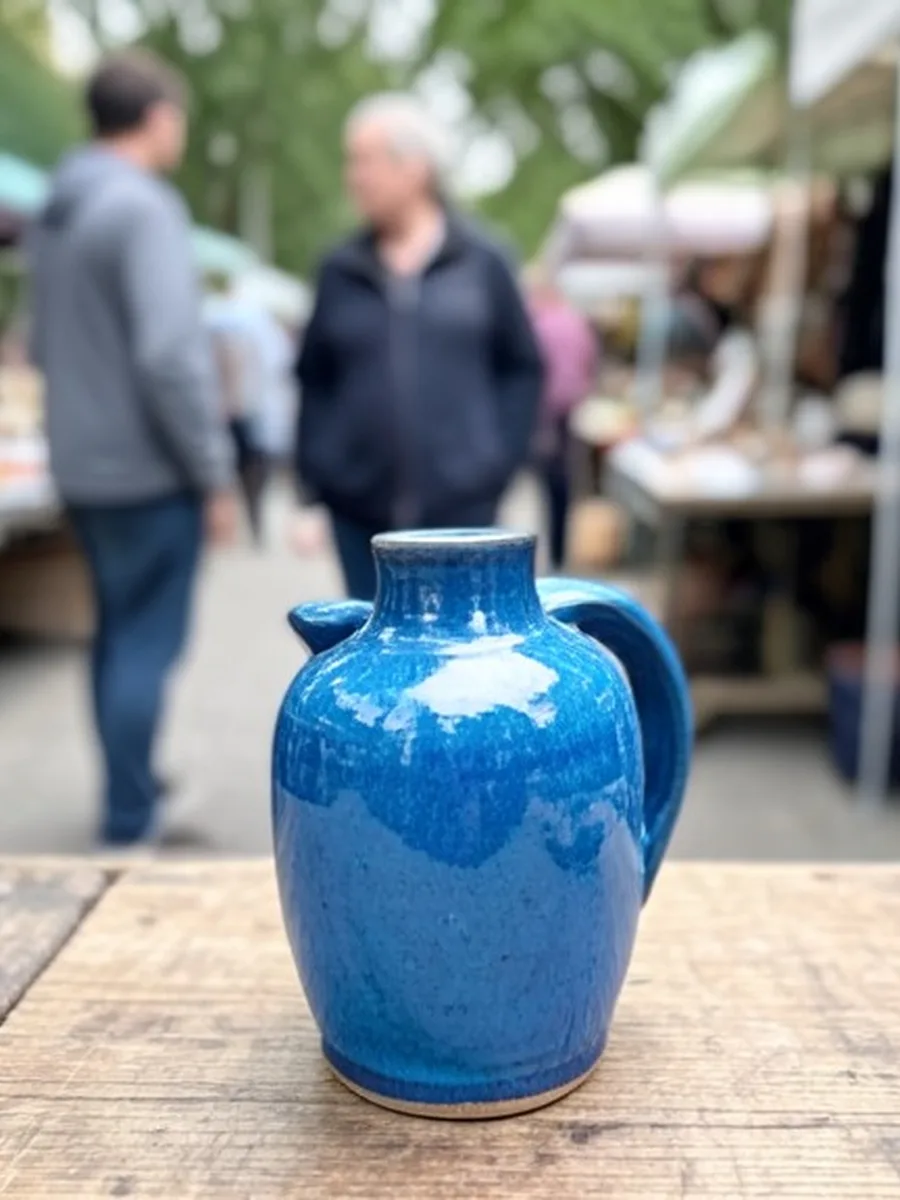
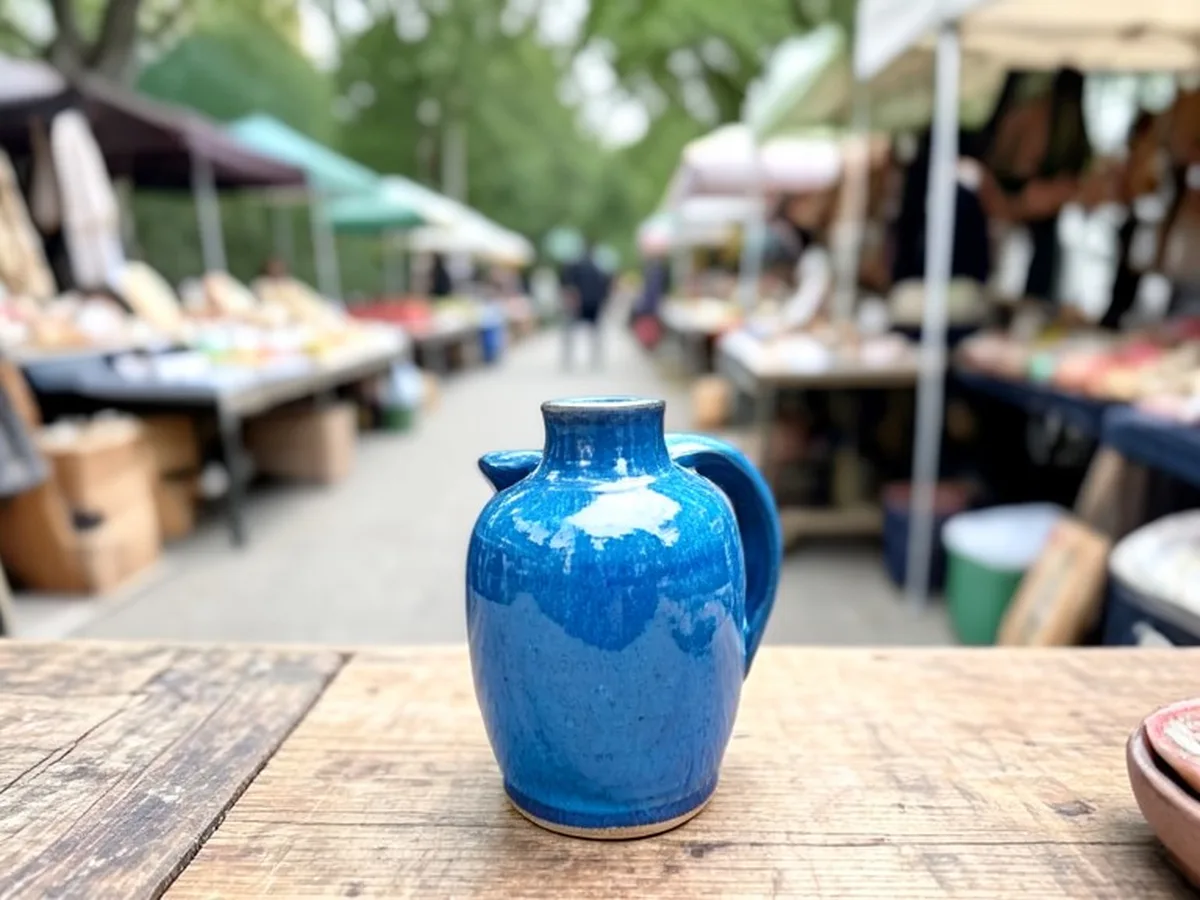
Remove People
Made with Z Product AI
Popular with sellers
How it works
How to use the Remove People from Photo
- 1
Upload your photo
A clear phone photo is enough. Keep the whole product or garment in frame.
- 2
Tap a preset or describe it
Pick a chip or type what you want in a few words. The AI keeps your product exactly as it is.
- 3
Download or refine
Download the result, or ask for a change and the AI edits the last image.
A strong product or location photo is easy to spoil: a passer-by walks into the frame, a shopper stands behind your stall, or a stray arm sneaks in at the edge. This free AI people remover takes out the people you name and rebuilds the background behind them, so you can use the photo in a listing, on your site or on social media without a reshoot.
Remove people by describing them
There is no brush to learn. Say who should go, by position ("the person on the left"), by clothing ("the woman in the red coat") or as a group ("everyone in the background"). With no instruction, the tool removes background passers-by and photobombers and keeps the main subject. For a crowded photo, remove one or two people at a time.
Clean shop, stall and listing photos
Market stalls, pop-up shops, showrooms and trade fairs are busy places, and photos taken there often have shoppers in the back. Removing them keeps the focus on your product and makes the photo look planned. Real estate and rental listings use it the same way, to show an empty room or a quiet street.
The background is rebuilt, not blurred
A quick fix is to blur or crop the person out. This tool fills the space with the wall, floor, sky, shelf or street that should be behind them, matching the texture, perspective and light, and removes their shadow and reflection too, so the photo looks as if they were never there.
People who stay are not changed
The AI is told to keep everyone who stays exactly as they are: same face, expression, body, hair and clothes. It never adds new people. If you want to change a person instead of removing them, this is the wrong tool; for product photos with models, use a model tool.
Tips for a clean result
Start from the largest, sharpest copy of the photo you have. Name the person clearly, using left, right, front or back and a piece of clothing. If a faint outline remains, run the edit again on the result. Check the photo at full size before you publish, and keep the original in case you want to start again.
Step by step
Upload the photo. Tap one of the chips under Who to remove, or type your own instruction, for example "remove the two people walking behind the stall". Press generate. The AI returns the photo without those people and with the background filled in. Compare it with your original using the before and after slider. If someone is still there, or a faint outline stays, run the edit again on the result and name that person. Download the photo when it looks clean.
Describe people clearly
The AI only knows what you tell it, so clear words give better results. Use position: left, right, centre, front, back, behind the table. Use clothing: the man in the black jacket, the woman with the yellow bag. Use action: the person taking a photo, the child running, the couple sitting on the bench. If several people look alike, describe where each one stands. Ask for one or two at a time in a crowded scene, then run the next pass on the result.
Good uses and fair uses
Use it to clean up your own photos: a product shot at a market, a shop front, a holiday photo you want to post, a listing photo of a room or a street. Do not use it to change what a photo is evidence of, to remove people from news or official images, or to edit photos of other people without their permission. Removing a person from a group photo of friends is common, but think about how they would feel before you post it.
Shadows, reflections and things people carry
A person leaves more in a photo than their body. There is the shadow on the floor, a reflection in a shop window or a wet street, a bag, a phone, a bike or a pram. If any of these stay, the photo still looks edited. The tool removes the person together with their shadow, their reflection and what they hold, and rebuilds the ground, wall or glass behind them. If you want to keep an item, such as a bike leaning on a wall, say so in your instruction.
When to reshoot instead
If a person covers most of the product or stands right in front of it, the AI has to invent the hidden part of the product too, and it may get details wrong. In that case a reshoot is better. For clutter that is not a person, such as boxes, tags or cables, use the object remover for product photos.
Need images with no mark, in HD? Try AI product photos on AI Two, our sister studio: free to try, and its paid plans remove the watermark and add HD output.
FAQ
Remove People from Photo: questions sellers ask
How do I remove people from a photo?
Upload the photo, then tap a chip such as "Everyone in the background" or type who to remove, for example "remove the man in the blue shirt on the right". The AI removes that person, rebuilds the background behind them and keeps the rest of the photo. Download the result when it looks right.
Do I need to brush over the person?
No. This tool works from your words, not a brush. Describe the person by position, clothing or what they are doing. If there are many people, name them one at a time or ask for "everyone in the background".
What happens to the people I want to keep?
They stay as they are. The AI is told never to change the face, body, pose, hair or clothes of anyone who stays in the photo. If a kept person looks different, run the edit again and name only the person to remove.
Can it remove shoppers behind my product?
Yes. Photos taken in a shop, at a market stall or at a fair often have people walking past. Ask to remove the shoppers behind the product, and the AI rebuilds the shelves, walls or floor behind them and keeps your product the same.
What photos work best?
Small people in the background against plain walls, sky, sand, grass or a floor come out cleanest. A person who covers a large part of the photo, or stands in front of a busy pattern, is harder, because the AI has to invent more of what was behind them.
Does it remove shadows and reflections too?
Yes. It removes the person's shadow and their reflection in windows, mirrors or shiny floors, as well as bags or items they carry, so no trace is left.
Is the background real after removal?
The area behind a removed person is rebuilt by the AI to match the rest of the photo. It looks natural, but it is a best guess, not a record of what was really there. Do not use it to change what a photo proves, such as a document or an event.
Can it remove a person who is in front of my product?
It can try, but the AI must then invent the hidden part of the product, and it may get the shape, the label or the colour wrong. For a product photo, a reshoot is the safer fix when someone blocks the product itself.
Why is a faint outline left where the person was?
That happens when the person was large or stood against a busy background. Run the edit again on the result and ask to remove the remaining outline, or describe the background that should be there, such as "plain white wall" or "grass".
Is my photo kept private?
Your photo is used only to create your result. We do not publish it. Only upload photos you took or have the right to edit.
Is Remove People from Photo free?
Yes. Remove People from Photo is free to use — no account and no credit card needed. You get free edits every day.
How accurate is Remove People from Photo?
Results depend on the photo and the request. You can refine with follow-up messages until it looks the way you want.
Can I make multiple edits?
Yes! Each result becomes your new base image — keep refining with follow-up messages.
Is Z Product AI really free?
Yes. Every tool and assistant on Z Product AI is free to use, with no sign-up and no credit card. Very heavy use is paced with short waits so the site stays free for everyone.
Keep going
More tools for your listings
 Remove Objects from Product PhotoFreeUpload a product photo, describe the stray cable, price tag, dust or prop you want gone, and get a clean photo with the product and lighting unchanged.
 Remove Text from ImageFreeUpload a photo and remove the text on it: a caption, price, date stamp, phone number or old sale banner. The background behind the words is rebuilt so no trace is left.
 AI Image ExpanderFreeUpload a photo and pick a new shape: square, 4:5, 16:9, 9:16 or 3:2. The AI fills the new space with more of the same scene, and your original photo is kept in the centre.Remove Glare from PhotoFreeUpload a product photo with glare: a flash hot spot on packaging, a window on a glass bottle or a reflection on a screen. The AI removes the glare and keeps the label and the product the same.
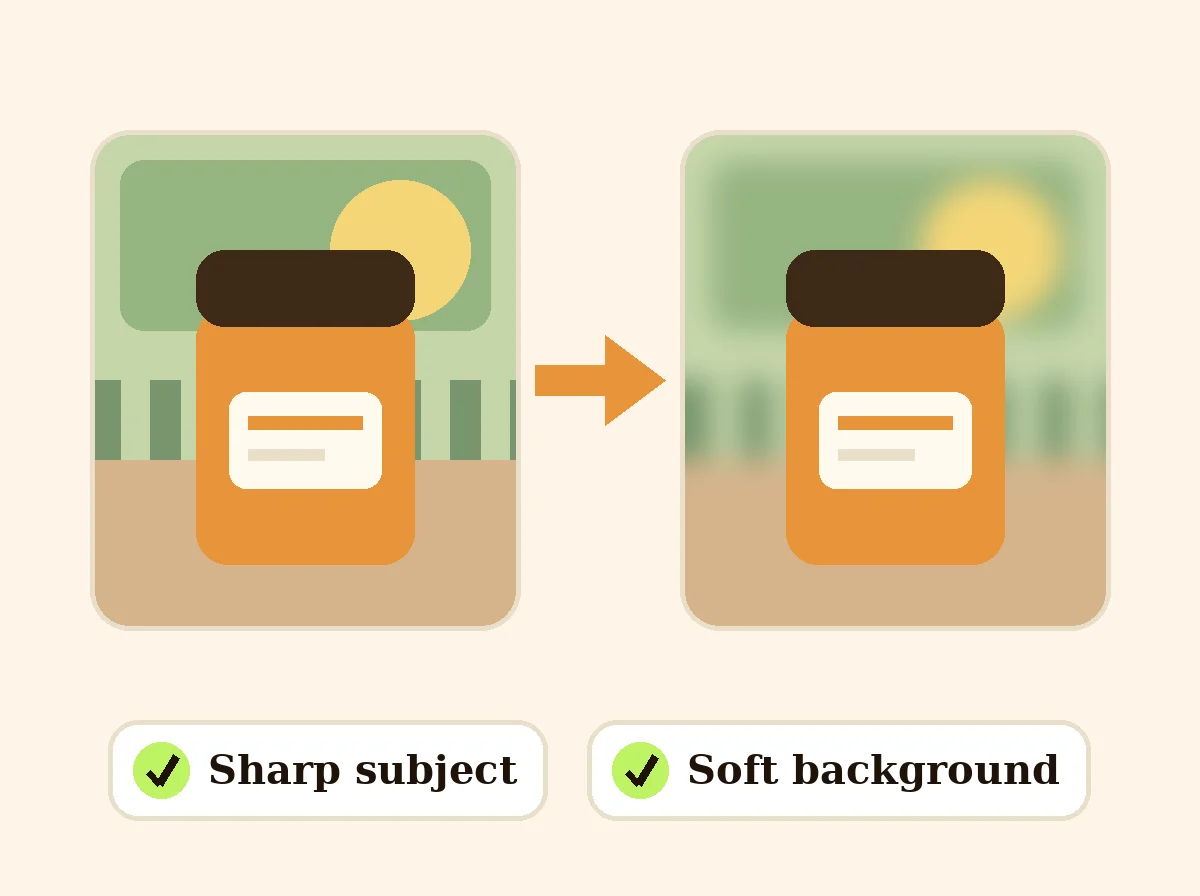 Blur Photo BackgroundFreeKeep the product or subject sharp and blur everything behind it, with the strength you choose.
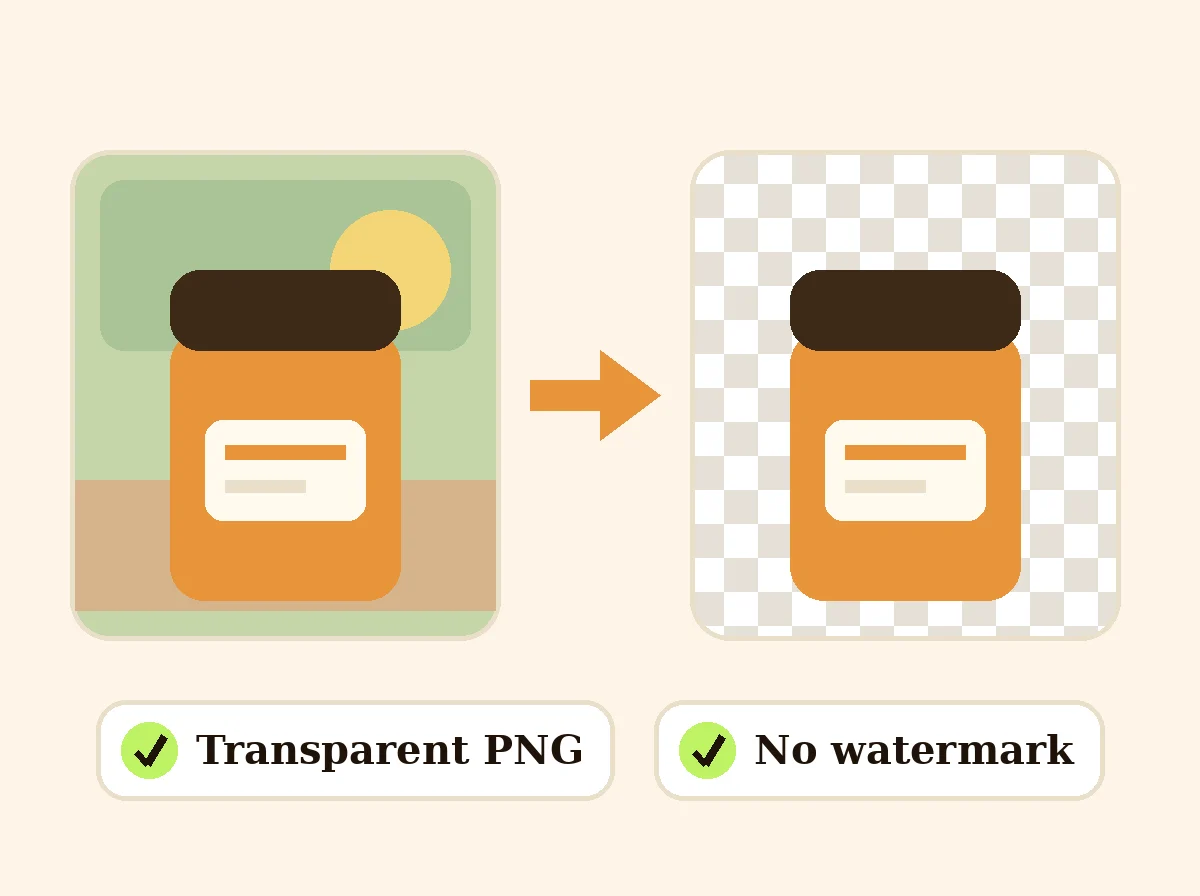 AI Background RemoverFreeRemove the background from a product photo, logo or signature and download a transparent PNG at full size, with no watermark.
Ask an assistant
 Product Shoot StudioProduct Photography FreeYour AI product photography director: plans the shoot, picks scenes, props and light, and writes the prompt for every shot.Chat free →
 Amazon Main Image CheckerProduct Photography FreeChecks your Amazon main image against common requirements, background, fill, props and text, and tells you how to fix or reshoot it.Chat free →
 Jewelry Photo DirectorProduct Photography FreePlans jewelry photos that show sparkle, metal tone and true scale: rings, necklaces, earrings and bracelets on white, on busts and in close detail.Chat free →