Product photography
100% free · No sign-upFree AI Image Expander
Upload a photo and pick a new shape: square, 4:5, 16:9, 9:16 or 3:2. The AI fills the new space with more of the same scene, and your original photo is kept in the centre. Free to use, no sign-up.
Free to use · No sign-up · JPG, PNG or WebP
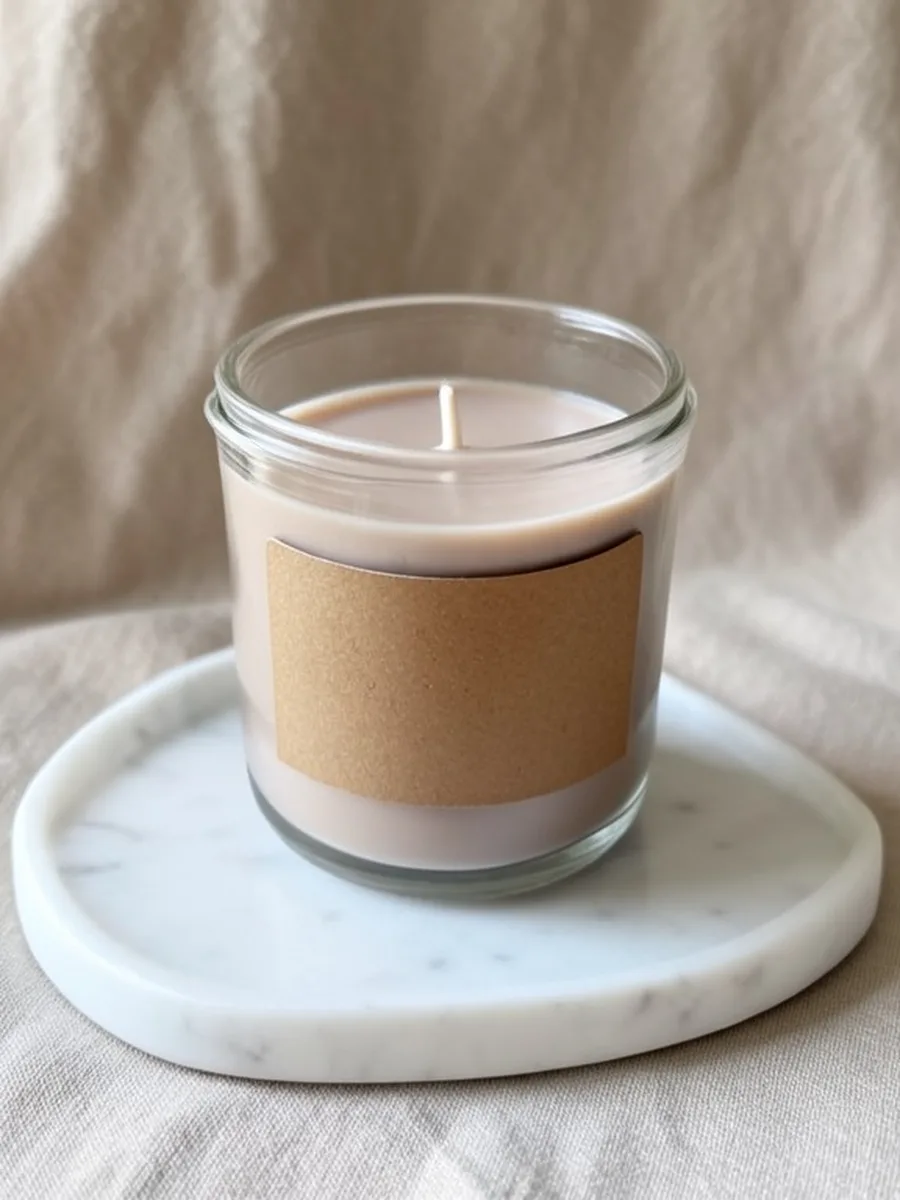
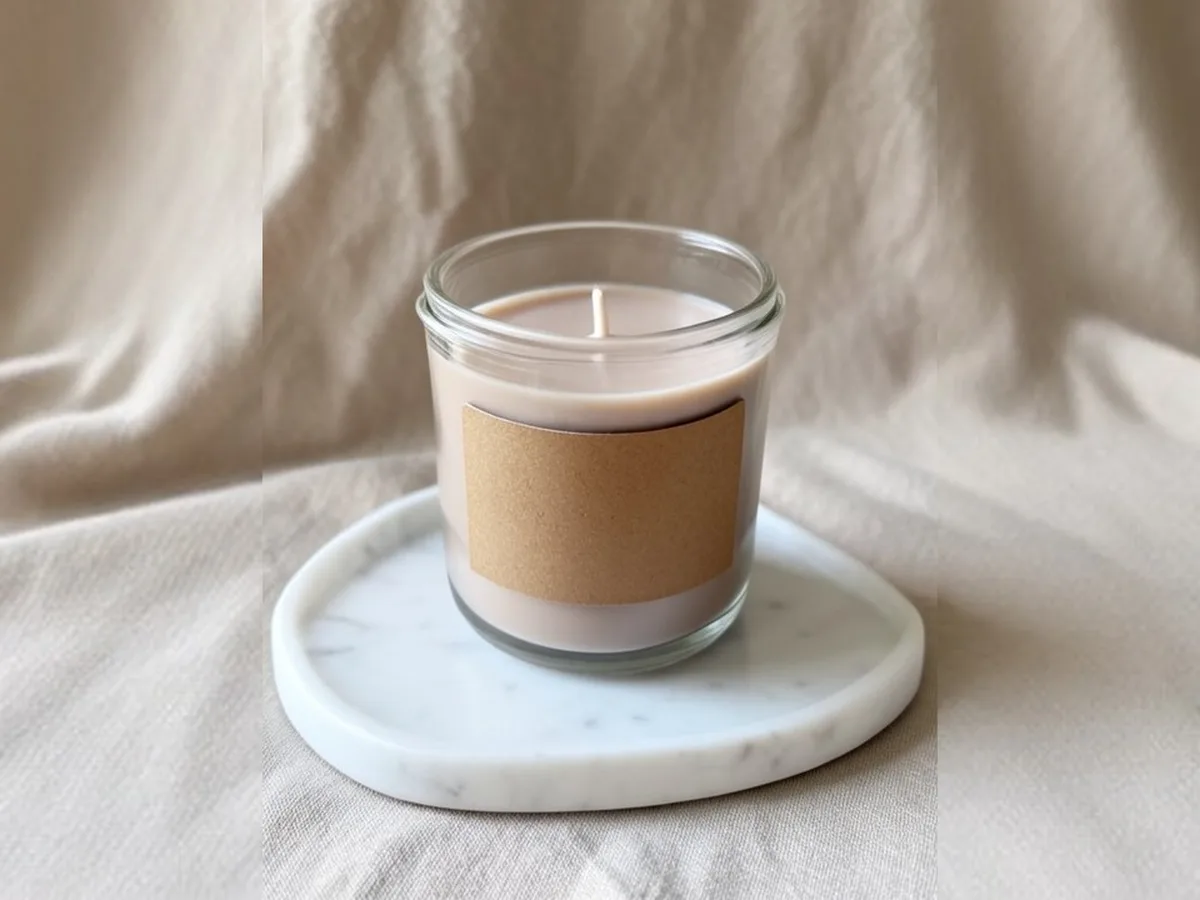
Image Expander
Made with Z Product AI
Popular with sellers
How it works
How to use the AI Image Expander
- 1
Upload your photo
A clear phone photo is enough. Keep the whole product or garment in frame.
- 2
Tap a preset or describe it
Pick a chip or type what you want in a few words. The AI keeps your product exactly as it is.
- 3
Download or refine
Download the result, or ask for a change and the AI edits the last image.
A good product photo is often the wrong shape. A square shot will not fill a 16:9 banner, a wide shot gets cut off in a 9:16 story, and cropping throws away the product. This free AI image expander grows your photo to the shape you need instead. It adds space around the photo, fills that space with more of the same scene, and keeps your original pixels in the centre.
Expand, do not crop
Cropping to a new shape cuts off part of the product or the scene. Expanding keeps every pixel of your photo and adds new background around it. That is why sellers use it to fit one good photo into many formats: a square marketplace image, a 4:5 feed post, a 9:16 story and a 16:9 web banner, all from the same shot.
How the tool works
Your browser first places the photo in the centre of a larger frame in the shape you picked, with plain grey around it. The AI then paints over that grey with a sharp continuation of the background, the surface and the light. Last, the browser pastes your original photo back over the centre with feathered edges and adds it as a second version, so the part you shot stays exactly as you shot it.
Pick the shape for where you post
Use 1:1 for most marketplace and shop images, 4:5 for Instagram and Facebook feed posts, 9:16 for stories, reels and TikTok, 16:9 for website banners, YouTube and email headers, and 3:2 for landscape blog and print-style layouts. Check each platform's current size rules before you upload: they change, and some main images must be on pure white.
Best photos to expand
Simple backgrounds give the cleanest fill: a studio backdrop, a wooden table, a marble counter, a painted wall, sand, grass or sky. The more the edge of your photo shows a pattern that simply continues, the more natural the result. Photos where an object or a person is cut off at the edge are harder, because the AI has to guess the missing part.
Space for text and ads
A banner often needs empty space for a headline or a price. Ask for it: "expand to 16:9 with clean space on the left". The AI keeps that area plain and in the same light as the photo, so text sits on it without a box. For a sale banner after that, the sale banner generator can add the words.
Step by step
Upload one photo. Tap a shape under New shape, or type it, for example "expand to 9:16 for a story". If you want, tap an option under New area too, such as Clean space for text. Press generate. When the result arrives you get two versions: the AI version, and a second one where your original photo is pasted back in the centre. Compare them with the before and after slider and download the one you like. If the new area looks wrong, run it again or describe what it should show, such as "more of the wooden table" or "a plain grey wall".
One photo, every format
Most shops and ad platforms ask for different shapes, and reshooting a product for each one takes time. With the expander, you shoot once with the product in the middle and some room around it, then make a square for the shop, a 4:5 post, a 9:16 story and a 16:9 banner from the same file. Keep the product in the same place in each version so a set of posts looks planned. If a marketplace needs the main image on pure white, use the white background tool for that one instead.
Why the original is pasted back
An AI edit redraws the whole image, even the parts it was told to keep. Small things can drift: a label letter, an edge, the grain. For product photos that matters, because buyers expect the item in the photo to be the item they get. So after the AI result arrives, your browser draws your own photo back over the centre with soft edges, and adds that as its own version. The AI only supplies the new area in that version. If the AI changed the shape of the image, the paste is skipped and the AI version stays.
Honest limits
The AI invents the new area, so it is a believable continuation, not a record of what was really there. Do not use an expanded photo to show parts of a product the camera did not see. The output is web size, up to 768 pixels on the long side. Busy scenes may need a second try, and fine patterns may not line up perfectly at the seam, so check the result at full size before you publish.
Need images with no mark, in HD? Try AI product photos on AI Two, our sister studio: free to try, and its paid plans remove the watermark and add HD output.
FAQ
AI Image Expander: questions sellers ask
How do I expand an image with AI?
Upload your photo, then tap a shape chip such as 16:9 banner or 9:16 story, or type the shape you want, for example "expand to 4:5". The tool adds space around your photo, the AI fills it with more of the same scene, and you download the result.
Does it change my original photo?
It should not. Your photo is placed in the centre of the new frame and the AI is told to fill only the new space. After the AI result arrives, the tool also pastes your original photo back over the centre with soft edges and adds that as a second version called "Original kept". Pick whichever looks better.
Which shapes can I choose?
Square 1:1, portrait 4:5, wide 16:9, tall 9:16 and landscape 3:2. If you do not name a shape, a square photo is made 16:9 and any other photo is made square. If your photo already has the shape you pick, the tool adds an even border on every side.
What size is the result?
The result is web size, up to 768 pixels on the long side, which suits listings, social posts and ads on screens. It is not an upscaler: the expanded image is not larger in pixels than a normal edit. Keep your original file for print.
What kind of photos expand best?
Photos with simple, continuous backgrounds come out cleanest: a studio sweep, a table top, a wall, sky, grass or a floor. Busy scenes with many objects cut off at the edge, or faces and hands at the border, are harder. If the fill looks wrong, run it again or describe what the new area should show.
Can I add space for text on a banner?
Yes. Ask for a 16:9 banner with clean space on one side, for example "expand to 16:9 with plain space on the right for text". The AI keeps that area calm and empty so you can add your headline later.
How is this different from the square image maker?
The square image maker pads a photo to a square with white, a colour or a blur, without AI, and gives you a plain border. The AI image expander fills the new space with a continuation of the scene, so the photo looks as if it was shot wider.
Why is there a second version called "Original kept"?
It is the AI result with your own photo pasted back over the centre, so the part you shot is exactly your pixels and only the new area comes from the AI. If the edges of the pasted photo show, use the AI-only version, which is the one before it.
Can I expand a photo more than once?
Yes. Download the result, upload it again and pick another shape. Each pass invents more of the scene, so after two or three passes the far edges can look less natural. One pass to the shape you need gives the cleanest result.
Is my photo kept private?
Your photo is used only to create your result. We do not publish it. Only upload photos you own or have the right to edit.
Is AI Image Expander free?
Yes. AI Image Expander is free to use — no account and no credit card needed. You get free edits every day.
How accurate is AI Image Expander?
Results depend on the photo and the request. You can refine with follow-up messages until it looks the way you want.
Can I make multiple edits?
Yes! Each result becomes your new base image — keep refining with follow-up messages.
Is Z Product AI really free?
Yes. Every tool and assistant on Z Product AI is free to use, with no sign-up and no credit card. Very heavy use is paced with short waits so the site stays free for everyone.
Keep going
More tools for your listings
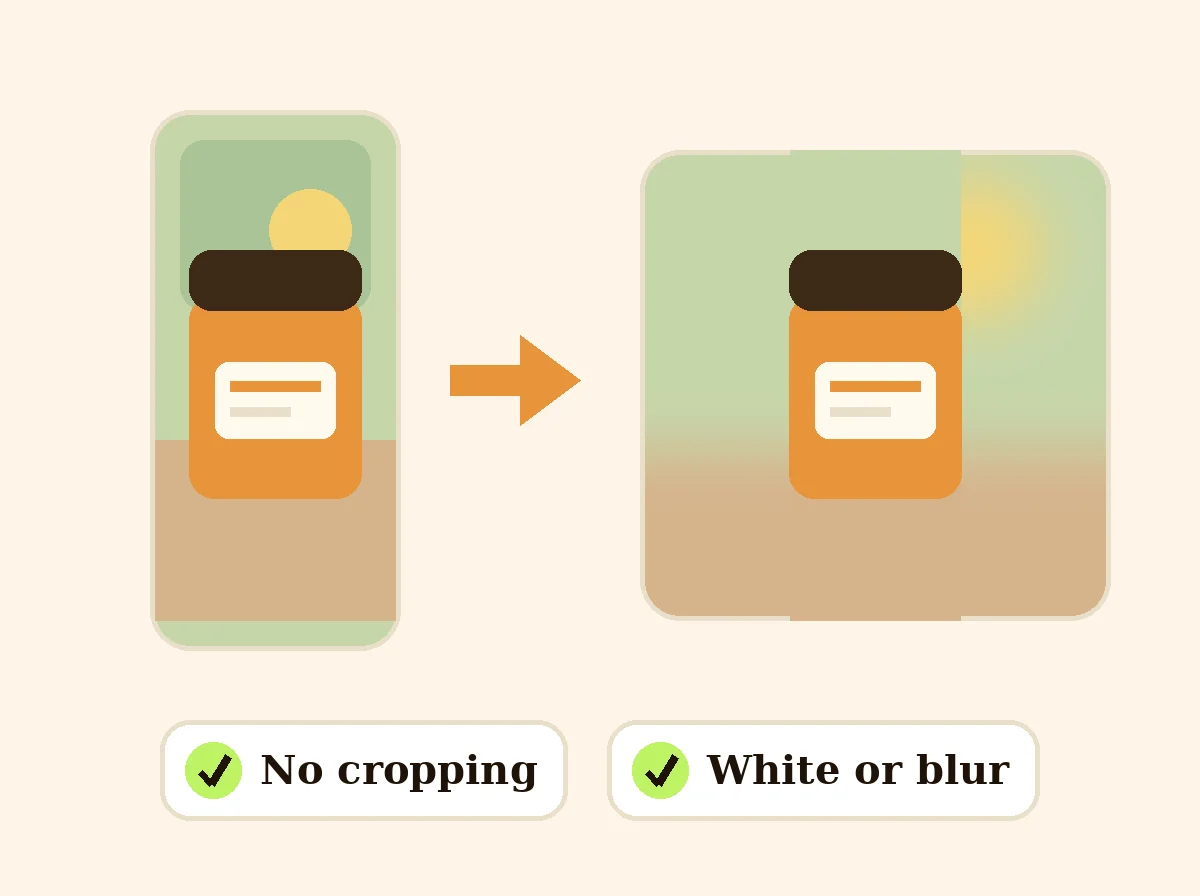 Square Image MakerFreeMake any photo square without cropping: pad it with white, a color or a soft blur.
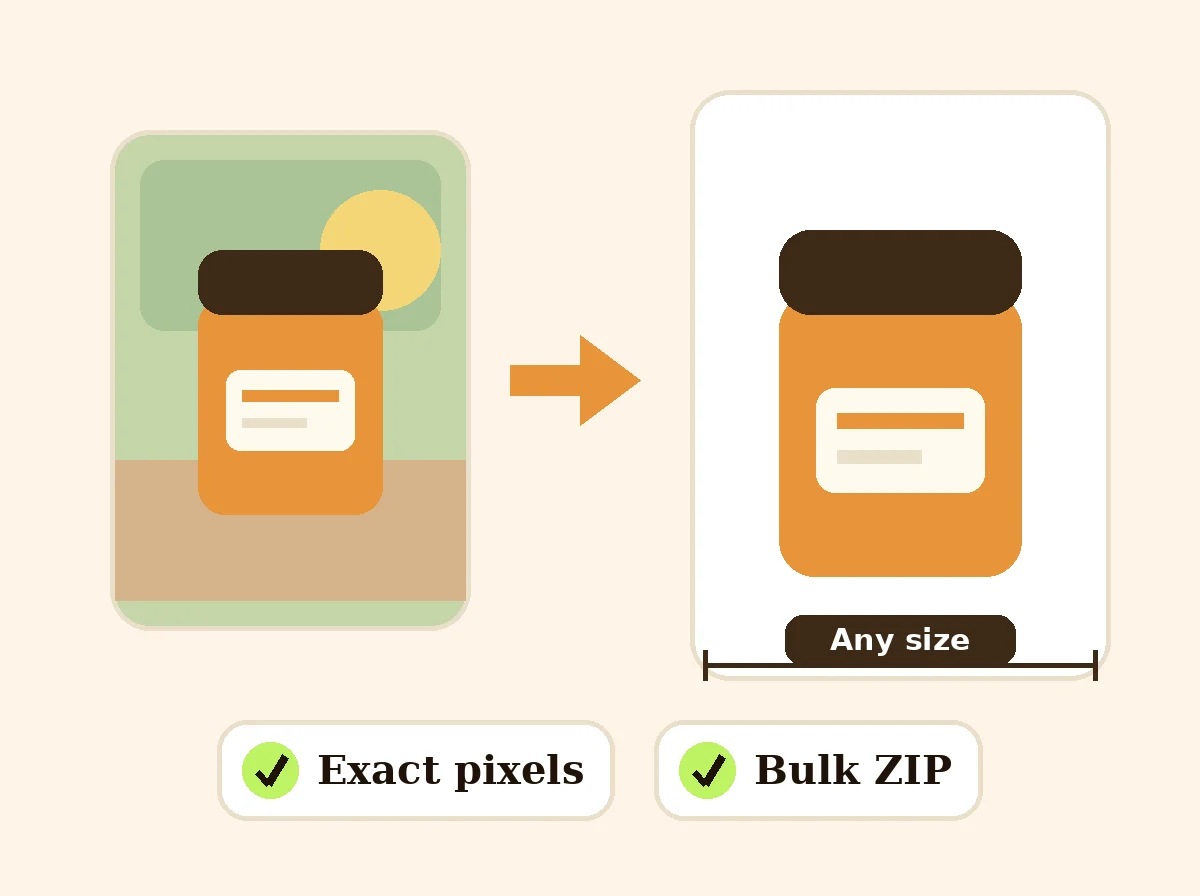 Image ResizerFreeResize photos to exact pixels, a percentage or a marketplace size, one at a time or in bulk with a ZIP. Runs in your browser.
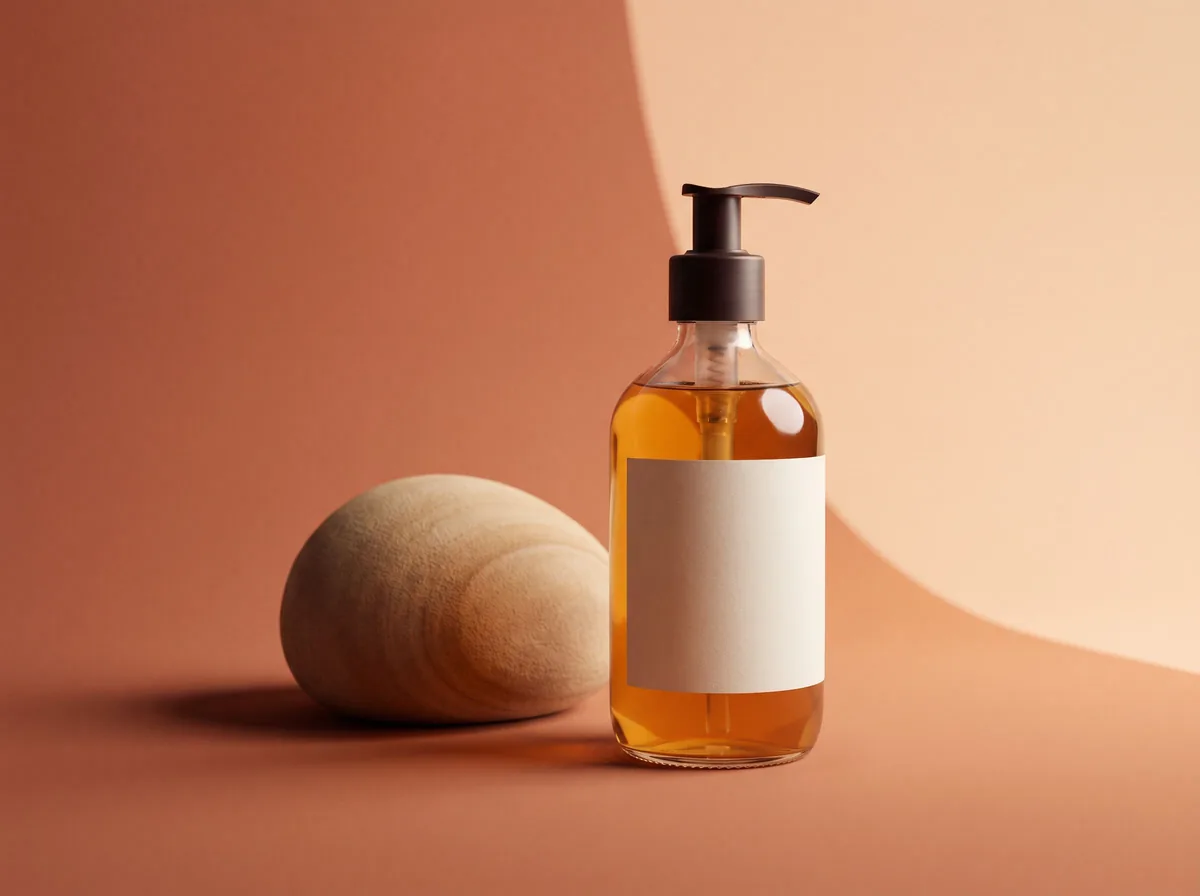 AI Product Background GeneratorFreeChange the background of any product photo to a solid color, gradient, texture or real scene, with lighting and shadows rebuilt to match.
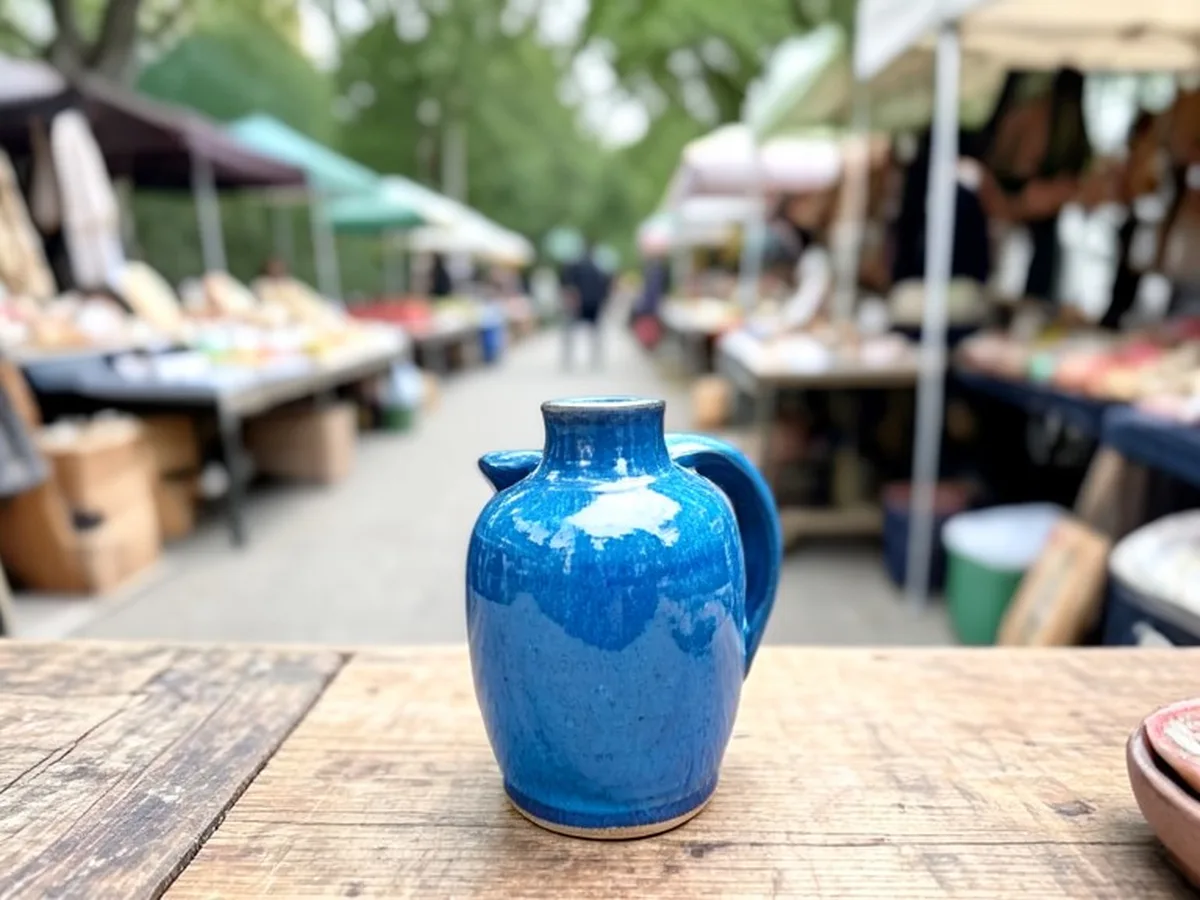 Remove People from PhotoFreeUpload a photo and say who to remove: passers-by, shoppers behind your product or the person on the left. The AI takes them out and rebuilds the background behind them.
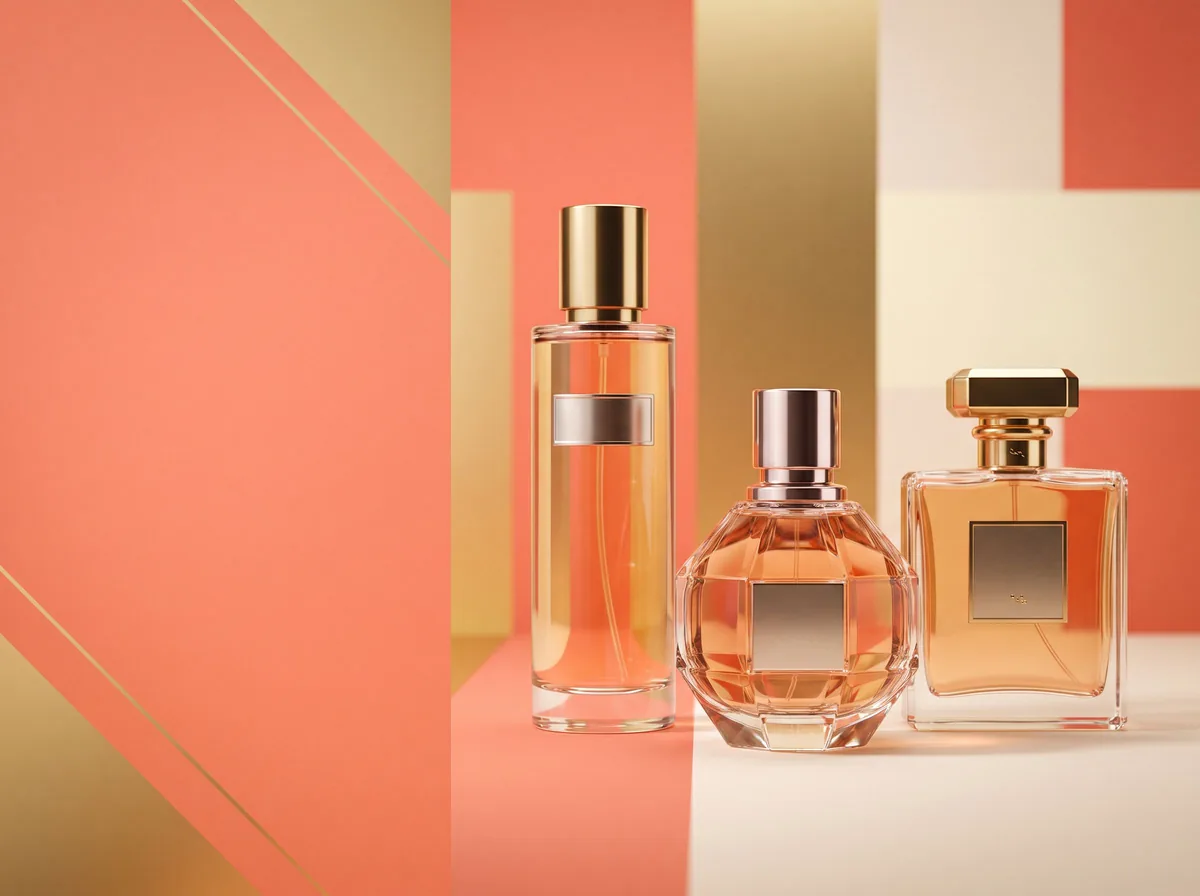 Sale Banner GeneratorFreeDescribe your sale and get a wide promo banner for your store, emails or social posts, with your exact discount text or space to add it.
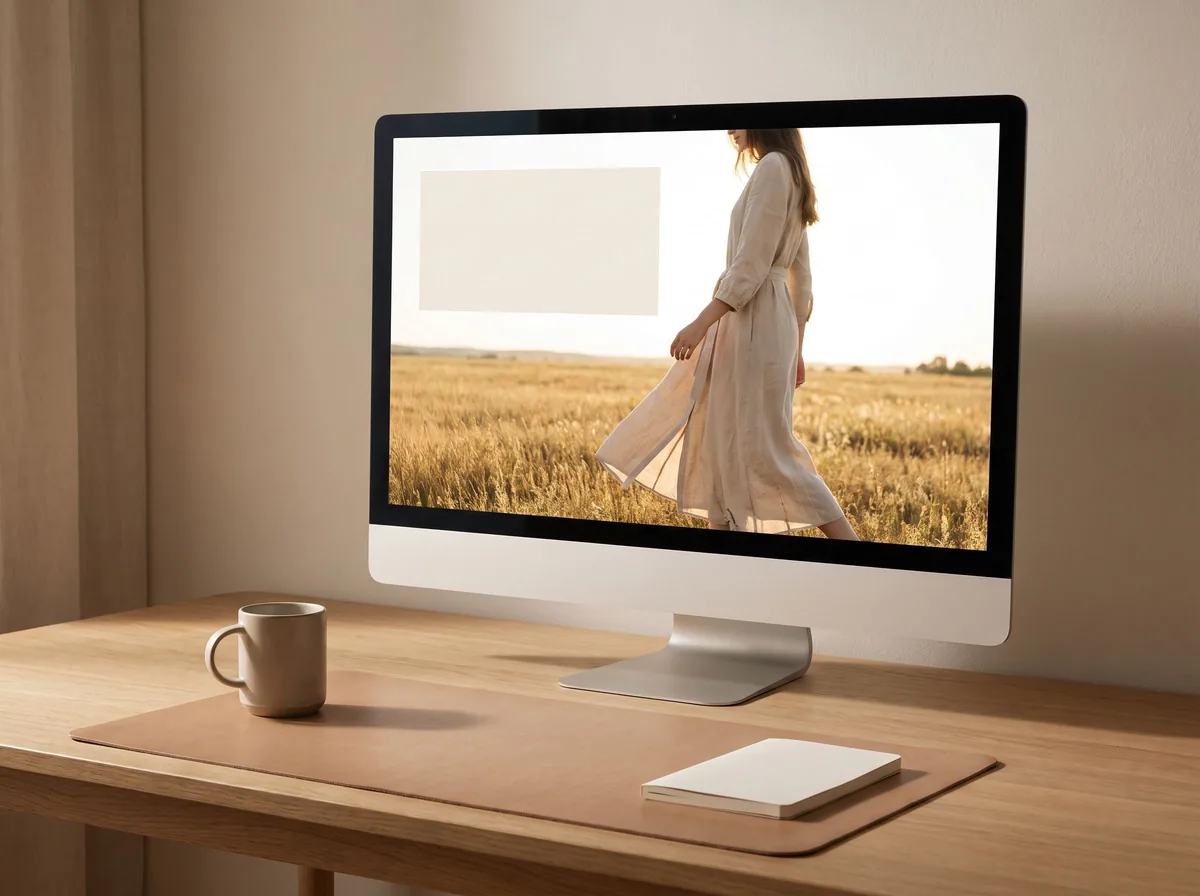 Shopify Hero Banner GeneratorFreeCreate a hero image for your Shopify homepage: a wide lifestyle or studio scene with clear space for your headline and button.
Ask an assistant
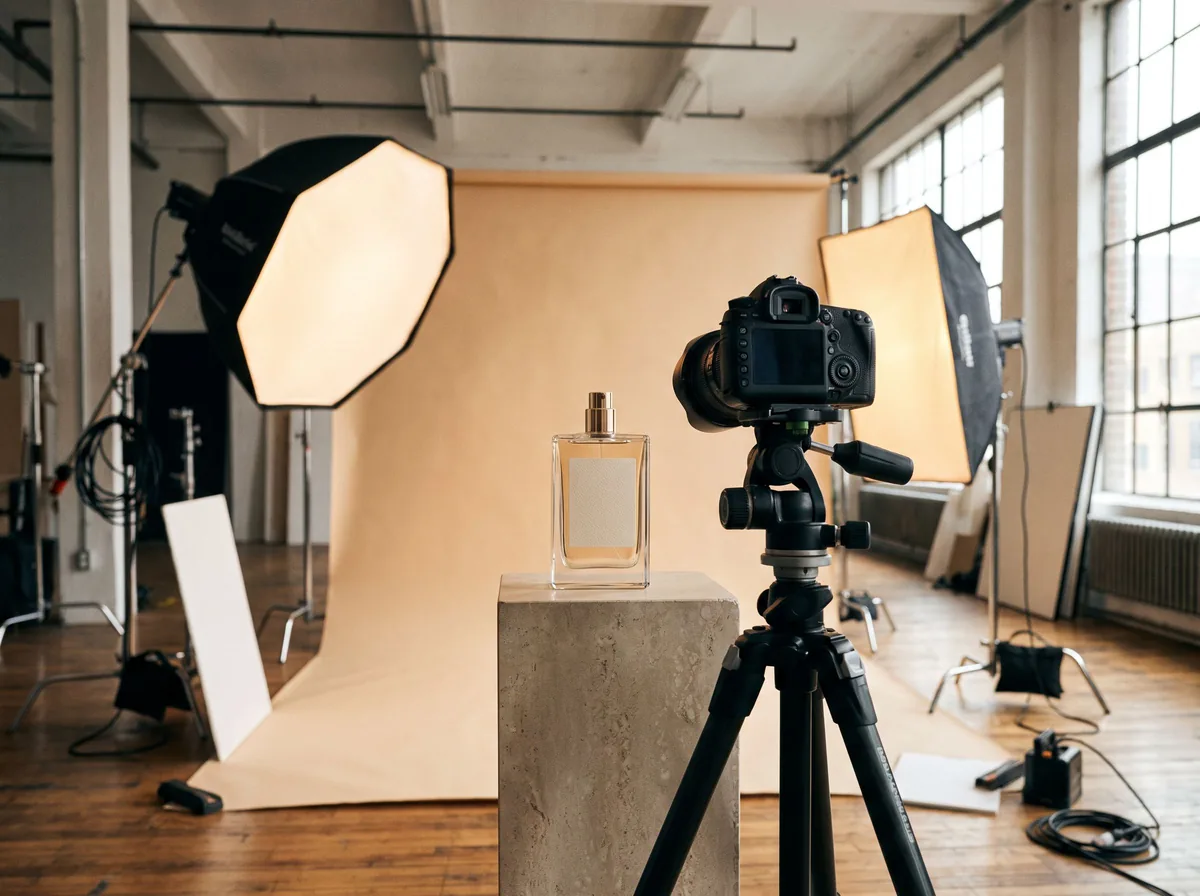 Product Shoot StudioProduct Photography FreeYour AI product photography director: plans the shoot, picks scenes, props and light, and writes the prompt for every shot.Chat free →
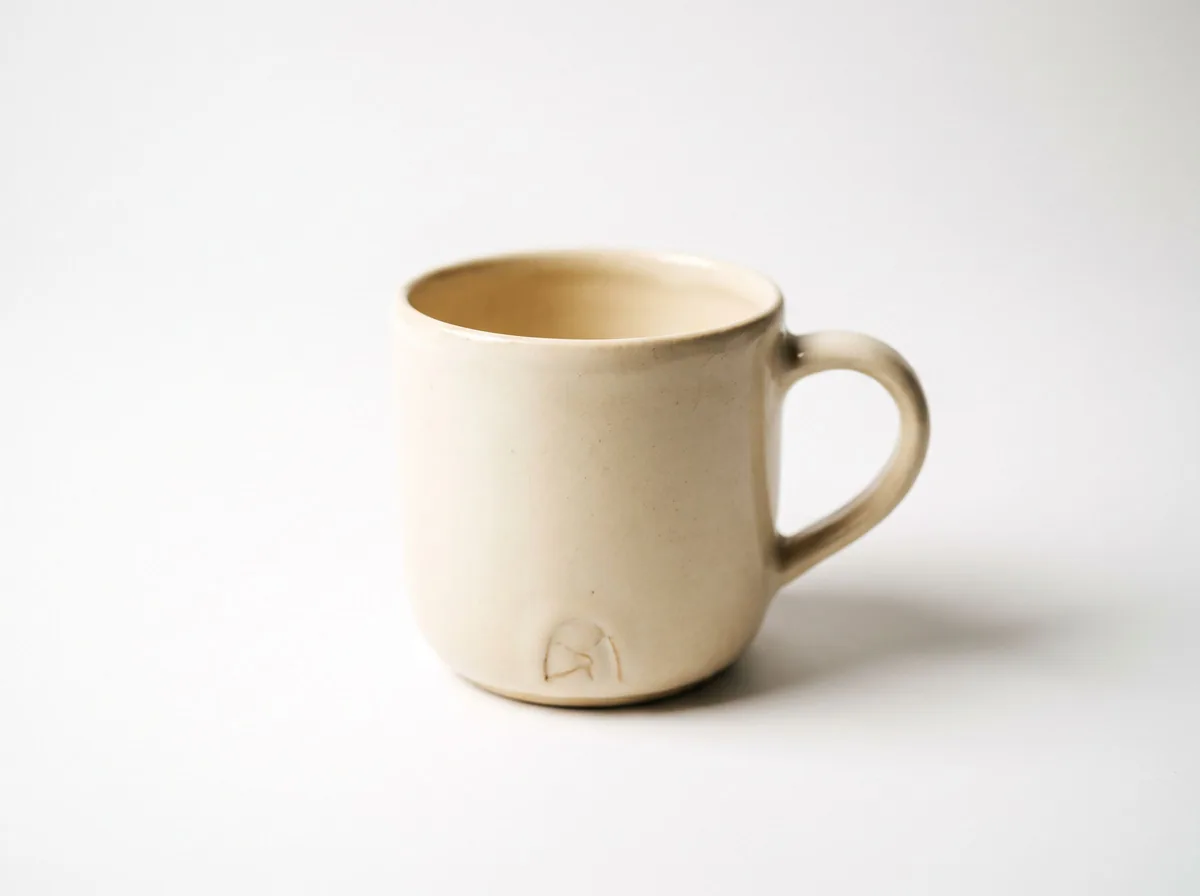 Amazon Main Image CheckerProduct Photography FreeChecks your Amazon main image against common requirements, background, fill, props and text, and tells you how to fix or reshoot it.Chat free →
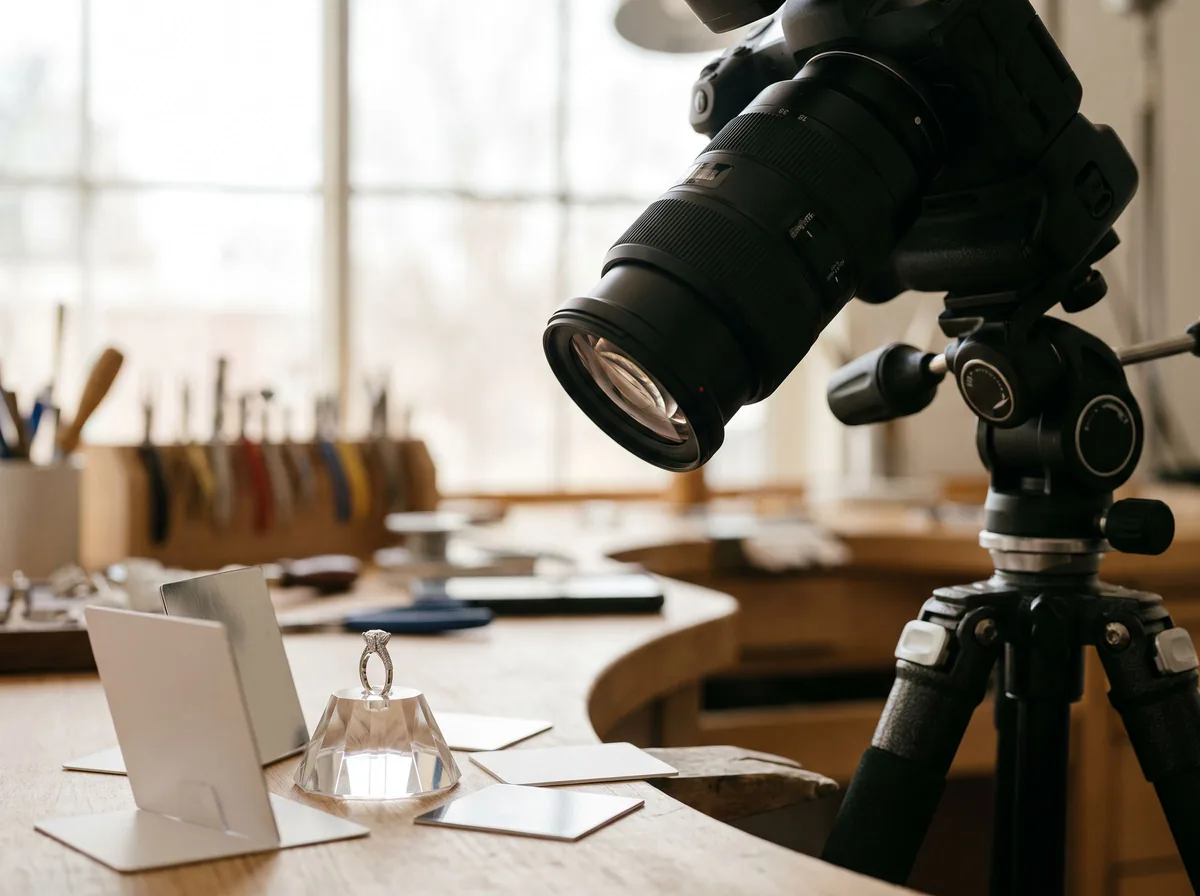 Jewelry Photo DirectorProduct Photography FreePlans jewelry photos that show sparkle, metal tone and true scale: rings, necklaces, earrings and bracelets on white, on busts and in close detail.Chat free →