Product photography
100% free · No sign-upRemove Glare from Photo for Free
Upload a product photo with glare: a flash hot spot on packaging, a window on a glass bottle or a reflection on a screen. The AI removes the glare and keeps the label and the product the same. Free to use, no sign-up.
Free to use · No sign-up · JPG, PNG or WebP
Remove Glare
Made with Z Product AI
Popular with sellers
How it works
How to use the Remove Glare from Photo
- 1
Upload your photo
A clear phone photo is enough. Keep the whole product or garment in frame.
- 2
Tap a preset or describe it
Pick a chip or type what you want in a few words. The AI keeps your product exactly as it is.
- 3
Download or refine
Download the result, or ask for a change and the AI edits the last image.
Glare ruins product photos fast. A flash leaves a white patch on a glossy box, a window shows up as a bright square on a glass bottle, and a screen reflects the whole room. This free AI glare remover takes out the harsh reflections you name, restores the surface and label under them and keeps a soft natural shine, so the product still looks like itself.
Why product photos get glare
Glossy and see-through materials act like mirrors. Glass, metal, chrome, glossy paper, plastic wrap and screens reflect the brightest thing in the room straight back at the camera: the flash, a window, a lamp or the sun. On a small product, one bright reflection can cover the brand name or the ingredients, which are the parts buyers want to read.
Remove the glare, keep the shine
The goal is not a product with no highlights. Glass needs edge highlights to look like glass, and polished metal needs a gleam. The tool removes the blown-out patches and mirror-like reflections and keeps soft, even highlights that follow the shape of the product, so it still looks real and solid.
Labels stay true
Label text is part of the product. The AI keeps every word that is visible and restores letters under a glare spot only when they clearly continue from the letters around it. It never makes up new text. When glare has wiped out a word completely, the honest fix is a reshoot, and the tool will not pretend otherwise.
Glass, packaging, screens and metal
Use it on perfume and wine bottles, jars and candles in glass, glossy boxes and pouches, shrink-wrapped products, phones, tablets and laptop screens, jewelry and watches, chrome kitchen tools and car parts. Name where the glare is, such as "the reflection on the left side of the bottle", for the most precise result.
Stop glare at the shoot
Prevention is quicker than any fix. Switch off the flash. Use a big, soft light source, such as a window with a thin white curtain or a softbox, placed to the side rather than behind the camera. Tilt the product or move the light until the bright spot slides off the label. A polarizing filter cuts many reflections on glass and water, though not on bare metal.
Step by step
Upload the photo. Tap the chip that matches where the glare is, such as Glass bottle or jar, or type it, for example "remove the white flash spot on the front of the box". Press generate. Compare the result with your original using the before and after slider, and zoom in on the label. If a reflection is still there, run the edit again and name it more exactly, such as "the bright square on the left shoulder of the bottle". Download the photo when the surface and the label look right.
Glare on labels and printed text
Labels are where glare hurts most, because buyers look there for the brand, the size and the ingredients. When the glare is thin and the letters show through it, the AI can clean it and keep every word. When the glare is solid white over a word, there is nothing to read, and the tool will not make up the missing text. Zoom in on every label after the edit. If a word changed or is missing, run it again with "keep all label text exactly the same", or reshoot that side.
Clear, see-through products
Glass bottles, clear jars and plastic tubs are the hardest products to shoot, because they reflect the room and show the background through them. The tool removes the window shapes and white patches and keeps the thin highlights along the edges that tell the eye the material is glass. The colour of the liquid or the contents inside stays as it is. For a very clean look, put the product on a white or black background first, then remove what glare is left.
When to reshoot instead
If glare covers most of a label, a whole face of a box or a large part of a screen, the AI has too little to work from and may guess wrong. Reshoot with softer light in that case. For a full lighting change, not only glare, try the relight tool, and for dust or small marks, the product photo retouching tool.
Need images with no mark, in HD? Try AI product photos on AI Two, our sister studio: free to try, and its paid plans remove the watermark and add HD output.
FAQ
Remove Glare from Photo: questions sellers ask
How do I remove glare from a photo?
Upload the photo, then tap a chip such as "Flash on packaging" or type where the glare is, for example "remove the white reflection on the left of the bottle". The AI removes that glare, restores the surface under it and keeps the rest of the photo. Download the result when it looks right.
Will it keep my label text?
Yes, it is told to keep every word on the label exactly as it is. Where glare covered part of a label, the AI restores only what clearly continues from the letters around it. It never invents new words or numbers. If the glare hid the text completely, the restored area may stay plain, so check the label before you publish.
Will my glass bottle still look like glass?
Yes. The tool removes harsh white patches and mirror-like reflections of windows and lamps, and keeps soft, natural highlights. Glass, metal and glossy plastic need some shine to look real; a product with no highlights at all looks flat and fake.
What kinds of glare can it remove?
Flash hot spots on glossy boxes, pouches and labels, window and lamp reflections on glass bottles and jars, shine on metal and chrome, reflections on phone and laptop screens, and glare on the lenses of glasses in a product shot.
Can it fix glare on glasses someone is wearing?
It is made for product photos. It will not change faces, skin or eyes. For a photo of eyewear on a model, it can try to clear lens reflections only, but results on worn glasses are less reliable than on glasses shot as a product.
How do I avoid glare next time?
Turn off the flash and shoot by a window or with a large soft light. Move the light to the side so its reflection bounces away from the camera. Use a polarizing filter if your camera takes one, and check the product from the camera position for bright spots before each shot.
What photos work best?
Photos where the glare covers a small part of the product come out best. When glare washes out most of a label or a whole side of the product, the AI has to guess too much, and a reshoot with softer light is the better fix.
Can it remove reflections of me or my phone?
Yes. Shiny products often show the photographer, a phone or the room. Ask to "remove the reflection of the person and phone on the surface". The AI replaces it with the plain surface and keeps the product's shape and finish.
Can I use it on photos that are not products?
It is built and tested for product photos. It may also help with a reflection on a window or a framed picture in a room photo, but it will not edit faces or skin, and results outside product shots are less reliable.
Does it change the colour of my product?
It should not. The tool is told to keep the product's colour and finish and the direction of the light. Removing a bright patch can make that area look a little darker than before, because the glare is gone. If the whole product looks darker or a different colour, run it again and ask to keep the colours exactly the same.
Is my photo kept private?
Your photo is used only to create your result. We do not publish it. Upload product and marketing photos, not private documents or IDs.
Is Remove Glare from Photo free?
Yes. Remove Glare from Photo is free to use — no account and no credit card needed. You get free edits every day.
How accurate is Remove Glare from Photo?
Results depend on the photo and the request. You can refine with follow-up messages until it looks the way you want.
Can I make multiple edits?
Yes! Each result becomes your new base image — keep refining with follow-up messages.
Is Z Product AI really free?
Yes. Every tool and assistant on Z Product AI is free to use, with no sign-up and no credit card. Very heavy use is paced with short waits so the site stays free for everyone.
Keep going
More tools for your listings
 Relight Product PhotoFreeFix a dark, flat or yellow phone photo: upload your product and pick a light, such as a soft studio light, window light, golden hour or a dramatic spotlight. The product, label and colors stay the same.
 Product Photo RetouchingFreeRetouch product photos with AI: remove dust, scratches, fingerprints and glare, fix color and exposure, and straighten, without redrawing the product.
 Remove Objects from Product PhotoFreeUpload a product photo, describe the stray cable, price tag, dust or prop you want gone, and get a clean photo with the product and lighting unchanged.
 Remove People from PhotoFreeUpload a photo and say who to remove: passers-by, shoppers behind your product or the person on the left. The AI takes them out and rebuilds the background behind them.
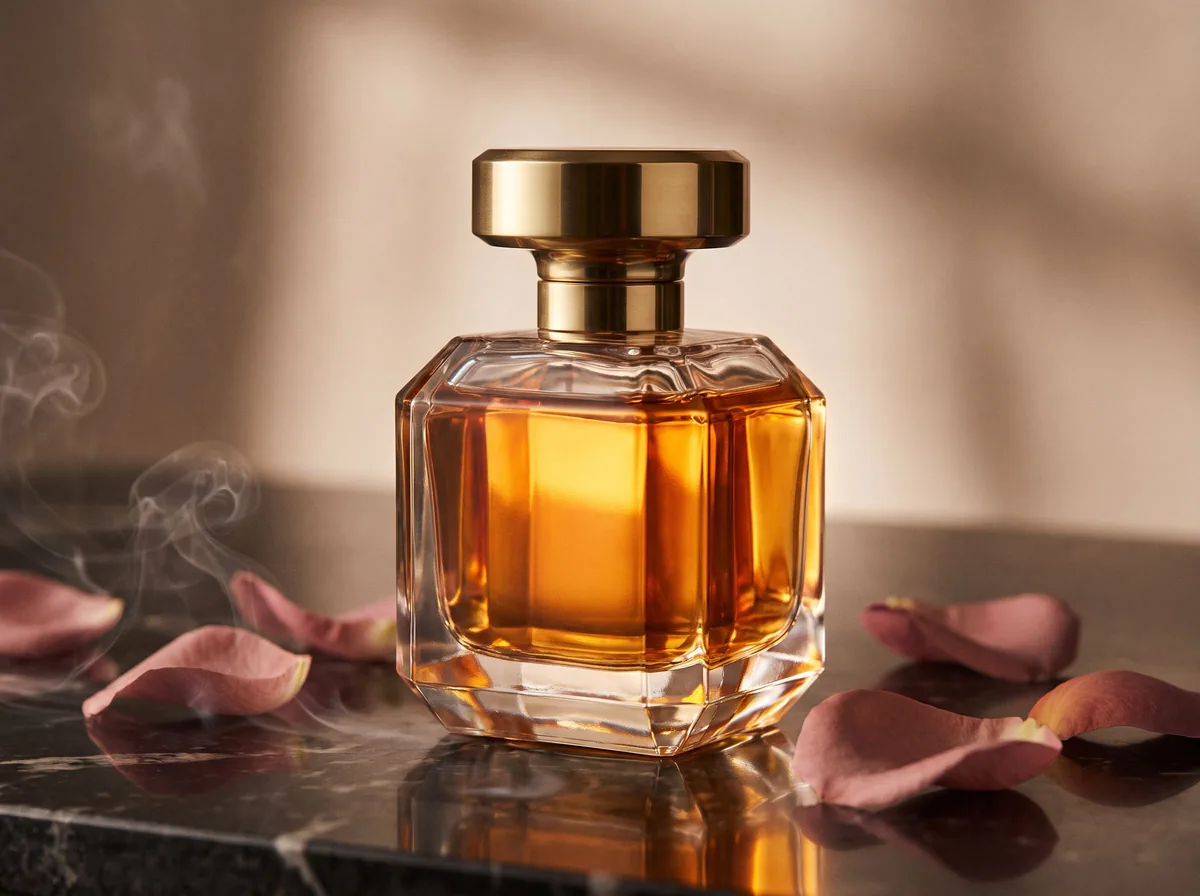 Perfume Product PhotographyFreeMake luxury perfume product photos with clean glass edges, glowing liquid and scent-note styling from a single bottle photo.
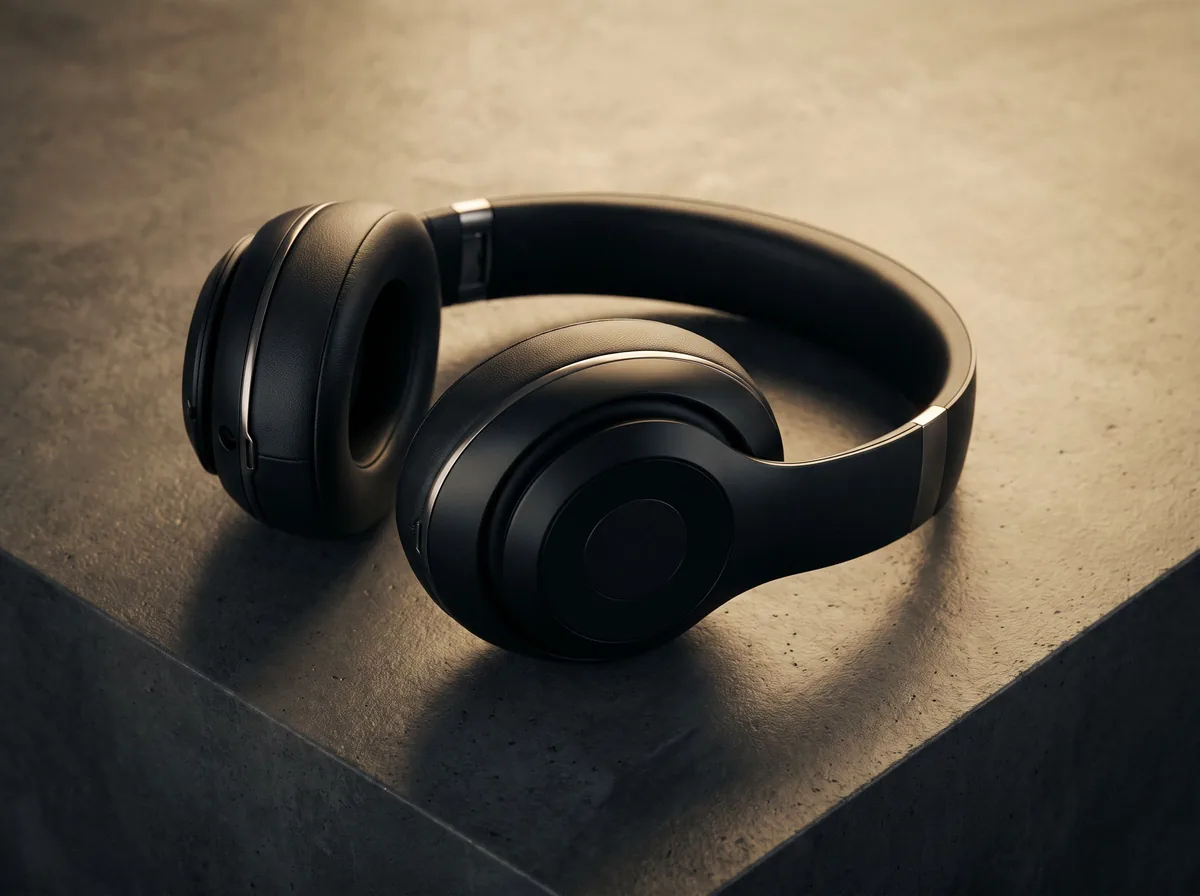 Electronics Product PhotographyFreeCreate clean tech product photos for headphones, chargers, speakers and gadgets, with sharp edges, clean screens and desk scenes.
Ask an assistant
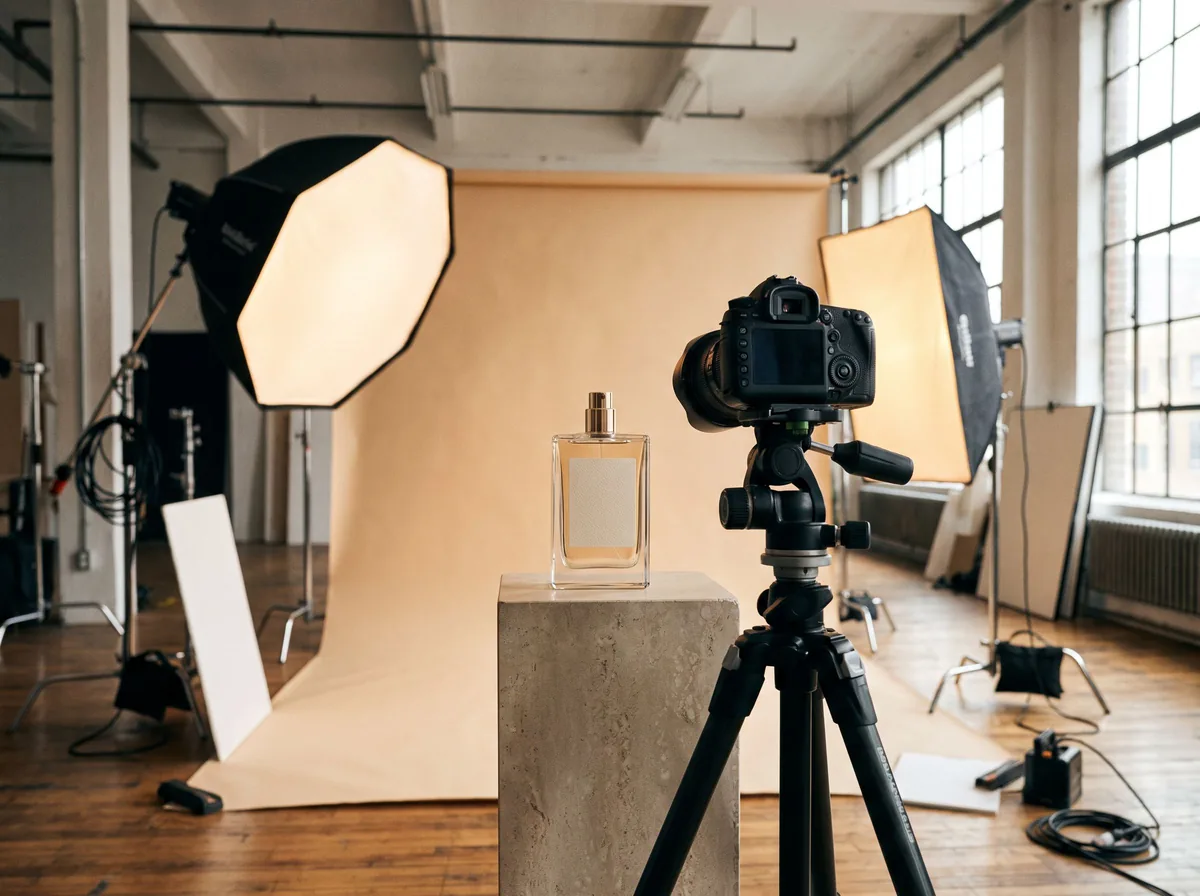 Product Shoot StudioProduct Photography FreeYour AI product photography director: plans the shoot, picks scenes, props and light, and writes the prompt for every shot.Chat free →
 Amazon Main Image CheckerProduct Photography FreeChecks your Amazon main image against common requirements, background, fill, props and text, and tells you how to fix or reshoot it.Chat free →
 Jewelry Photo DirectorProduct Photography FreePlans jewelry photos that show sparkle, metal tone and true scale: rings, necklaces, earrings and bracelets on white, on busts and in close detail.Chat free →