Product photography
100% free · No sign-upAdd Text to Photo for Free
Write on your product photos: a headline, a price tag, or a SALE, NEW or FREE SHIPPING badge. Drag it into place and download at full size.
Add text or a badge
Pick a photo (or a batch), add text, a price or a sale badge, drag it into place, and download at full size.
Sample preview. Choose photos to see your own.
Adjust the photo (brightness, contrast, color)
Applies to every photo in the batch. -100 at Color strength makes it black and white.
Your photos stay on your device: this tool runs in your browser and uploads nothing.
How it works
How to use the Add Text to Photo
- 1
Choose a photo
Or a batch that should all get the same text.
- 2
Type and place your text
Type it, style it and drag it into place.
- 3
Download
Full-size photos, one by one or in a ZIP.
A price, a sale badge or a short line of text turns a product photo into a post, an ad or a promo image. This free tool adds text and ready-made badges to your photos in your browser, with no sign-up and no watermark.
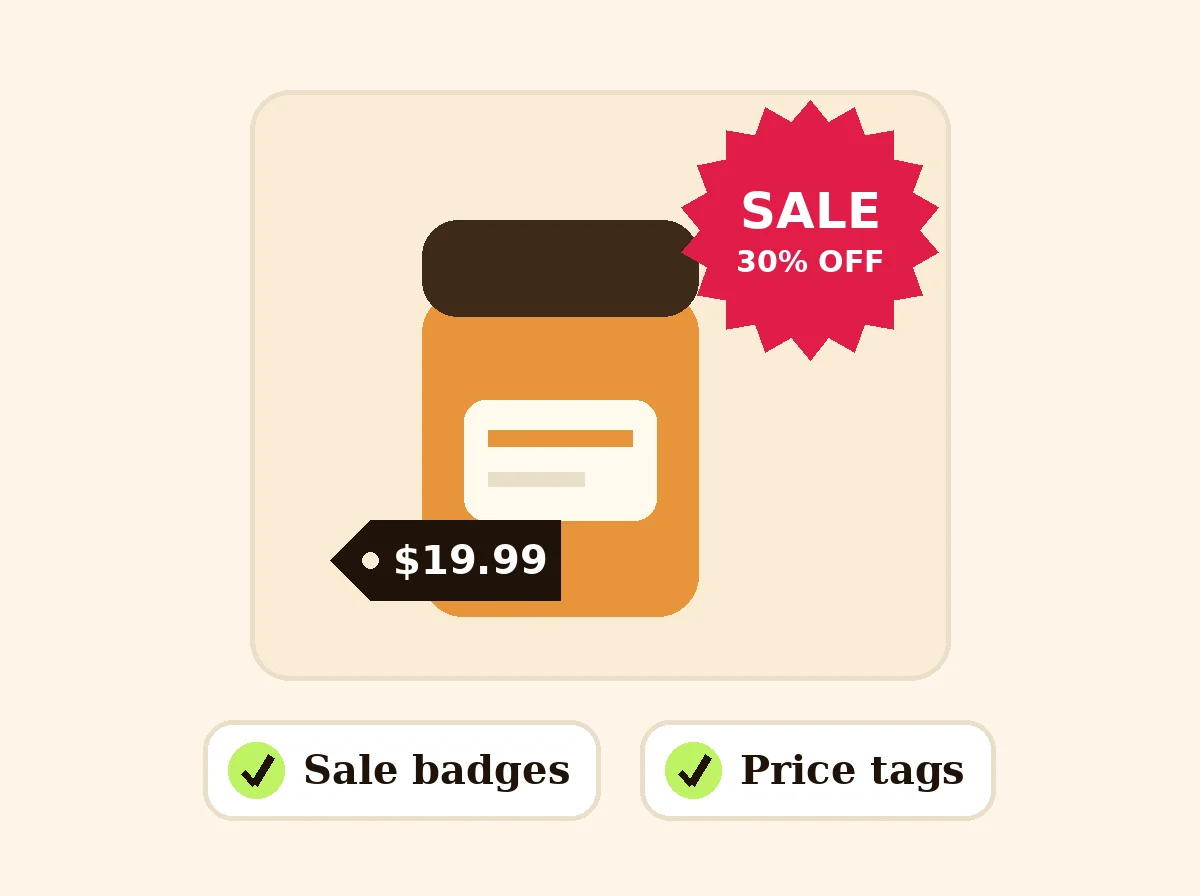
Add Text to Photo
The product behind the words
Text that reads on any photo
Pick a font, color and size, then add an outline, a shadow or a dark band behind the text so it stays readable on busy photos. Press Enter for a second line.
Sale badges and price tags
Starbursts, circles, pills, tags and boxes for SALE, 30% OFF, NEW, BEST SELLER, FREE SHIPPING, LIMITED EDITION, HANDMADE or your own price. Every word and color can be changed.
One layout, many photos
Set up the text on the first photo and apply it to the whole batch. Positions are set as a share of the photo, so they land in the same spot on photos of different sizes.
Where text is allowed
Keep marketplace main images clean: no text, badges or logos. Text and badges work well on secondary listing images, Instagram and Facebook posts, Pinterest pins, ads, your website and email campaigns.
Frames, arrows and photo adjustments
Besides text and badges, you can add a border round the photo (plain, double line, rounded corners or instant photo), two-headed arrows to show a size, and shapes with a gradient fill. Under the preview, the Adjust the photo panel changes brightness, contrast, color strength and warmth, and has a Negative switch that inverts the colors. All of it runs in your browser and applies to a whole batch.
FAQ
Add Text to Photo: questions sellers ask
How do I add text to a photo?
Choose a photo, type your text in the box, and drag it on the preview to where you want it. Change the font, color, size and outline, then press Save.
Can I add a sale badge or price tag?
Yes. Press one of the badge buttons (SALE, 30% OFF, price tag, NEW, BEST SELLER, FREE SHIPPING and more), change the words and color, pick a shape such as a starburst or circle, and drag it into place.
Can I put more than one text on a photo?
Yes. Add as many text lines and badges as you need, and pick which one to edit with the buttons under "Editing".
Can I use the same text on many photos?
Yes. Pick several photos and the same layout is applied to each one, scaled to its size. Download them all in a ZIP.
Can I add text to my Amazon main image?
No. Amazon, Walmart and TikTok Shop do not allow text, badges or logos on the main product image. Use badges on secondary images, social posts, ads, your own store and emails.
Is my photo uploaded?
No. The text is drawn in your browser and your photo stays on your device.
How do I add a border to a photo?
Press + Frame under "Add". A border appears round the whole photo. Pick its color and thickness, then choose a style: plain, double line, rounded corners, or instant photo, which has a wider bottom edge for a caption. The thickness is a share of the photo's shorter side, so it looks the same on big and small photos.
How do I invert the colors of an image?
Open "Adjust the photo" under the preview and turn on Negative. Every color flips to its opposite. It also turns a scan of a film negative back into a photo, and you can fine-tune the result with the Warmth and Color strength sliders. Reset to the original puts it back.
How do I change the brightness and contrast of a photo?
Open "Adjust the photo" under the preview. Four sliders go from -100 to 100: Brightness, Contrast, Color strength and Warmth (cool to warm). Color strength at -100 makes the photo black and white. The same change is applied to every photo in the batch.
How do I add dimension arrows to a product photo?
Press + Arrow, then turn on "Head on both ends (to show a size)". Drag the arrow along the edge of your product, change its length and rotation, and add a text next to it such as "10 cm". The tool does not measure anything: you type the size yourself.
Can I fill a shape with a gradient?
Yes. Add a rectangle, circle or triangle, turn on Filled, then turn on Gradient fill and pick the second color. The shape fades from its first color at the top to the second color at the bottom, which works well for sale banners and badges.
Is Z Product AI really free?
Yes. Every tool and assistant on Z Product AI is free to use, with no sign-up and no credit card. Very heavy use is paced with short waits so the site stays free for everyone.
Keep going
More tools for your listings
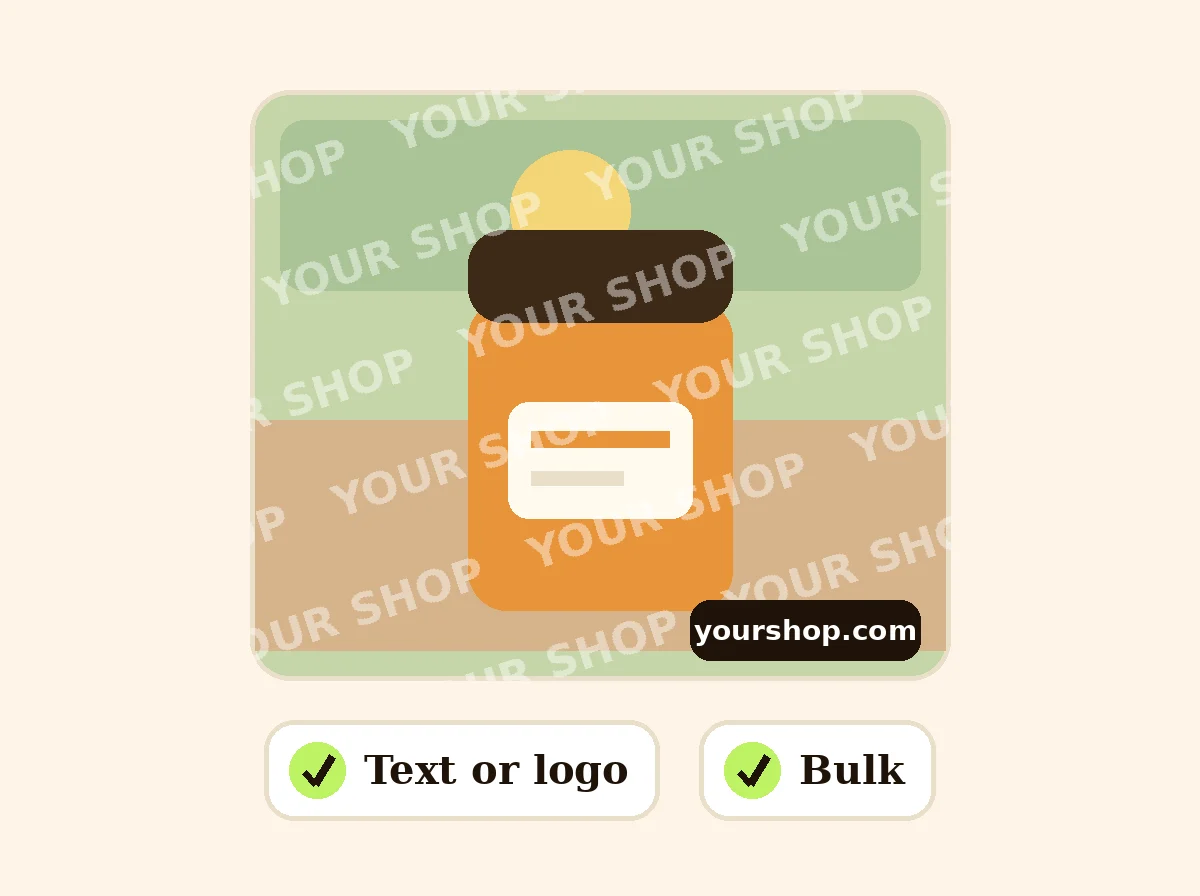 Add Watermark to PhotoFreePut your shop name or logo on one photo or a batch: any position or tiled, with opacity and rotation.
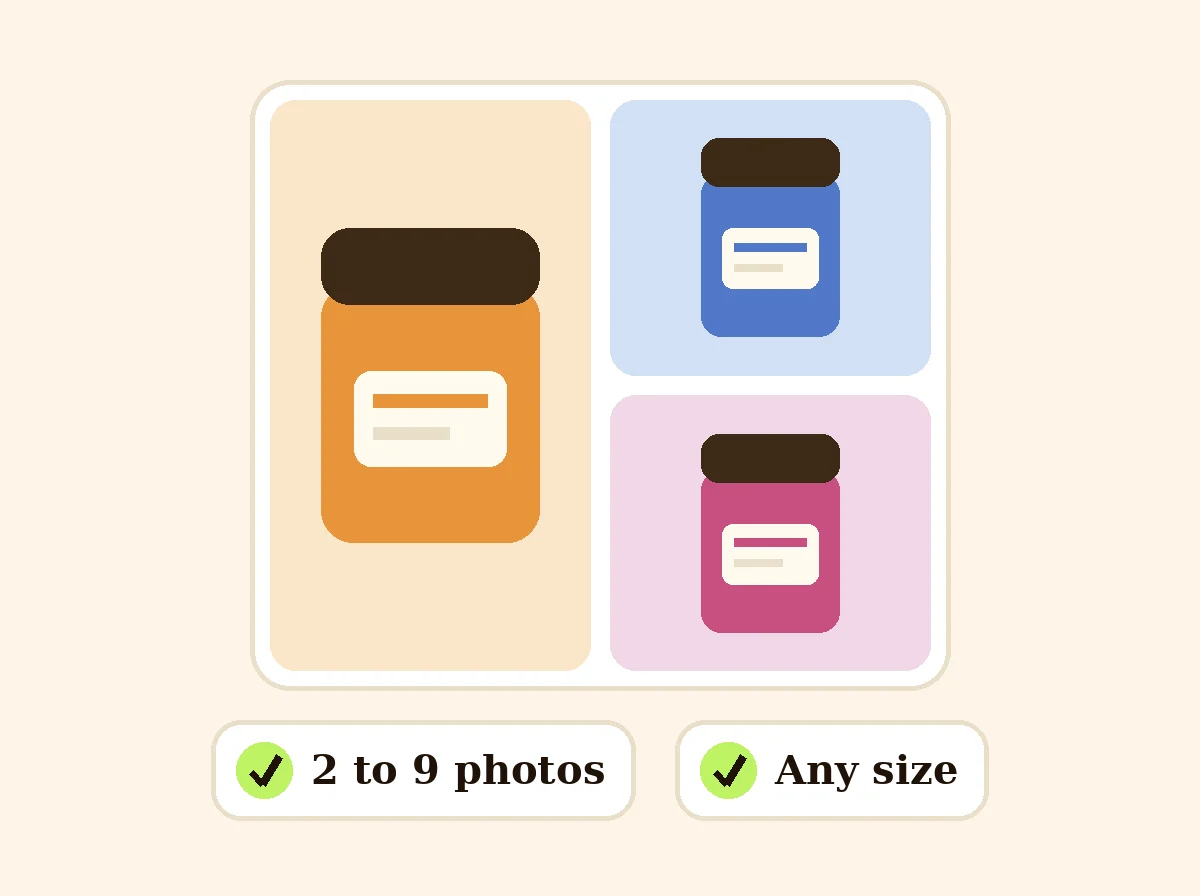 Product Collage MakerFreePut 2 to 9 product photos in one grid for a listing or post, sized for marketplaces and social media.
 AI Ad Copy GeneratorFreeScroll-stopping ad copy for Meta, TikTok and Google product ads, written from your product and offer.
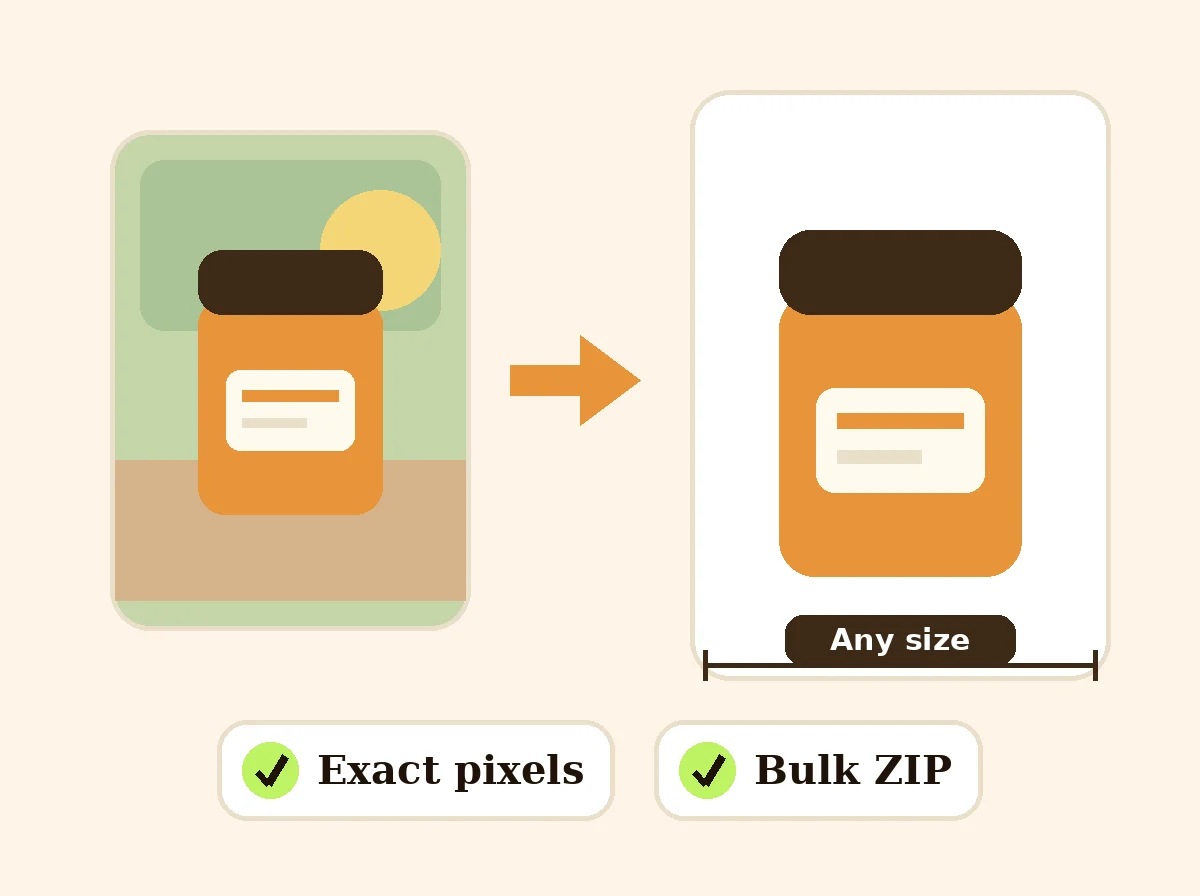 Image ResizerFreeResize photos to exact pixels, a percentage or a marketplace size, one at a time or in bulk with a ZIP. Runs in your browser.
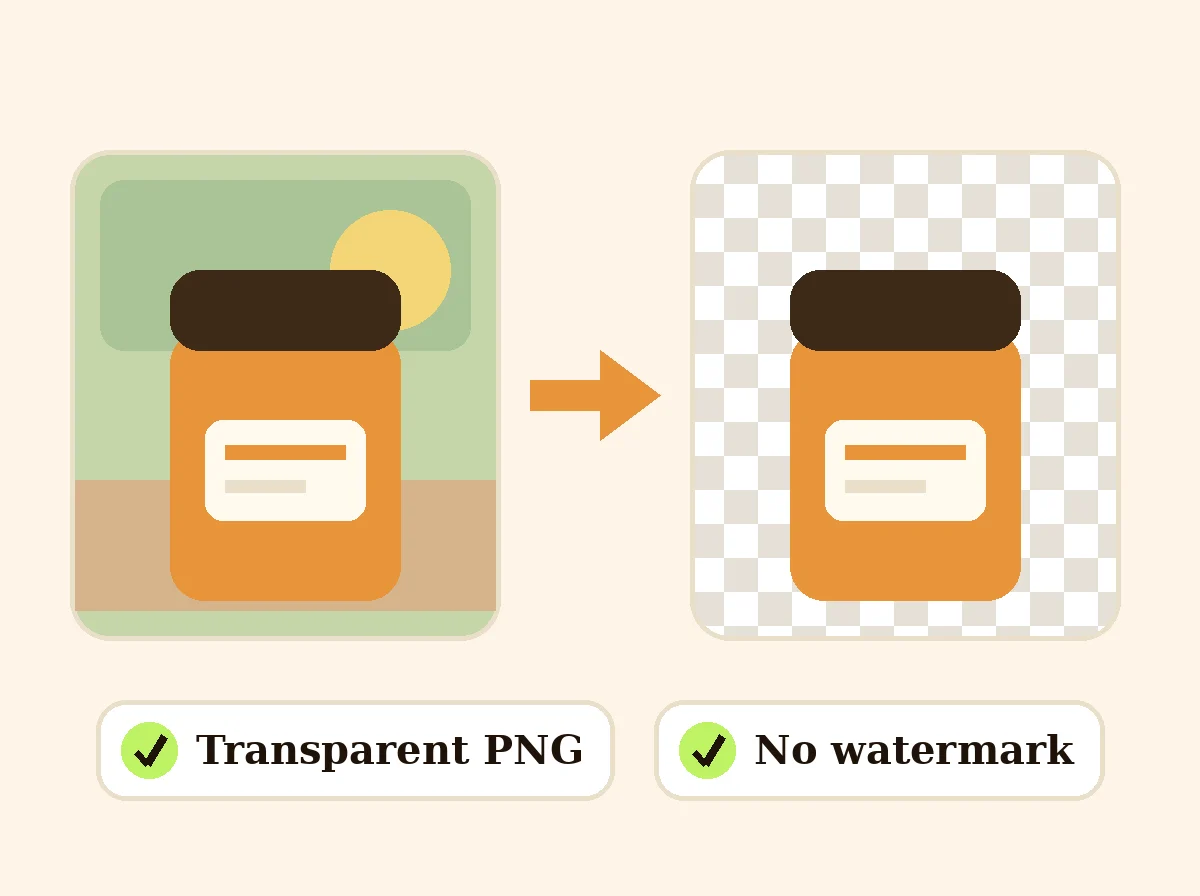 AI Background RemoverFreeRemove the background from a product photo, logo or signature and download a transparent PNG at full size, with no watermark.
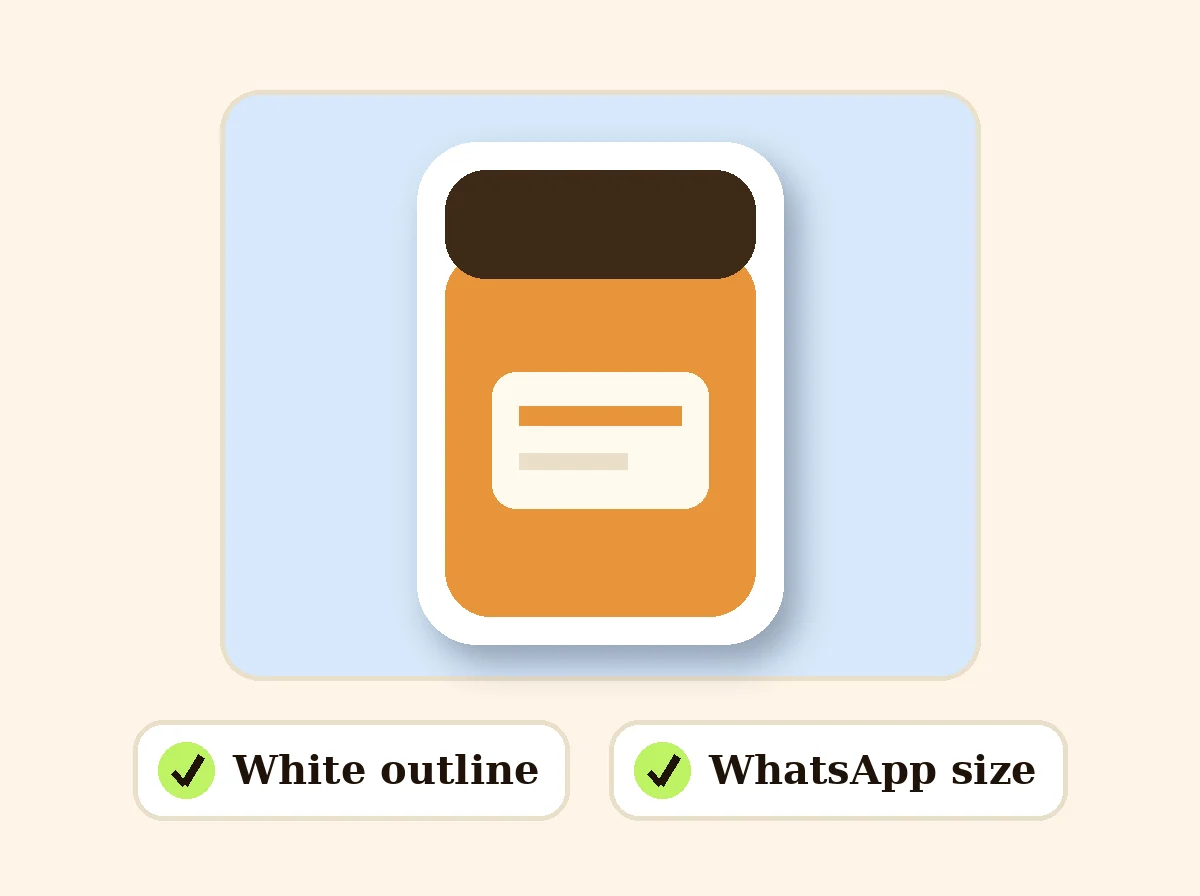 Photo to Sticker MakerFreeCut out a product, pet or person and turn it into a sticker with a white outline: PNG or WhatsApp size.
Ask an assistant
 Product Shoot StudioProduct Photography FreeYour AI product photography director: plans the shoot, picks scenes, props and light, and writes the prompt for every shot.Chat free →
 Amazon Main Image CheckerProduct Photography FreeChecks your Amazon main image against common requirements, background, fill, props and text, and tells you how to fix or reshoot it.Chat free →
 Jewelry Photo DirectorProduct Photography FreePlans jewelry photos that show sparkle, metal tone and true scale: rings, necklaces, earrings and bracelets on white, on busts and in close detail.Chat free →