How it works
How Z Product AI works
Turn one phone photo of your product into a styled product shot in four steps. Every tool is free and works without an account.
- 1
Upload your product photo
Open a tool and add one sharp photo of your product, with the whole item in frame. JPG, PNG and WebP all work. Window light and a plain table are enough: the AI replaces the background, but it cannot fix blur. You can select up to 4 photos in one edit, for example a top and trousers for one outfit.
Open Product Image Generator - 2
Pick a look or type your own
Tap a chip, such as "Hero shot on a stone podium" or "Lifestyle shot in use". Or type what you want: name the surface, the backdrop and the light, and end with "Do not add any text." That last sentence helps stop made-up label text.
Open AI Product Photoshoot - 3
Generate, then fix one thing at a time
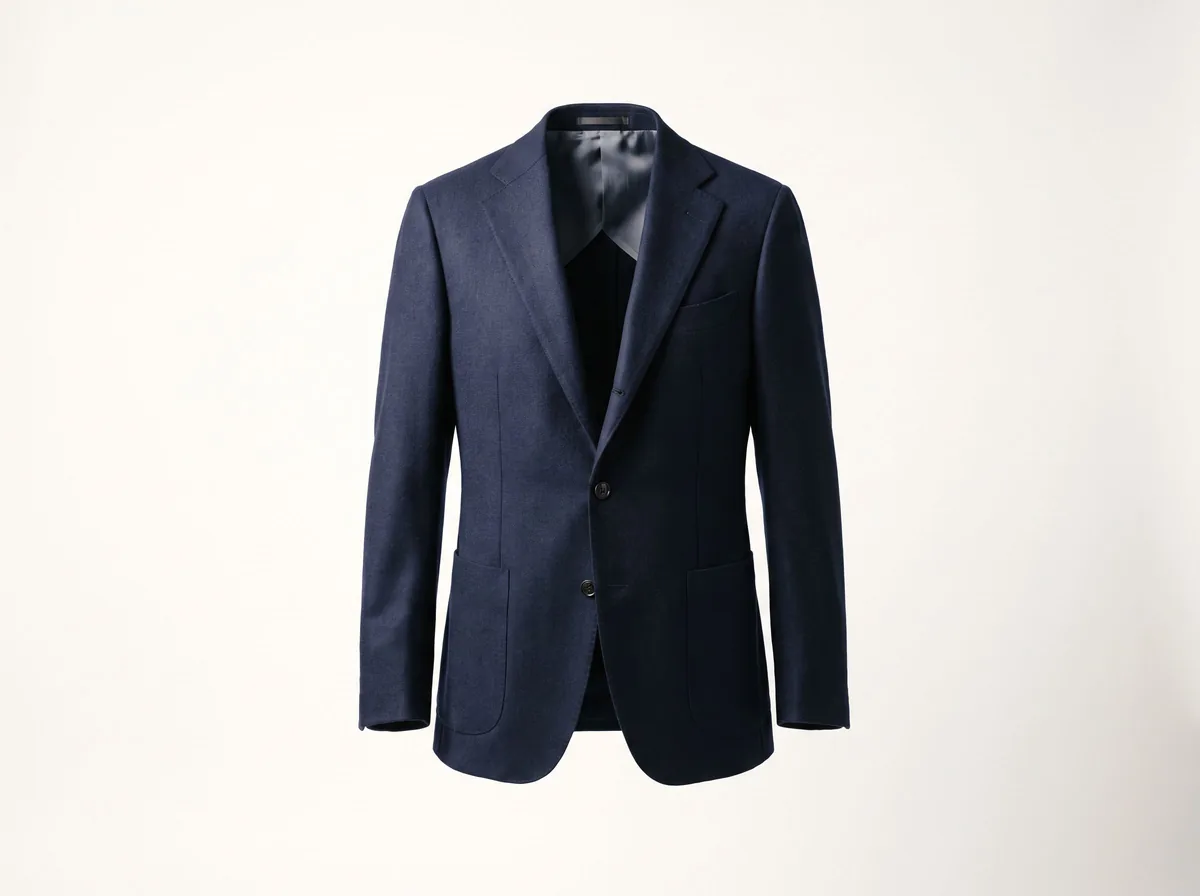
Press generate. There is no account and no card. If one detail is off, ask for one fix at a time, for example "keep the check pattern of the blazer". For clothes on a model, the fashion model tool works the same way from a hanger or flat-lay photo.
Open AI Fashion Model Generator - 4
Check it and download
Compare logos, labels, caps and colors with the real product, then download. Results are up to 768 px on the long side, saved with a small zproductai.com mark. For an Amazon main image, use the White Background tool on your own photo.
Open White Background Product Photos
Quick facts
What you get, and the limits
- Price
- Free. No account, no card.
- What you upload
- A product photo (JPG, PNG or WebP). Up to 4 photos in one edit.
- Result size
- Up to 768 px on the long side; it can come out smaller.
- Download
- Saved with a small zproductai.com mark in the bottom-right corner.
- Limits
- 10 images a day. The first 8 in an hour start at once, then short waits.
- Who owns it
- You do, and you may use it commercially, under our terms.
Want to see real results first? Browse the gallery, where each image shows the chip or prompt that made it.
More free tools
Same steps, other jobs

FAQ
Questions before you start
Do I need to sign up to use Z Product AI?
No. Every tool works without an account and without a card.
What kind of photo should I upload?
One sharp photo with the whole product in frame. A phone photo by a window on a plain table is enough. The AI can replace the background, but it cannot fix a blurry photo.
Can I use more than one photo at once?
Yes. Select up to 4 photos in one edit, for example each piece of an outfit, and ask for one result that uses all of them.
How many images can I make?
The free allowance is 10 images a day. Your first 8 in an hour start right away; after that the tool spaces them out with short waits instead of locking you out.
Why did a small detail of my product change?
The AI rebuilds the scene and can drift on small parts like a cap, a logo or label text. Try again, add "keep the product exactly as it is" to your prompt, and compare the result with the real item before you publish.
Can I use the results on my store?
Yes. Under our terms you own the images generated for you and may use them commercially. You are responsible for following the rules of each marketplace or ad platform.