Seller guide

How to Take Product Photos With Your Phone

You do not need a camera to sell online. Product photos sell when the light is soft, the background is plain and the product is sharp, and a phone can do all three. This guide covers the setup, the settings, the angles every listing needs, and what to do when the background is still messy.

Updated 13 October 2026

The short answer

  • Light matters more than the camera: put the product next to a window, at a right angle to the light, and turn off the flash.
  • Use one plain backdrop and shoot every product the same way, so the shop looks like one set.
  • If the background still looks messy, an AI tool can replace it, but it cannot fix a blurry photo. Reshoot those.

Example before (AI-made sample photo) and our model's output

Our test: two kitchen-counter phone shots, one fix each

Both inputs are AI-made sample photos of products on a cluttered kitchen counter, the kind of snapshot a seller takes first. Each went through one of our free tools exactly as a visitor would use it, once, with no retries.

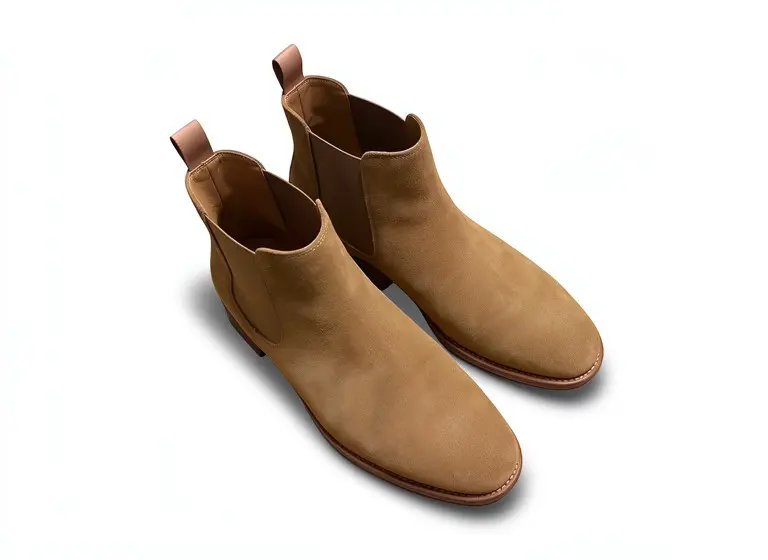
Suede boots to a white-background shot
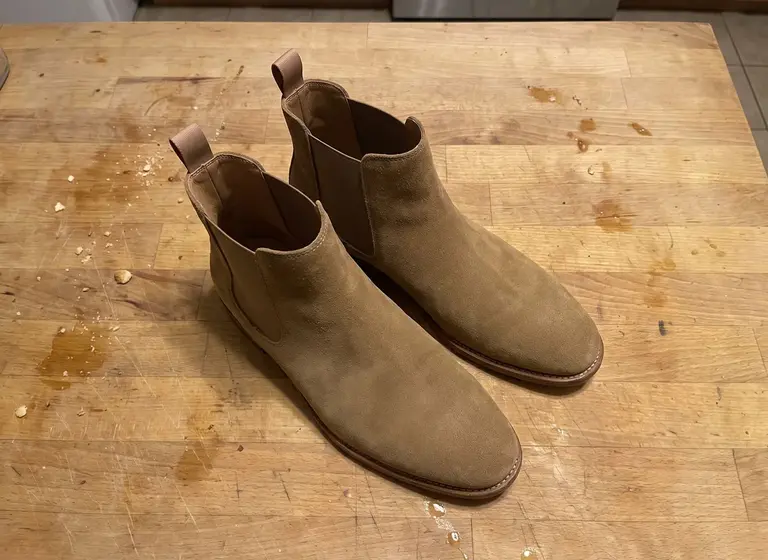
Suede boots to a white-background shot: the original photo
Before
Suede boots to a white-background shot: the AI result
After

PromptPure white, soft shadow

The counter and crumbs are gone and a soft shadow sits under the boots. The suede came out a little warmer than the original, so compare the color with the real pair before you publish. The download is 768px wide with a small mark, so it suits a draft listing or a social post, not an Amazon main image.

Try it free in White Background Product Photos →Need it with no mark, in HD? Try AI Two (sister studio: free to try, paid plans remove the watermark)


Stoneware vase to a grey seamless backdrop

Stoneware vase to a grey seamless backdrop: the original photo
Before
Stoneware vase to a grey seamless backdrop: the AI result
After

PromptSoft grey seamless studio backdrop with a gentle shadow

The shape and the rim are kept and the counter is replaced with an even grey studio backdrop. The surface came out glossier and more orange-brown than the plain stoneware in the original photo, so compare it with the real vase before you publish. Buyers return products that look different in person.

Try it free in Product Background Changer →Need it with no mark, in HD? Try AI Two (sister studio: free to try, paid plans remove the watermark)
The before photos are phone-style snapshots of generic products that we made with an AI image model for this site's tool pages; they are not customer photos. Each after is the unedited result of our own free tool on that photo, made on 13 October 2026 at the size a visitor gets (768px on the long side) and shown without the download mark. Results vary from photo to photo.

Which background for which use

A starting point, not a rulebook. Marketplace rules change and differ by category, so check each one before you upload.

Where the photo goesBackground that usually worksNotes
Amazon main imagePure white (RGB 255)Strict rules on fill, size and extras. See our Amazon main image guide.
Your own store (Shopify and similar)One plain color or light grey, the same on every productConsistency across the catalog matters more than which color you pick.
Etsy first photoA simple styled scene or a plain backdrop in warm lightThe first photo is cropped to a landscape thumbnail in search, so keep the product centered. Check Etsy's current guidelines.
Instagram and socialA styled scene, or one brand colorSquare or portrait crops. A scene can show the product in use.
Ads and bannersA solid brand color with room for textA solid backdrop leaves clean space for a headline.

Set up in ten minutes

  • Put a small table next to a window and place the product so the window light hits it from the side, at about 90 degrees to the camera. Soft daylight from a window gives an even look.
  • Skip the flash and a single table lamp: they light only part of the product and make flaws look worse. With no daylight, use two lights on opposite sides.
  • Use a plain, matte backdrop such as a sheet of white poster board curved up the wall, so there is no hard line behind the product. Black or grey paper works for pale products.
  • Steady the phone. A tripod is best, but a stack of books works. Tap the screen on the product to focus, then hold to lock focus and exposure.
  • Clean the product first. Cameras and AI tools both keep the dust and fingerprints they can see.

Phone settings that matter

  • Wipe the lens with a clean cloth before each shoot. A smudge softens every photo.
  • Use the rear camera, not the selfie camera.
  • Move the phone closer instead of using digital zoom, which lowers quality.
  • Turn on the grid and keep the product level, in the same spot in the frame for every shot.
  • Keep white balance and exposure the same across a batch. Auto settings can make similar photos look different in the same shop.
  • Edit lightly: crop and brighten, but never change the product's color.

The shots every listing needs

Plan about six photos per product and shoot them in the same light, one after the other. Tips from the guides we checked come to roughly this list:

  • Front, straight on. This is your hero photo.
  • A 45-degree angle that shows depth.
  • The back, if it has text, tags or details.
  • Top-down, for sets and flat items.
  • One close-up of the texture or material.
  • One in-use photo that shows scale, such as a hand or a room.

Selling on Etsy: what changes

Etsy shoppers expect a personal, handmade look, so a warm, natural-light scene often works better than a sterile white box for the first photo. Etsy crops the first photo to a landscape thumbnail in search, so leave space on the left and right. Show the real texture of a handmade item and do not retouch it away. Check Etsy's current photo guidelines for size.

When to fix it with AI and when to reshoot

An AI tool can replace a messy background, add a soft shadow and place the product in a styled scene. It works best from a sharp, well-lit photo of a single product. It cannot rescue a blurry shot, a product cut off at the edge or a photo shot in heavy shadow, so reshoot those.

Keep the real product honest. Compare the result with what the buyer will receive, especially color, label text and small details, as the vase example above shows.

FAQ

Questions sellers ask

Can you take good product photos with a phone?

Yes. Light and background matter more than the camera. A recent phone, soft window light, a plain backdrop and a steady hand give clean photos for most online shops.

What is the best light for product photos with a phone?

Soft daylight from a window, with the product at about 90 degrees to the window. Avoid direct sun, the flash and a single lamp. If it is dark, use two lights on opposite sides.

What background should I use?

A plain, matte one: white poster board, paper or a plain cloth. If you cannot get one, shoot on a clean table and replace the background afterwards with an AI tool.

How many photos does each product need?

Plan for about six: front, 45 degrees, back, top-down, a close-up and one in use. Marketplaces set their own limits, so check yours.

Do I need a tripod?

No, but a steady phone gives sharper photos. A stack of books or a tripod with a phone holder works.

Can AI fix a bad product photo?

It can replace a messy background and add a shadow. It cannot fix blur, a cropped product or heavy shadows, and it can shift colors a little, so compare with the real product.

Are the free downloads from Z Product AI good enough to sell with?

Free downloads are up to 768px on the long side with a small zproductai.com mark. That suits drafts, social posts and small store images. For marketplace zoom you need a bigger, unmarked file.