Fashion & apparel
100% free · No sign-upFree Virtual Ring Try On
Upload a photo of your hand and a photo of any ring, from an engagement ring to a men's band. The AI puts that ring on your finger and keeps your hand and background the same. Free to use, no sign-up.
Free to use · No sign-up · JPG, PNG or WebP
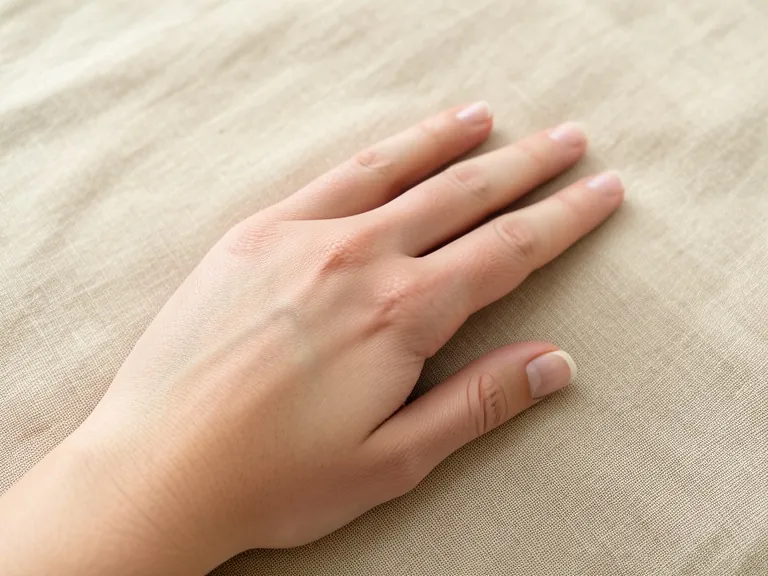
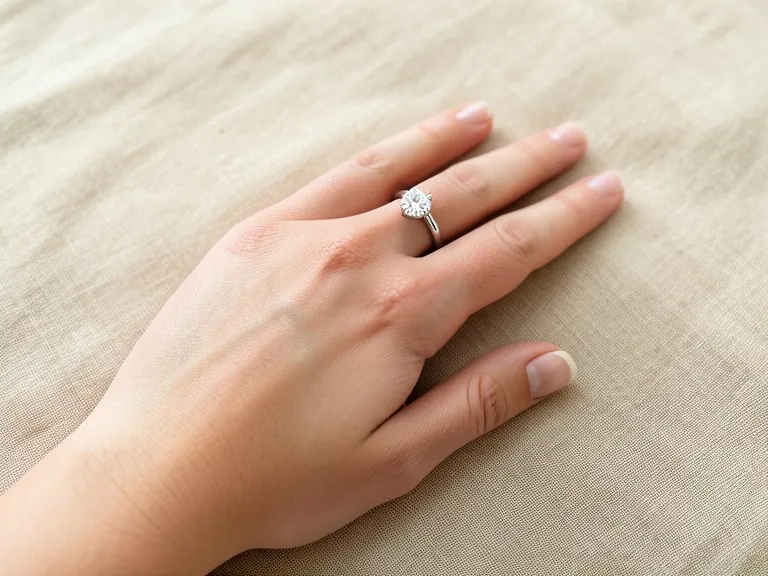
Ring Try On
Made with Z Product AI
Popular with sellers
How it works
How to use the Virtual Ring Try On
- 1
Upload your photo
A clear phone photo is enough. Keep the whole product or garment in frame.
- 2
Tap a preset or describe it
Pick a chip or type what you want in a few words. The AI keeps your product exactly as it is.
- 3
Download or refine
Download the result, or ask for a change and the AI edits the last image.
Real results
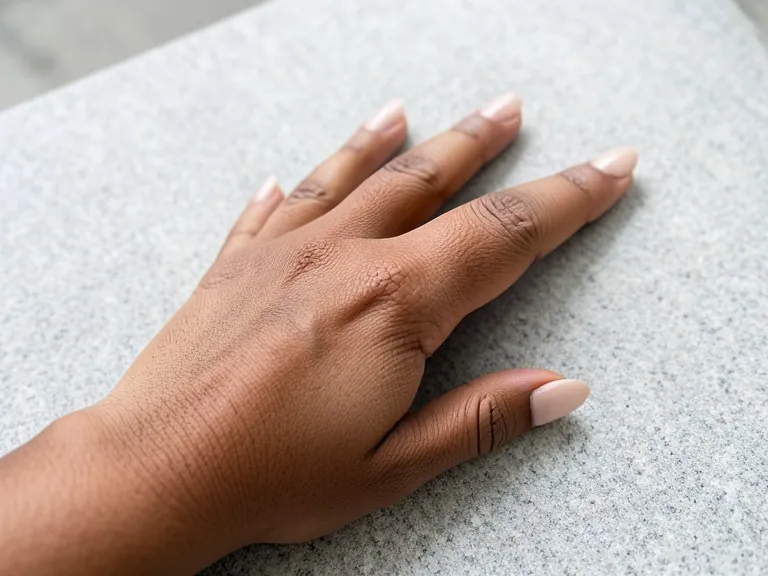
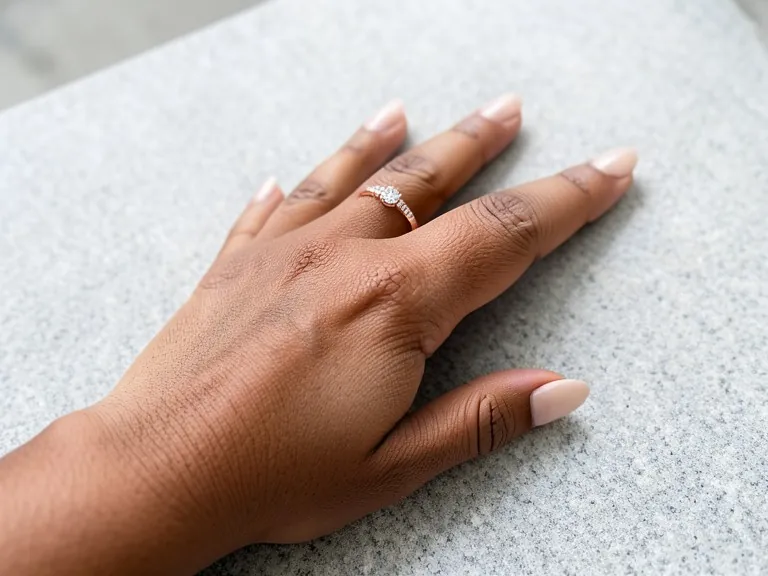
A hand photo and a ring photo: real results
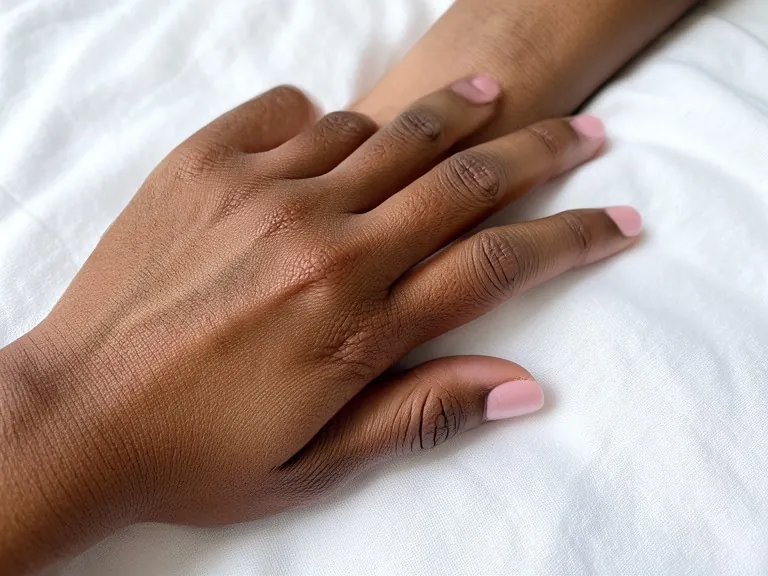
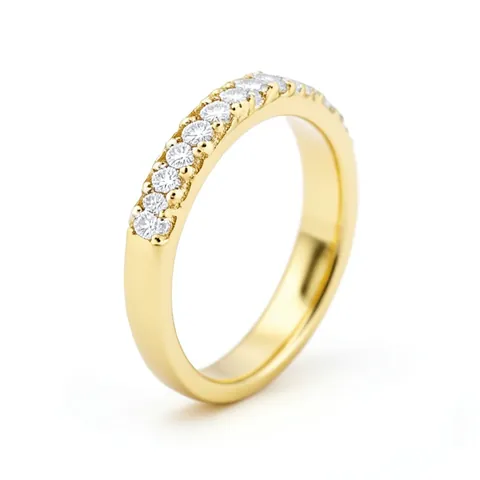
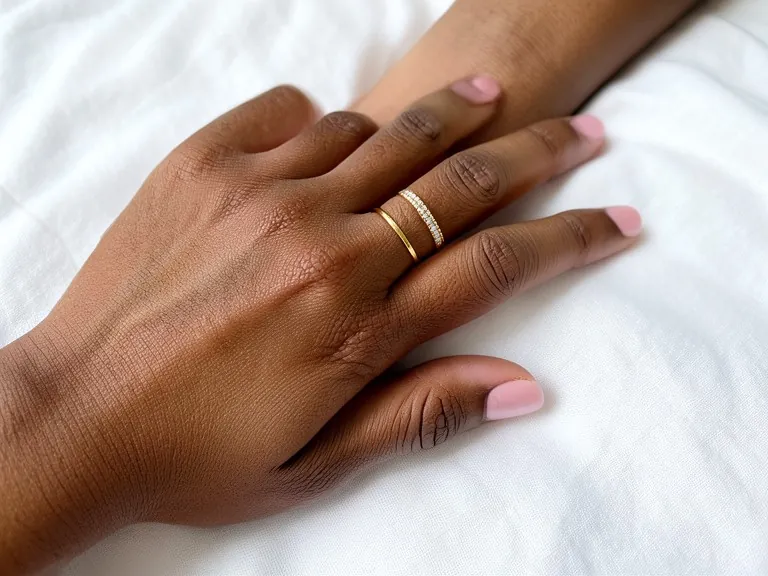
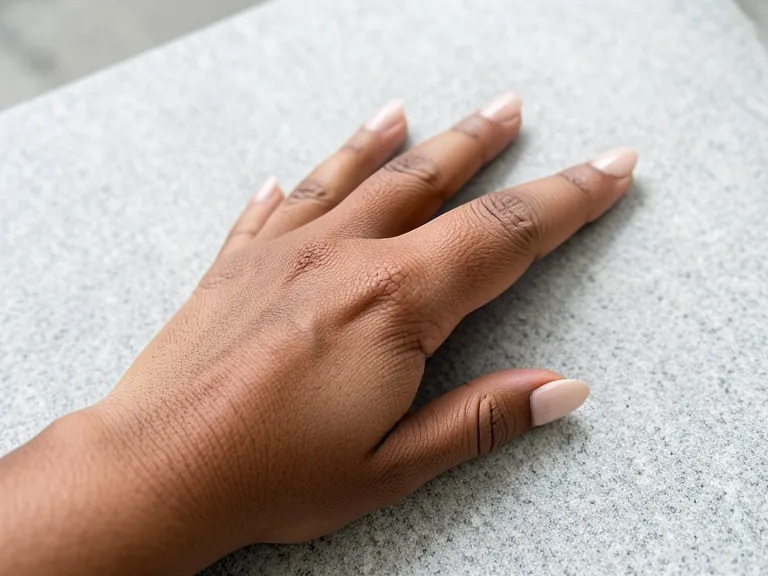
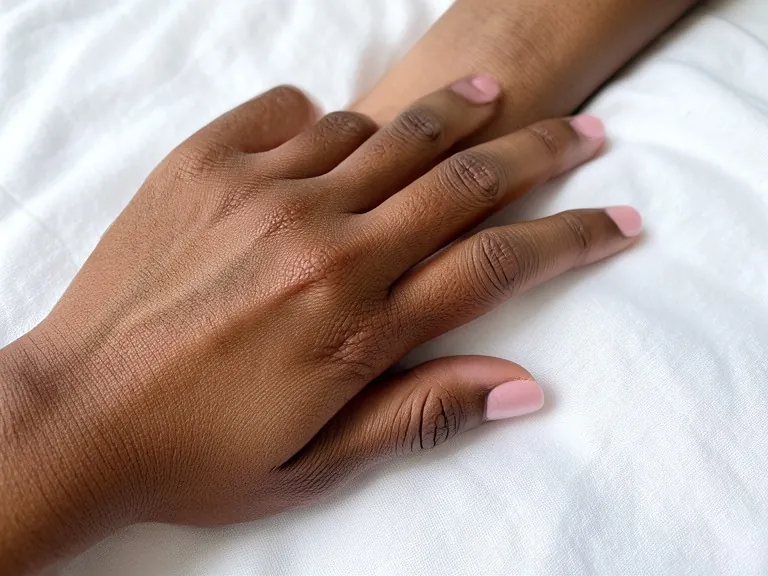
Each result below is one hand photo plus one ring photo, selected together, with the chip named in the caption. Look closely at the stones and prongs: that is where an AI try-on can simplify.
Before
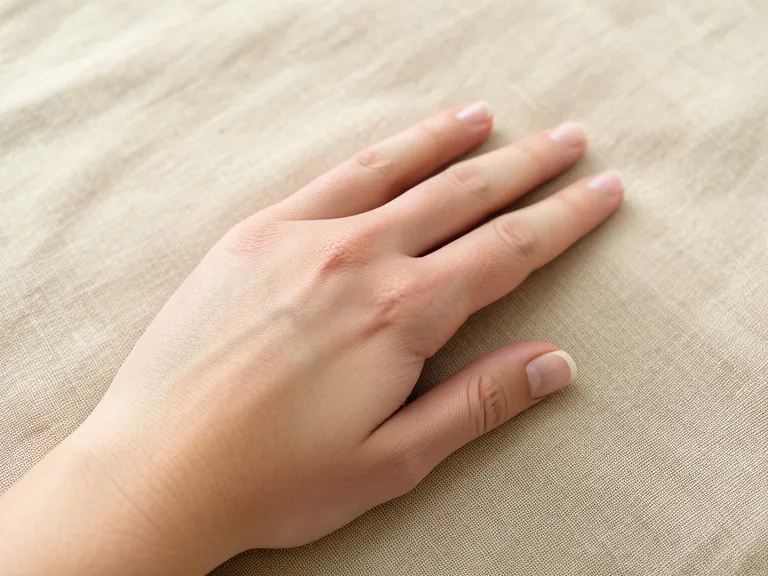
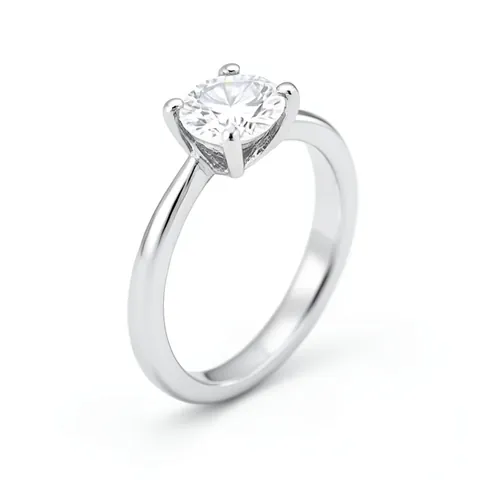 Ring photo
After
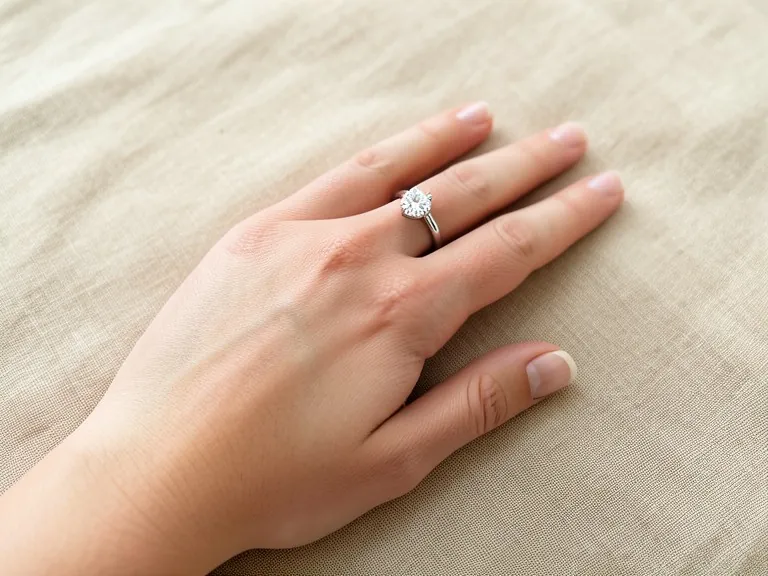
Before
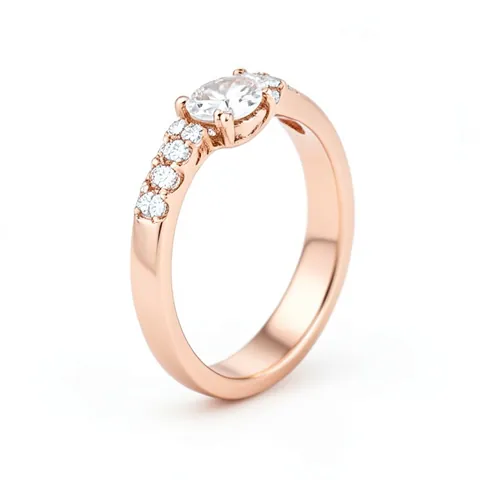 Ring photo
After
Before
 Ring photo
After
Before
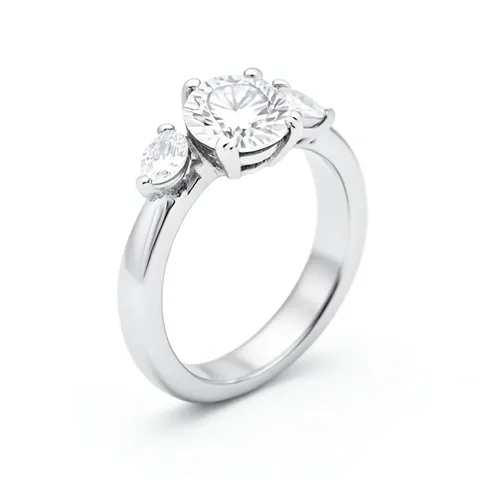 Ring photo
After
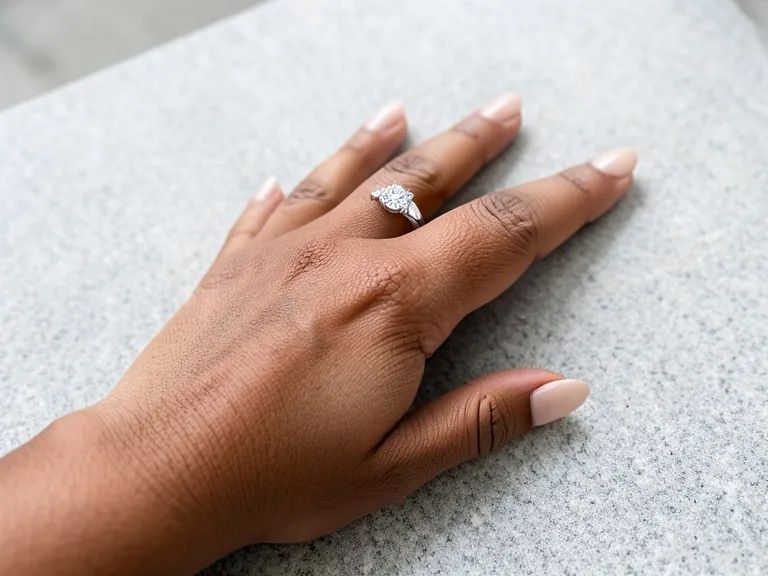
Before
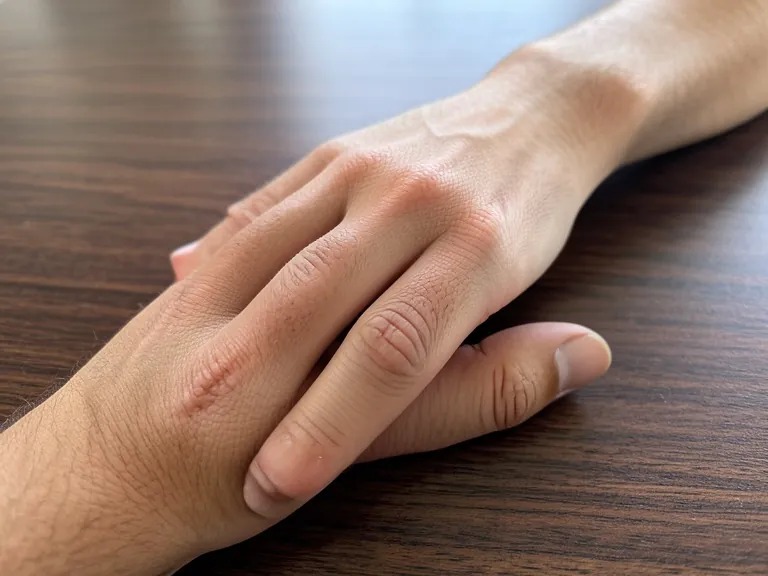
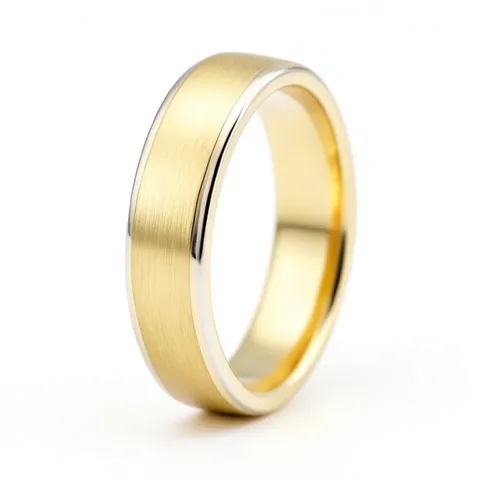 Ring photo
After
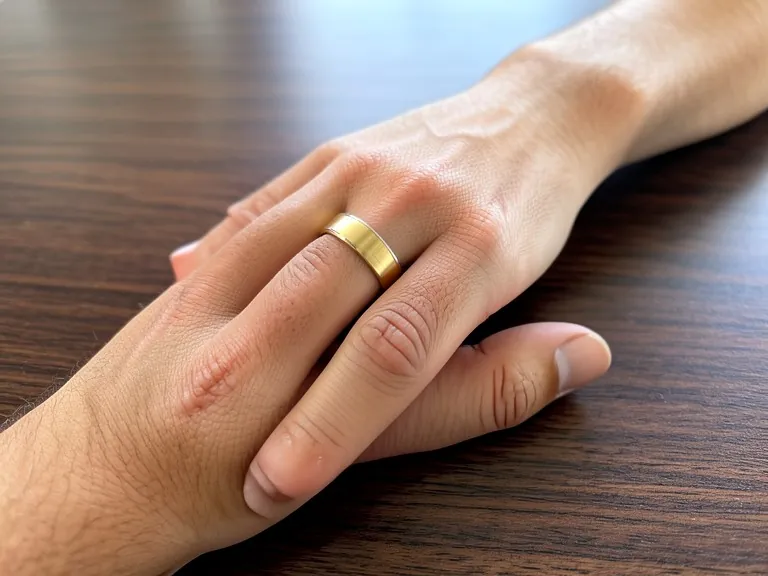
Before
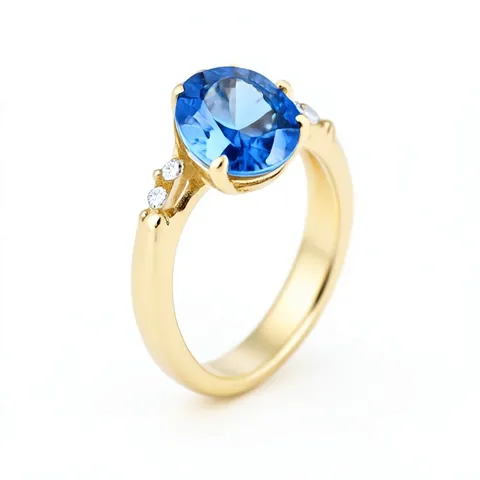 Ring photo
After
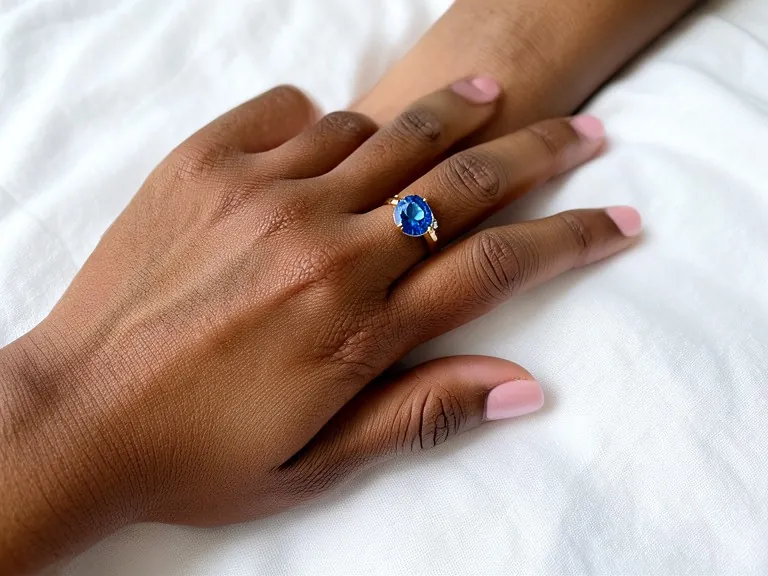
The hands and rings in these samples are AI-made with our own model for this demo: they are not real customers or real products. Each result is the unedited output of our own model, shown without the download mark.
How to get a realistic ring try-on
- Photograph the back of your hand in soft daylight, fingers relaxed and slightly apart, on a plain background. Take off other rings from that finger.
- Save a sharp photo of the ring that shows the stone and the band, ideally at a three-quarter angle.
- Upload both. Tap the + on the hand photo first, then on the ring photo, so both are selected (1 and 2).
- Tap "Ring finger, left hand", or type where you want it, such as "right ring finger".
- Zoom in on the result and compare the stones, prongs and metal with the ring photo. If something changed, generate again or ask "keep the stones exactly as in the ring photo".
What a ring try-on is good for
- Narrowing down engagement ring styles (solitaire, halo, three-stone, pavé) on your own hand before a jeweler appointment.
- Comparing metals and stacks: yellow gold against platinum, or an engagement ring with and without a wedding band.
- Jewelry sellers answering "how would this look on me?" with the ring on the customer's own hand photo.
- Not for sizing: the preview cannot show ring size or carat. Have your finger measured by a jeweler.
Read next: Jewelry on Model · Jewelry Product Photography · How to photograph jewelry
A ring that looks perfect in a listing can look very different on your own hand. This free virtual ring try on shows any ring on your finger in seconds: upload a photo of your hand and a photo of the ring, and the AI puts that ring on your ring finger with natural light and shadows. Use it to compare engagement rings, wedding bands or a gift before you visit a jeweler. It is a style preview, so it shows the look, not the size.
How the ring try on works
Upload two photos: your hand and the ring. Tap the + on the hand photo first and then on the ring photo, so both are selected. Then tap a chip such as "Ring finger, left hand" or type what you want, for example "put this ring on my right ring finger". The AI reads the ring from the second photo, with its metal, stone shape and setting, and draws it on your finger between the knuckles, with a small shadow and reflections that match your photo. Your hand, nails and background stay the same. Ask for changes one at a time, such as "move it to the index finger" or "stack it with a plain gold band", and it edits the last result.
Virtual engagement ring try on
Choosing an engagement ring usually means comparing a few styles: a classic solitaire, a halo that makes the centre stone look bigger, a three-stone ring, a pavé band, an oval or emerald cut, yellow gold or platinum. A virtual engagement ring try on lets you see each one on the hand that will wear it, side by side, before you book an appointment. Save the photos of the ones you like and show them to the jeweler. If you are planning a surprise proposal, a photo of your partner's hand works too, but the preview will not tell you their ring size: borrow a ring they wear on that finger and have it measured, or ask a jeweler about resizing.
Photo tips for a realistic result
Use the back of the hand, fingers relaxed and slightly apart, with the ring finger fully in view. Soft daylight from a window works better than a flash, which flattens skin and makes metal look grey. A plain background helps the AI see the edges of the fingers. For the ring, use a sharp product photo where the stone and the band are both visible, ideally from a three-quarter angle like a ring on a finger. A ring photo from straight above can come out flat, and a busy or low-resolution photo gives the AI less detail to copy.
For jewelry sellers: rings on a customer's hand
Shoppers often ask how a ring would look on them. With a hand photo they send you and your ring product photo, you can reply with the ring on their own hand in a minute, without a showroom visit. You can also show one ring on several hand photos you have the rights to, with different skin tones and nail styles, for your listing or social posts. Check every result against the real ring before you share it, as the AI can simplify small stones and prongs, and keep your real product photos and measurements in the listing. For a ring on a generated model instead of a real hand, use the jewelry on model tool.
Honest limits of a virtual ring try on
This is a style preview, not a sizing tool. It is not size-accurate: the AI sizes the ring by eye from one photo, so it cannot show your ring size, the real width on your finger or carat weight. Sparkle is simulated, and the colour of gold, platinum and coloured stones on screen is approximate and changes with your display. The AI redraws the ring onto your finger, so check the stones and prongs against the real piece or the jeweler's close-ups. To get your size, have your finger measured by a jeweler, ideally at the end of the day when fingers are slightly larger.
Rings it works with
Solitaire, halo, pavé, three-stone and vintage engagement rings, plain and patterned wedding bands, men's bands, signet rings, stacking rings and coloured stone rings such as sapphire, emerald or ruby all work. Wide or chunky rings and very fine eternity bands are the hardest: if a result looks off, try a closer hand photo and ask "keep the stones exactly as in the ring photo".
Comparing rings side by side
The fastest way to choose is to keep one hand photo and change only the ring. Upload the hand once, then try three or four ring photos against it, so the light, skin tone and pose stay the same and only the ring differs. Save each result and look at them next to each other on your phone, at the size people will actually see your hand. Try the same ring in two metals if the seller offers both, and try it alone and with a wedding band. When two rings look close, the jeweler visit is where you settle it: size, comfort and how the stone catches real light only show in person.
Need images with no mark, in HD? Try virtual try-on on AI Two, our sister studio: free to try, and its paid plans remove the watermark and add HD output.
FAQ
Virtual Ring Try On: questions sellers ask
How do I try on a ring virtually?
Take a photo of the back of your hand, fingers slightly apart, in daylight. Then upload it with a photo of the ring. Tap the + on the hand photo first and then on the ring photo, so both are selected, and tap "Ring finger, left hand" or type where you want it. The AI puts that ring on your finger and keeps the rest of the photo the same.
Can I try on an engagement ring before buying?
Yes. Upload a photo of the ring from the jeweler's listing and a photo of your hand, and compare solitaire, halo, three-stone or any other style on your own finger. Use it to narrow down the look, then see the real ring in person before you buy.
Does it show my real ring size or carat?
No. A photo cannot measure a finger, and the AI sizes the ring by eye, so the preview is not size-accurate and cannot show carat weight. Have your finger measured by a jeweler, and judge stone size from the listed measurements in millimetres, not from the picture.
Will the ring look exactly like the real one?
Close, but not exactly. The AI redraws the ring onto your finger, so small details such as prongs, the number of pavé stones or a thin milgrain edge can change. Sparkle is simulated and colour on screen is approximate. Always check the stones and prongs against the real piece or the jeweler's close-up photos.
Which hand photo works best?
A sharp photo of the back of the hand, fingers relaxed and slightly apart, on a plain background in soft daylight. Bare fingers work best: remove other rings from the finger you want to use. Very dark, blurry or cropped hands give weaker results.
Does it work for men's wedding bands?
Yes. Upload a photo of the band and of the hand, and the AI puts it on the ring finger. It works for plain, brushed, hammered and two-tone bands, and you can ask for a different finger or a stack.
Can jewelry sellers use it?
Yes. Show a ring on a customer's hand when they send a photo, or on hand photos you have the rights to, for listings and social posts. Check every result against the real ring before you share it, and keep your real product photos in the listing.
Is my photo kept private?
Your photos are used only to create your result. We do not publish them.
Is Virtual Ring Try On free?
Yes. Virtual Ring Try On is free to use — no account and no credit card needed. You get free edits every day.
How accurate is Virtual Ring Try On?
Results depend on the photo and the request. You can refine with follow-up messages until it looks the way you want.
Can I make multiple edits?
Yes! Each result becomes your new base image — keep refining with follow-up messages.
Is Z Product AI really free?
Yes. Every tool and assistant on Z Product AI is free to use, with no sign-up and no credit card. Very heavy use is paced with short waits so the site stays free for everyone.
Keep going
More tools for your listings
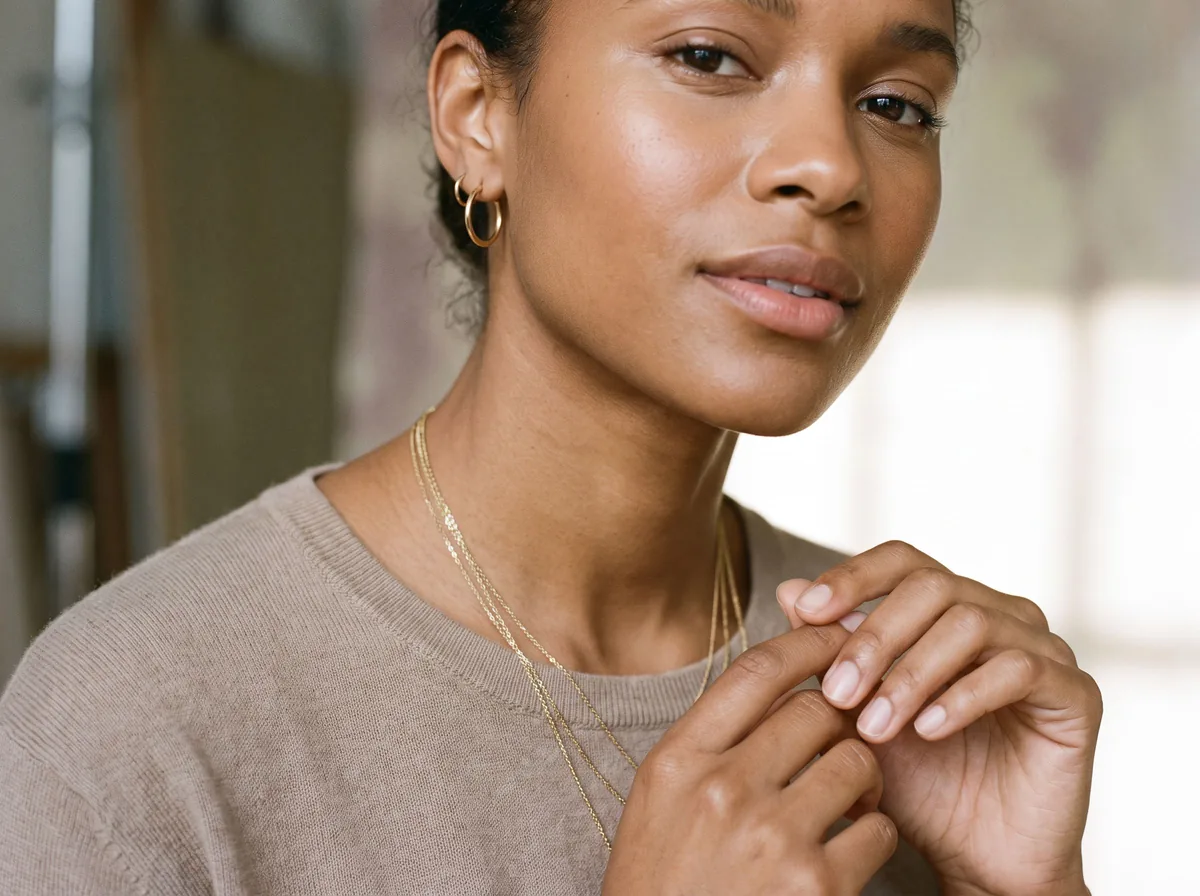 Jewelry on ModelFreeShow earrings, necklaces, rings and bracelets worn by a realistic model, at true scale, with the metal and stones kept exact.
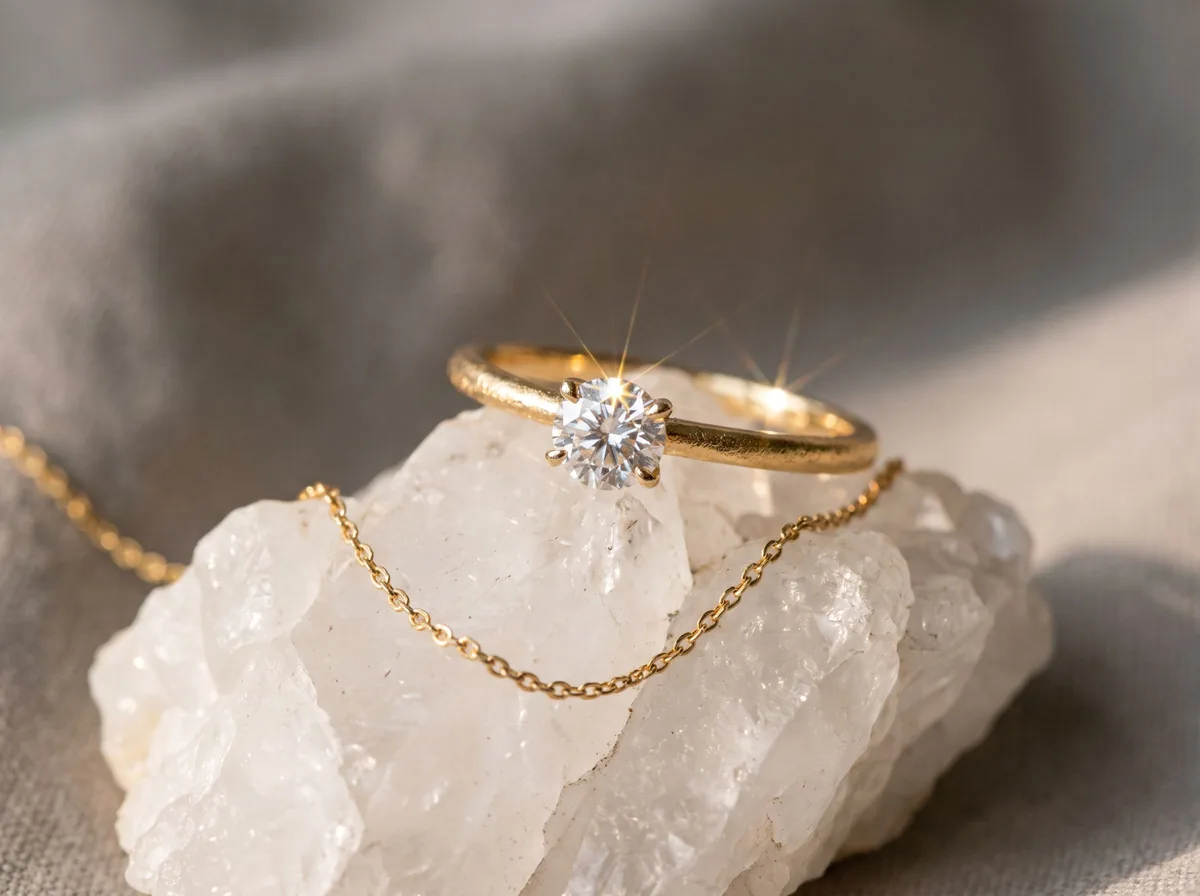 Jewelry Product PhotographyFreeTurn a phone photo of a ring, necklace or earrings into sharp jewelry product photos with controlled sparkle and true metal color.
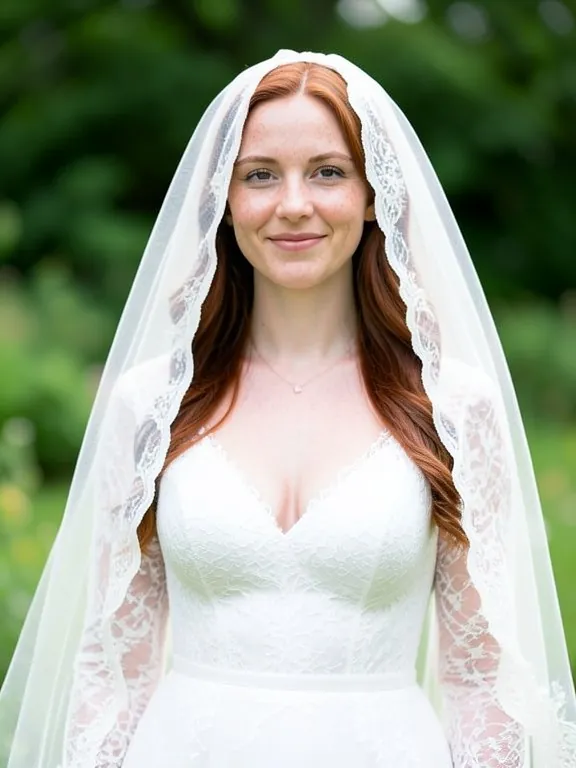 Virtual Wedding Veil Try OnFreeUpload a photo of the bride and a photo of a veil, or pick a style like cathedral, fingertip or birdcage. The AI places the veil on her head and keeps her face, hair and dress the same.
 Jewelry Description GeneratorFreeTurn metal, stone, size and style into a jewelry listing that sells the look and answers the questions buyers ask before they order.
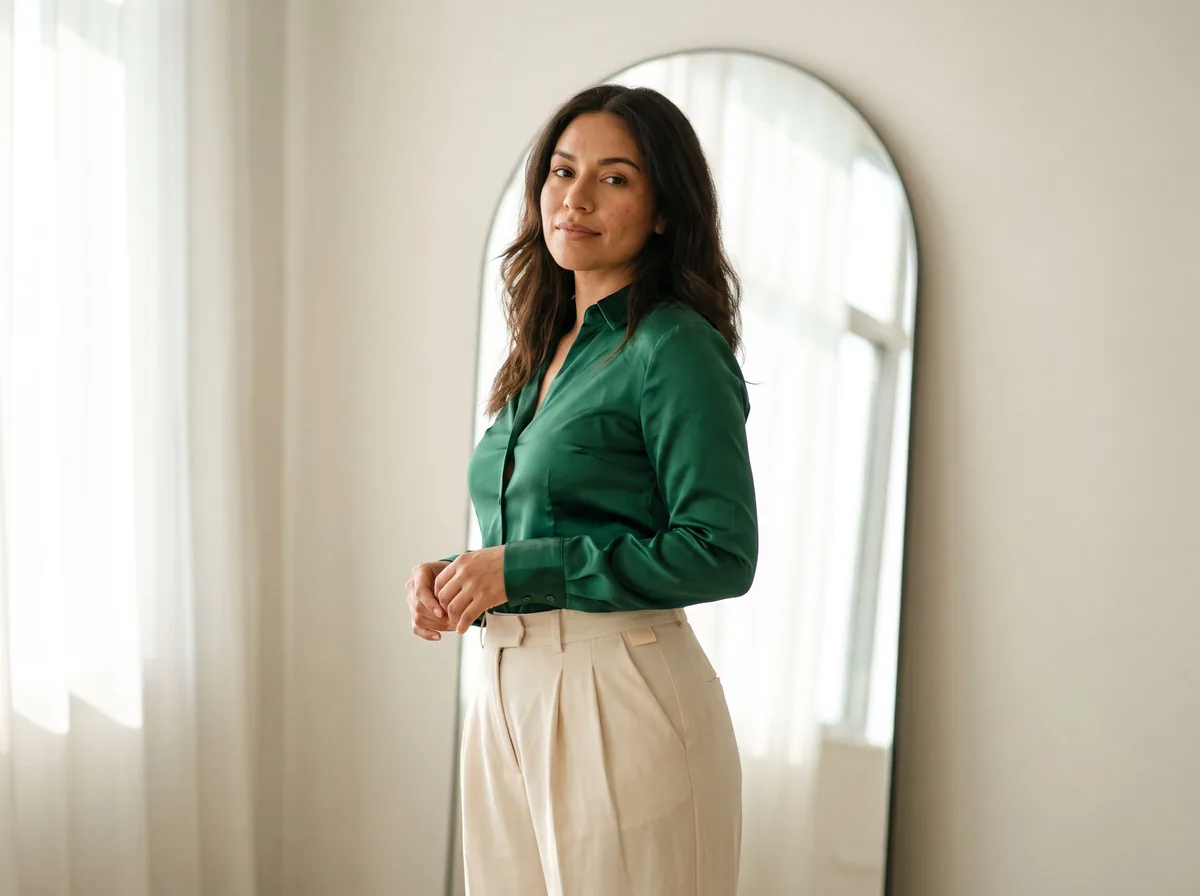 Virtual Try On ClothesFreeUpload a photo of a person and a photo of a garment. The AI dresses the person in it, keeping face, pose and background.
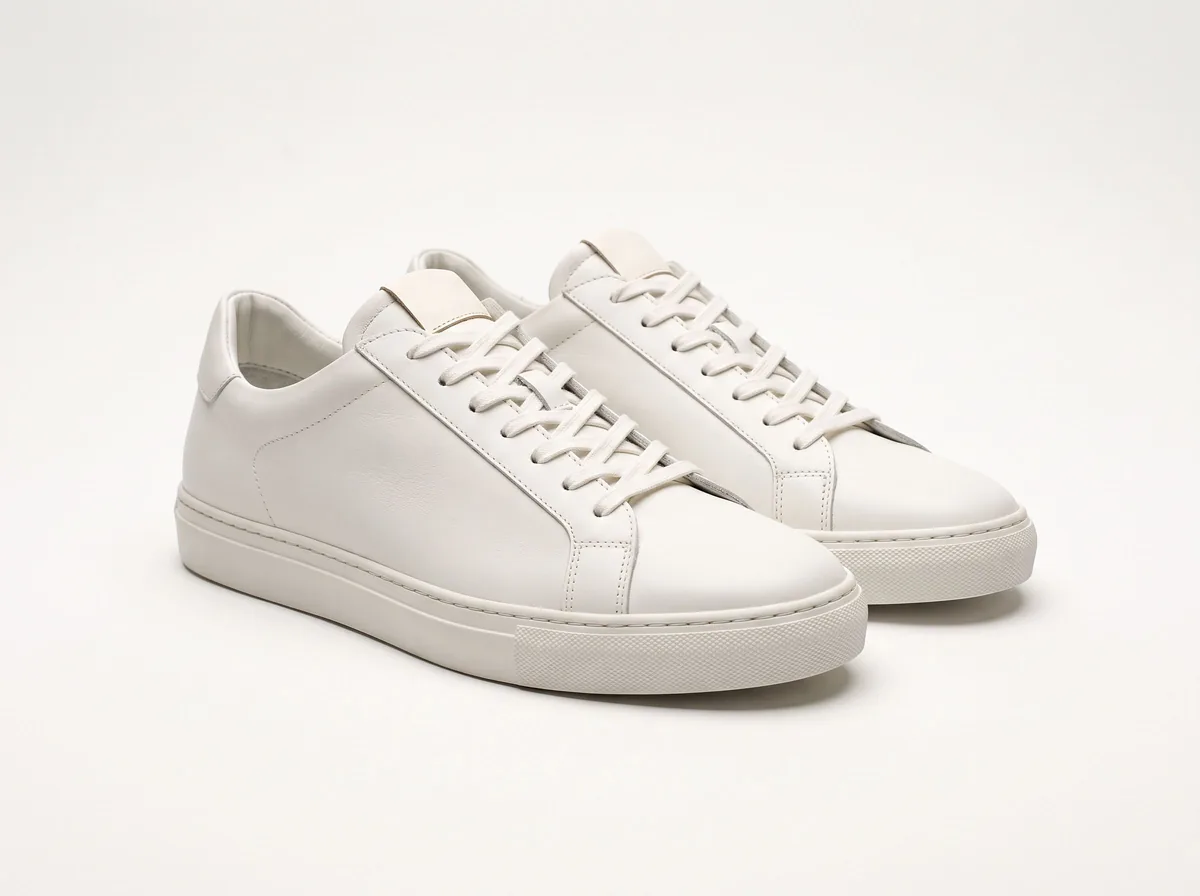 Product Photo White BackgroundFreePut any product on a clean white background for your listings, then check it against Amazon's main-image rules before you upload.
Ask an assistant
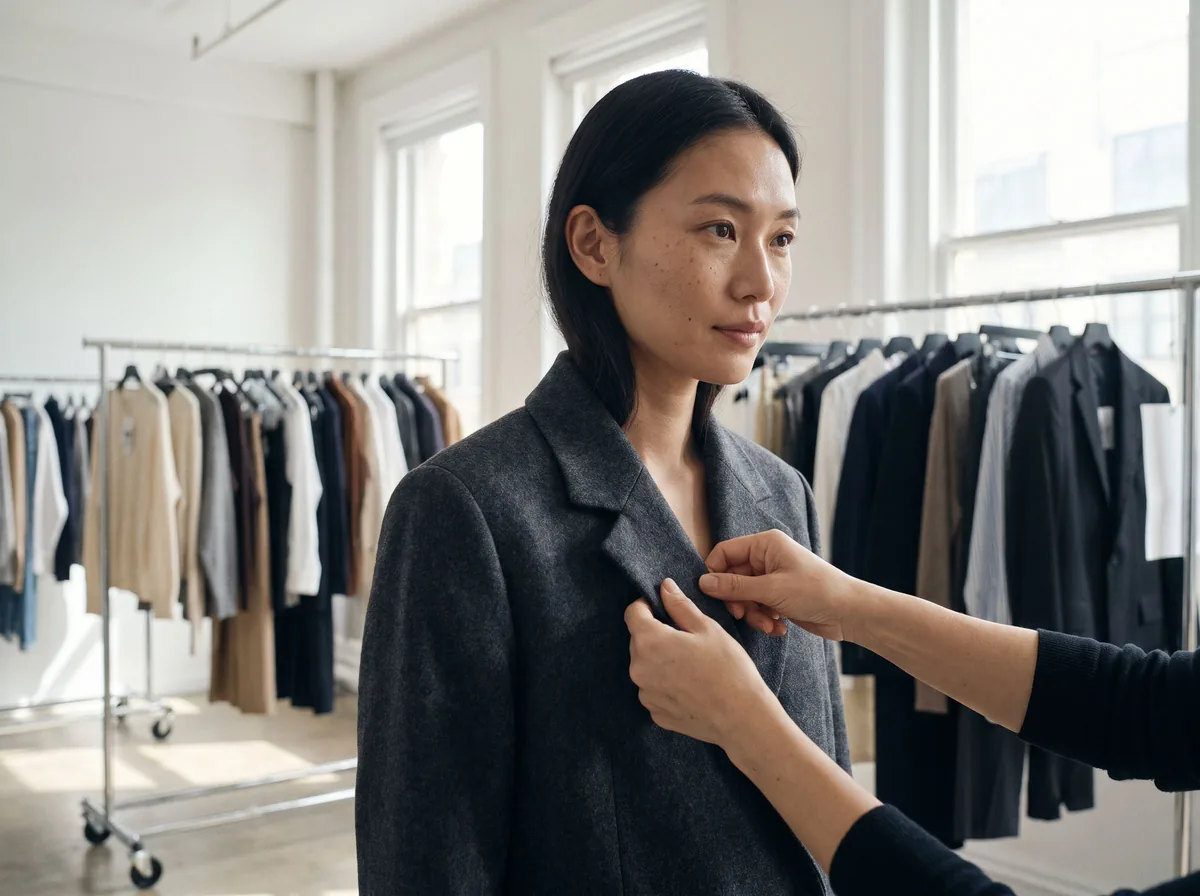 Fit ModelFashion Models FreePlans on-model photos for your clothing: which model, pose, setting and angles, with prompts for the AI fashion model tools.Chat free →
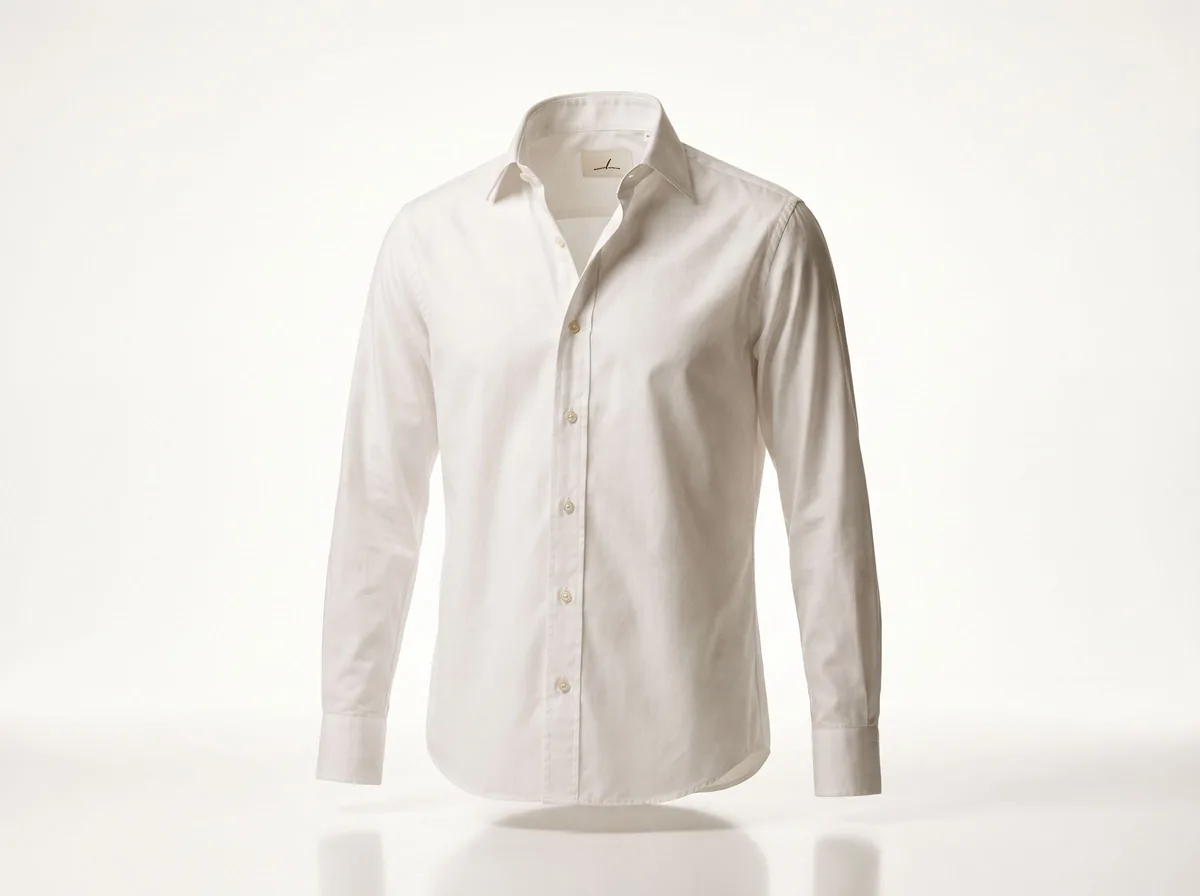 Ghost Mannequin AssistantFashion Models FreeWalks you through ghost mannequin photos: how to shoot the garment, which prompt to use, and how to fix a result.Chat free →
 Lookbook PlannerFashion Models FreeTurns a new collection into a lookbook plan: the story, the look order, the page spreads and a prompt for every image.Chat free →